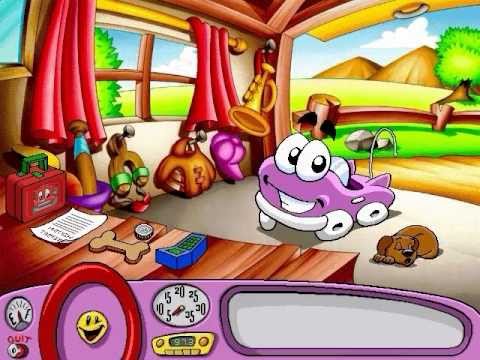
Playback starts YouTube’s embedded player (privacy-enhanced mode).
How to run older Humongous games on 64-bit computers
ChannelMr. Eight-Three-OneDescription from the creator
(THIS ONLY APPLIES TO GAMES MADE BY HUMONGOUS ENTERTAINMENT. Read below for info on non-Humongous games.)
Please read the FAQs at the bottom before asking anything.
If you get this message whenever trying to run a HE game on a Windows Vista, Windows 7, Windows 8, or Windows 10 64-bit...
The program or feature "[Insert Game Here]" cannot start or run due to incompatibility with 64-bit versions of Windows. Please contact the software vendor to ask if a 64-bit Windows compatible version is available.
...I will say that you're in luck. Since the games aren't actually 16-bit and just use a 16-bit EXE that executes a 32-bit EXE in disguise, the games can still perfectly function on 64-bit machines! This trick still doesn't seem to be very well-known, and I would have waited to make this until I actually got a 64-bit computer, but the amount of people thinking they were SOL led me to make this.
Games this trick will work on (if you have a re-release from '99 or later, this is not needed):
Putt-Putt Joins the Parade
Fatty Bear's Birthday Surprise
Putt-Putt Goes to the Moon
Putt-Putt & Fatty Bear's Activity Pack
Freddi Fish and the Case of the Missing Kelp Seeds
Putt-Putt Saves the Zoo
Freddi Fish 2: The Case of the Haunted School House
Pajama Sam 1: No Need to Hide When It's Dark Outside
Spy Fox 1 in Dry Cereal
Putt-Putt Travels Through Time
Freddi Fish 3: The Case of the Stolen Conch Shell
Pajama Sam 2: Thunder and Lightning Aren't So Frightening
Putt-Putt Enters the Race
Freddi Fish 4: The Case of the Hogfish Rustlers of Briny Gulch
Backyard Baseball
Backyard Soccer
Putt-Putt and Pep's Balloon-o-Rama
Putt-Putt and Pep's Dog on a Stick
Freddi Fish and Luther's Maze Madness
Freddi Fish and Luther's Water Worries
Spy Fox in Cheese Chase
Pajama Sam's Sock Works
Pajama Sam's Lost and Found
Let's Explore the Farm
Let's Explore the Airport
Let's Explore the Jungle
Big Thinkers! Kindergarten
Big Thinkers! First Grade
FAQs:
Q. I can't find the EXE file, where is it?
A. Just like I said before, you must show known file extensions in order to find it. Google how to do it, it varies per OS and is not worth explaining here.
Q. Where is the W32? I turned on known file extensions and still can't find it.
A. Either you are attempting to run a non-Humongous game (more on that below), or you are running a newer one which lacks a W32, in which case the game should run without any modifications.
Q. I tried running the classics and this didn't work, help!
A. The classics plug into the WinG libraries, something that is not included on modern versions of Windows. To resolve this, go into X:\SYSTEM\WING (where X: is your disc drive letter with the game inserted), and copy the file WING32.DLL to C:\Windows\SysWOW64. Try ScummVM is this fails.
Q. My game is a really tiny box surrounded by black, how do I solve this?
A. There are three options to this.
1. Run the game in 640 x 480. To accomplish this, right click your new EXE file and click "Properties", go to the "Compatibility" tab, and check the box that mentions 640 x 480. I'd also recommend running the game in Compatibility mode for Windows 98 because sometimes the game fails to go back to your regular resolution you do so.
2. Press Shift+F8. On some of the games (not all), this will fix the resolution.
3. Press Shift+F7. This will expand the screen, ideal if you prefer to play in higher resolutions.
Q. When I play the classics, I get these annoying graphical glitches where the screen goes black and fading doesn't work. What do I do?
A. Do the same as option number 1 above, but also check "Run in 256 colors". This does not work in Windows 8 onward though.
Q. I get an error that tells me I'm missing resource DLL, what's going on?
A. I really want to answer this question, I truly do -- except I have never come across this problem before. My best guess is that you also have DLLs hidden, thus you missed it when you copied the files.
Q. I can't save my game, what gives?
A. Run the game as an administrator.
Q. And finally, the one everyone has been asking...can I use this trick to run game X?
A. If it wasn't made by Humongous, no. I'm sorry if I got you over-excited or something, but this is NOT a be-all end-all solution to running 16-bit programs on modern machines. Different companies did different things. HOWEVER...there are still some possible solutions.
First off, if you are lucky, it may just be the installer that is 16-bit. See here for details: reactos.org/forum/viewtopic.php?p=90280
If that fails, you could also pull out an emulator. If the game works on Windows 3.1, you could install W3.1 on DOSBox. I know not everybody has the knowledge for this, but since it's really old and Microsoft doesn't seem to care anymore, you can find a pre-installed version just by Googling around. There are others to give a try too; if you are on Windows 7 Pro or above, you can download the free Windows XP Mode.
Please read the FAQs at the bottom before asking anything.
If you get this message whenever trying to run a HE game on a Windows Vista, Windows 7, Windows 8, or Windows 10 64-bit...
The program or feature "[Insert Game Here]" cannot start or run due to incompatibility with 64-bit versions of Windows. Please contact the software vendor to ask if a 64-bit Windows compatible version is available.
...I will say that you're in luck. Since the games aren't actually 16-bit and just use a 16-bit EXE that executes a 32-bit EXE in disguise, the games can still perfectly function on 64-bit machines! This trick still doesn't seem to be very well-known, and I would have waited to make this until I actually got a 64-bit computer, but the amount of people thinking they were SOL led me to make this.
Games this trick will work on (if you have a re-release from '99 or later, this is not needed):
Putt-Putt Joins the Parade
Fatty Bear's Birthday Surprise
Putt-Putt Goes to the Moon
Putt-Putt & Fatty Bear's Activity Pack
Freddi Fish and the Case of the Missing Kelp Seeds
Putt-Putt Saves the Zoo
Freddi Fish 2: The Case of the Haunted School House
Pajama Sam 1: No Need to Hide When It's Dark Outside
Spy Fox 1 in Dry Cereal
Putt-Putt Travels Through Time
Freddi Fish 3: The Case of the Stolen Conch Shell
Pajama Sam 2: Thunder and Lightning Aren't So Frightening
Putt-Putt Enters the Race
Freddi Fish 4: The Case of the Hogfish Rustlers of Briny Gulch
Backyard Baseball
Backyard Soccer
Putt-Putt and Pep's Balloon-o-Rama
Putt-Putt and Pep's Dog on a Stick
Freddi Fish and Luther's Maze Madness
Freddi Fish and Luther's Water Worries
Spy Fox in Cheese Chase
Pajama Sam's Sock Works
Pajama Sam's Lost and Found
Let's Explore the Farm
Let's Explore the Airport
Let's Explore the Jungle
Big Thinkers! Kindergarten
Big Thinkers! First Grade
FAQs:
Q. I can't find the EXE file, where is it?
A. Just like I said before, you must show known file extensions in order to find it. Google how to do it, it varies per OS and is not worth explaining here.
Q. Where is the W32? I turned on known file extensions and still can't find it.
A. Either you are attempting to run a non-Humongous game (more on that below), or you are running a newer one which lacks a W32, in which case the game should run without any modifications.
Q. I tried running the classics and this didn't work, help!
A. The classics plug into the WinG libraries, something that is not included on modern versions of Windows. To resolve this, go into X:\SYSTEM\WING (where X: is your disc drive letter with the game inserted), and copy the file WING32.DLL to C:\Windows\SysWOW64. Try ScummVM is this fails.
Q. My game is a really tiny box surrounded by black, how do I solve this?
A. There are three options to this.
1. Run the game in 640 x 480. To accomplish this, right click your new EXE file and click "Properties", go to the "Compatibility" tab, and check the box that mentions 640 x 480. I'd also recommend running the game in Compatibility mode for Windows 98 because sometimes the game fails to go back to your regular resolution you do so.
2. Press Shift+F8. On some of the games (not all), this will fix the resolution.
3. Press Shift+F7. This will expand the screen, ideal if you prefer to play in higher resolutions.
Q. When I play the classics, I get these annoying graphical glitches where the screen goes black and fading doesn't work. What do I do?
A. Do the same as option number 1 above, but also check "Run in 256 colors". This does not work in Windows 8 onward though.
Q. I get an error that tells me I'm missing resource DLL, what's going on?
A. I really want to answer this question, I truly do -- except I have never come across this problem before. My best guess is that you also have DLLs hidden, thus you missed it when you copied the files.
Q. I can't save my game, what gives?
A. Run the game as an administrator.
Q. And finally, the one everyone has been asking...can I use this trick to run game X?
A. If it wasn't made by Humongous, no. I'm sorry if I got you over-excited or something, but this is NOT a be-all end-all solution to running 16-bit programs on modern machines. Different companies did different things. HOWEVER...there are still some possible solutions.
First off, if you are lucky, it may just be the installer that is 16-bit. See here for details: reactos.org/forum/viewtopic.php?p=90280
If that fails, you could also pull out an emulator. If the game works on Windows 3.1, you could install W3.1 on DOSBox. I know not everybody has the knowledge for this, but since it's really old and Microsoft doesn't seem to care anymore, you can find a pre-installed version just by Googling around. There are others to give a try too; if you are on Windows 7 Pro or above, you can download the free Windows XP Mode.
About this tutorial
Mr. Eight-Three-One published this 2:48 video tutorial on October 25, 2012. It has been watched 109,826 times on YouTube.
- Channel
- Mr. Eight-Three-One
- Category
- Education
- Duration
- 2:48
- Published
- October 25, 2012
- Views
- 109,826
- Likes
- 754
Tags
Share
Further reading
-
How to run older Humongous games on 64-bit computers - RUclip
ruclip.com
(THIS ONLY APPLIES TO GAMES MADE BY HUMONGOUS ENTERTAINMENT. Read below for info on non-Humongous games.) Please read the FAQs at the bottom before asking anything ...
-
How to run old games on Windows 10 | PC Gamer
pcgamer.com
There's a few specific reasons why older games won't run automatically on Windows 10, even in compatibility mode: 64-bit Windows 10 no longer supports 16-bit applications.
-
How to Run Old Games on Your Modern PC | PCMag
pcmag.com
How to Run Old Games on Your Modern PC. Want to play retro computer games on Windows 10? The older a game is, the less likely it is to work right out of the box on a new PC; these tricks can help.
This tutorial in other languages
- FRComment faire pour exécuter les anciens jeux Humongous sur les ordinateurs 64 bits
- ESCómo ejecutar juegos Humongous mayores en equipos de 64 bits
- PTComo executar jogos Humongous mais velhos em computadores de 64 bits
- ITCome eseguire più anziani giochi Humongous su computer a 64 bit
- DEWie man ältere Humongous Spiele auf 64-Bit-Computern ausgeführt werden
- NLHoe om oudere Humongous games op 64-bit computers draaien
- RUКак запускать старые Humongous игры на 64-разрядных компьютерах
- PLJak uruchomić starsze Humongous gier na komputerach 64-bitowych
- JA64ビットコンピュータ上の古い作品Humongousゲームを実行する方法
- ARكيفية تشغيل الألعاب القديمة العملاقة على أجهزة كمبيوتر 64 بت
- HI64-बिट कंप्यूटर पर पुराने ह्यूमोंगस खेल को चलाने के लिए कैसे
- IDBagaimana menjalankan game humongous tua pada komputer 64-bit