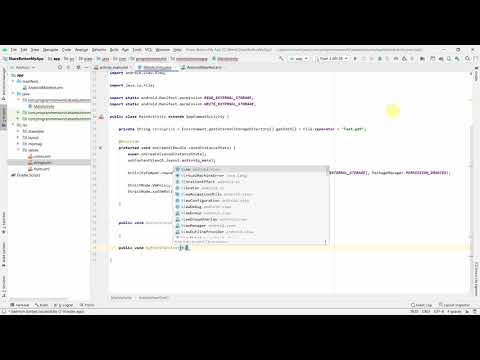
Playback starts YouTube’s embedded player (privacy-enhanced mode).
How to share file or text on gmail, whatsapp, sms, Bluetooth from your Android App (share button)?
ChannelProgrammer WorldDescription from the creator
This video shows how to create your Android App to share a pdf over other file sharing Apps such as gmail (or any other email client), whatsapp (or other messaging Apps), google drive, Bluetooth, etc.
This video also shows how a text message can be shared similarly on other mobile App such as gmail/ email, whatsapp, sms, bluetooth.
This App development takes a very simple layout. It just adds a share button each for file sharing and text sharing.
A sample Test.pdf file is already downloaded and kept in the external storage directory for the demo purpose.
In the code, it first takes the permission to access the file from the App. For that the respective permissions are defined in the Manifest file and then in the Java code the permissions are requested from the users explicitly.
StrictMode VmPolicy is build locally in the App to avoid the OS level interruption in sharing the file outside of the parent App.
For sharing the file and text separate methods are written which is accessed as onClick attribute of the two share buttons in the layout.
The code of both the share button remains more or less same as they use intent to open the chooser to send the file or text respectively.
The complete source code of this App is shared in the link below. The Java part of the code is also provided in the end here.
programmerworld.co/android/how-to-share-file-or…
We hope you liked this video. for any suggestions, queries or appreciation we can also be reached at: programmerworld.co/contact/ or email at: [email protected]
Java code:
package com.programmerworld.sharebuttonmyapp;
import android.content.Intent;
import android.content.pm.PackageManager;
import android.net.Uri;
import android.os.Bundle;
import android.os.Environment;
import android.os.StrictMode;
import android.view.View;
import android.widget.Toast;
import androidx.appcompat.app.AppCompatActivity;
import androidx.core.app.ActivityCompat;
import java.io.File;
import static android.Manifest.permission.READ_EXTERNAL_STORAGE;
import static android.Manifest.permission.WRITE_EXTERNAL_STORAGE;
public class MainActivity extends AppCompatActivity {
private String stringFile = Environment.getExternalStorageDirectory().getPath() + File.separator + "Test.pdf";
@Override
protected void onCreate(Bundle savedInstanceState) {
super.onCreate(savedInstanceState);
setContentView(R.layout.activity_main);
ActivityCompat.requestPermissions(this, new String[]{READ_EXTERNAL_STORAGE, WRITE_EXTERNAL_STORAGE}, PackageManager.PERMISSION_GRANTED);
StrictMode.VmPolicy.Builder builder = new StrictMode.VmPolicy.Builder();
StrictMode.setVmPolicy(builder.build());
}
public void buttonShareFile(View view){
File file = new File(stringFile);
if (!file.exists()){
Toast.makeText(this, "File doesn't exists", Toast.LENGTH_LONG).show();
return;
}
Intent intentShare = new Intent(Intent.ACTION_SEND);
intentShare.setType("application/pdf");
intentShare.putExtra(Intent.EXTRA_STREAM, Uri.parse("file://"+file));
startActivity(Intent.createChooser(intentShare, "Share the file ..."));
}
public void buttonShareText(View view){
Intent intentShare = new Intent(Intent.ACTION_SEND);
intentShare.setType("text/plain");
intentShare.putExtra(Intent.EXTRA_SUBJECT,"My Subject Here ... ");
intentShare.putExtra(Intent.EXTRA_TEXT,"My Text of the message goes here ... write anything what you want");
startActivity(Intent.createChooser(intentShare, "Shared the text ..."));
}
}
This video also shows how a text message can be shared similarly on other mobile App such as gmail/ email, whatsapp, sms, bluetooth.
This App development takes a very simple layout. It just adds a share button each for file sharing and text sharing.
A sample Test.pdf file is already downloaded and kept in the external storage directory for the demo purpose.
In the code, it first takes the permission to access the file from the App. For that the respective permissions are defined in the Manifest file and then in the Java code the permissions are requested from the users explicitly.
StrictMode VmPolicy is build locally in the App to avoid the OS level interruption in sharing the file outside of the parent App.
For sharing the file and text separate methods are written which is accessed as onClick attribute of the two share buttons in the layout.
The code of both the share button remains more or less same as they use intent to open the chooser to send the file or text respectively.
The complete source code of this App is shared in the link below. The Java part of the code is also provided in the end here.
programmerworld.co/android/how-to-share-file-or…
We hope you liked this video. for any suggestions, queries or appreciation we can also be reached at: programmerworld.co/contact/ or email at: [email protected]
Java code:
package com.programmerworld.sharebuttonmyapp;
import android.content.Intent;
import android.content.pm.PackageManager;
import android.net.Uri;
import android.os.Bundle;
import android.os.Environment;
import android.os.StrictMode;
import android.view.View;
import android.widget.Toast;
import androidx.appcompat.app.AppCompatActivity;
import androidx.core.app.ActivityCompat;
import java.io.File;
import static android.Manifest.permission.READ_EXTERNAL_STORAGE;
import static android.Manifest.permission.WRITE_EXTERNAL_STORAGE;
public class MainActivity extends AppCompatActivity {
private String stringFile = Environment.getExternalStorageDirectory().getPath() + File.separator + "Test.pdf";
@Override
protected void onCreate(Bundle savedInstanceState) {
super.onCreate(savedInstanceState);
setContentView(R.layout.activity_main);
ActivityCompat.requestPermissions(this, new String[]{READ_EXTERNAL_STORAGE, WRITE_EXTERNAL_STORAGE}, PackageManager.PERMISSION_GRANTED);
StrictMode.VmPolicy.Builder builder = new StrictMode.VmPolicy.Builder();
StrictMode.setVmPolicy(builder.build());
}
public void buttonShareFile(View view){
File file = new File(stringFile);
if (!file.exists()){
Toast.makeText(this, "File doesn't exists", Toast.LENGTH_LONG).show();
return;
}
Intent intentShare = new Intent(Intent.ACTION_SEND);
intentShare.setType("application/pdf");
intentShare.putExtra(Intent.EXTRA_STREAM, Uri.parse("file://"+file));
startActivity(Intent.createChooser(intentShare, "Share the file ..."));
}
public void buttonShareText(View view){
Intent intentShare = new Intent(Intent.ACTION_SEND);
intentShare.setType("text/plain");
intentShare.putExtra(Intent.EXTRA_SUBJECT,"My Subject Here ... ");
intentShare.putExtra(Intent.EXTRA_TEXT,"My Text of the message goes here ... write anything what you want");
startActivity(Intent.createChooser(intentShare, "Shared the text ..."));
}
}
About this tutorial
Programmer World published this 18:43 video tutorial on August 7, 2020. It has been watched 13,694 times on YouTube.
- Channel
- Programmer World
- Category
- Education
- Duration
- 18:43
- Published
- August 7, 2020
- Views
- 13,694
- Likes
- 138
Share
This tutorial in other languages
- FRComment fichier partagé ou texte sur gmail, WhatsApp, SMS, Bluetooth de votre application Android (bouton action)?
- ESCómo compartido de archivos o texto en Gmail, WhatsApp, SMS, Bluetooth desde su aplicación de Android (botón de acción)?
- PTComo compartilhamento de arquivo ou texto no gmail, whatsapp, sms, Bluetooth de seu App Android (botão de compartilhamento)?
- ITCome condivisione di file o testo su gmail, whatsapp, sms, Bluetooth dal App Android (pulsante di condivisione)?
- DEWie erfolgt die Share-Datei oder Text auf gmail, WhatsApp, SMS, Bluetooth von Ihrem Android-App (Share-Taste)?
- NLHoe wordt gedeeld bestand of tekst op gmail, WhatsApp, sms, Bluetooth vanaf je Android App (share-knop)?
- RUКак файл акций или текст на Gmail, WhatsApp, SMS, Bluetooth с вашего Android App (кнопка складочном)?
- PLJak pliku zakładowego lub tekstu na gmail, WhatsApp, SMS, Bluetooth z Android App (przycisk akcji)?
- JAAndroidアプリ(シェアボタン)からファイルまたはテキストgmailの上、のWhatsApp、SMS、ブルートゥースを共有する方法は?
- ARكيفية مشاركة الملفات أو النص على جوجل، ال WhatsApp، والرسائل القصيرة، وتقنية بلوتوث من جهاز الروبوت التطبيق (زر سهم)؟
- HIकैसे शेयर फ़ाइल या जीमेल, WhatsApp, एसएमएस पर पाठ करने के लिए, ब्लूटूथ अपने Android App (शेयर बटन) से?
- IDCara berbagi file atau teks pada gmail, whatsapp, sms, Bluetooth dari Anda App Android (tombol share)?