Playback starts YouTube’s embedded player (privacy-enhanced mode).
How to solve "drag to fill not working" or enable fill handle and cell drag & drop in excel
ChannelExcel 10 tutorialChapters
Description from the creator
*How to solve "drag to fill not working" or enable fill handle and cell drag & drop in excel?*
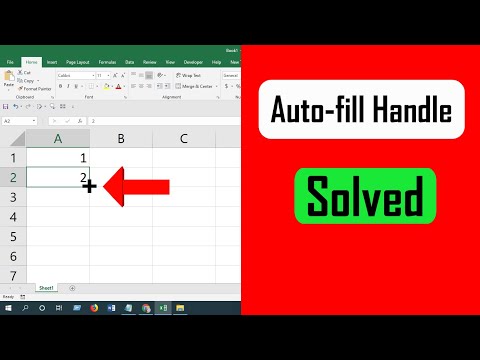
In this excel tutorial for beginners I am about to solve "excel drag down not working" issue in excel. There are times we need to auto-fill formula to a column but we can’t find the "Fill handle" if we hover at the corner of a cell. In this tutorial we are about to resolve excel fill handle not working issue.
To solve autofill not working in excel you need to check two things. First one is the "Calculation Options". This usually solve the autofill issues with formula. This will solve "excel drag down formula not working" issue. The second one is the place where you can enable fill handle and cell drag & drop in excel.
*Solve excel drag formula not working.*
Step 1: Click on the "Formula Tab"
Step 2: Click on "Calculation Option"
Step 3: Select "Automatic"
If you already enable fill handle and cell drag & drop but still excel auto-fill option is not showing then this would resolve the problem. If the series fill not properly working then you should follow below procedure also.
*Enable fill handle and cell drag & drop in excel*
Step 1: Click on the "File" Menu
Step 2: Click on "Options"
Step 3: Click on "Advanced"
Step 4: Check-mark on or "Enable fill handle and cell drag & drop"
Done. Now your fill handle not working in excel problem should be solved. From now on you can auto fill formulas, numbers, text and everything excel supports. This is the best and proven solution for Excel autofill drag not working issue.
*Chapters*
0:00 Drag option not working in Excel
0:47 Set Formula Calculation to Automatic
1:21 Enable Fill Handle and Cell Drag and Drop In Excel
1:46 Verify the Solution.
#FixExcel #autofill #exceltricks
Thanks for watching.
-------------------------------------------------------------------------------------------------------------
*Become a member and enjoy exclusive perks while supporting the channel you love!*
youtube.com/@Excel10tutorial/join
*Support the channel on Patreon*
patreon.com/excel10tutorial
-------------------------------------------------------------------------------------------------------------
*Please subscribe to #excel10tutorial:* goo.gl/uL8fqQ
*Here goes the most recent video of the channel:* tinyurl.com/h62wkxje
*Playlists:*
Advance Excel Tutorial: goo.gl/ExYy7v
Excel Tutorial for Beginners: goo.gl/UDrDcA
Excel Case: goo.gl/xiP3tv
Combine Workbook & Worksheets: bit.ly/2Tpf7DB
Excel VBA Programming Course: bit.ly/excelvbacourse
*Social media:*
Facebook: facebook.com/excel10tutorial
Twitter: twitter.com/excel10tutorial
Blogger: excel10tutorial.blogspot.com
Tumblr: excel10tutorial.tumblr.com
Instagram: instagram.com/excel_10_tutorial
Hubpages: hubpages.com/@excel10tutorial
Website: msexceltutorial.com
In this excel tutorial for beginners I am about to solve "excel drag down not working" issue in excel. There are times we need to auto-fill formula to a column but we can’t find the "Fill handle" if we hover at the corner of a cell. In this tutorial we are about to resolve excel fill handle not working issue.
To solve autofill not working in excel you need to check two things. First one is the "Calculation Options". This usually solve the autofill issues with formula. This will solve "excel drag down formula not working" issue. The second one is the place where you can enable fill handle and cell drag & drop in excel.
*Solve excel drag formula not working.*
Step 1: Click on the "Formula Tab"
Step 2: Click on "Calculation Option"
Step 3: Select "Automatic"
If you already enable fill handle and cell drag & drop but still excel auto-fill option is not showing then this would resolve the problem. If the series fill not properly working then you should follow below procedure also.
*Enable fill handle and cell drag & drop in excel*
Step 1: Click on the "File" Menu
Step 2: Click on "Options"
Step 3: Click on "Advanced"
Step 4: Check-mark on or "Enable fill handle and cell drag & drop"
Done. Now your fill handle not working in excel problem should be solved. From now on you can auto fill formulas, numbers, text and everything excel supports. This is the best and proven solution for Excel autofill drag not working issue.
*Chapters*
0:00 Drag option not working in Excel
0:47 Set Formula Calculation to Automatic
1:21 Enable Fill Handle and Cell Drag and Drop In Excel
1:46 Verify the Solution.
#FixExcel #autofill #exceltricks
Thanks for watching.
-------------------------------------------------------------------------------------------------------------
*Become a member and enjoy exclusive perks while supporting the channel you love!*
youtube.com/@Excel10tutorial/join
*Support the channel on Patreon*
patreon.com/excel10tutorial
-------------------------------------------------------------------------------------------------------------
*Please subscribe to #excel10tutorial:* goo.gl/uL8fqQ
*Here goes the most recent video of the channel:* tinyurl.com/h62wkxje
*Playlists:*
Advance Excel Tutorial: goo.gl/ExYy7v
Excel Tutorial for Beginners: goo.gl/UDrDcA
Excel Case: goo.gl/xiP3tv
Combine Workbook & Worksheets: bit.ly/2Tpf7DB
Excel VBA Programming Course: bit.ly/excelvbacourse
*Social media:*
Facebook: facebook.com/excel10tutorial
Twitter: twitter.com/excel10tutorial
Blogger: excel10tutorial.blogspot.com
Tumblr: excel10tutorial.tumblr.com
Instagram: instagram.com/excel_10_tutorial
Hubpages: hubpages.com/@excel10tutorial
Website: msexceltutorial.com
About this tutorial
Excel 10 tutorial published this 2:15 video tutorial on April 15, 2020. It has been watched 511,657 times on YouTube.
- Channel
- Excel 10 tutorial
- Category
- Education
- Duration
- 2:15
- Published
- April 15, 2020
- Views
- 511,657
- Likes
- 5,320
Tags
Share
This tutorial in other languages
- FRComment résoudre « glisser pour remplir ne fonctionne pas » ou activer la poignée de remplissage et de glisser-déposer cellules dans Excel
- ES¿Cómo resolver "arrastre para llenar no funciona" o habilitar el controlador de relleno y arrastrar y soltar celular en Excel
- PTComo resolver "arrastar para preencher não funciona" ou habilitar alça de preenchimento e arraste celular e soltar no Excel
- ITCome risolvere "trascinare per riempire non funziona" o attivare quadratino di riempimento e trascinare cellule & drop in Excel
- DEWie zu lösen „drag zu füllen funktioniert nicht“ oder aktivieren Füllziehpunkt und Zell Drag & Drop in Excel
- NLHoe op te lossen "drag in te vullen werkt niet" of inschakelen vulgreep en mobiele drag & drop in excel
- RUКак решить «перетащить, чтобы заполнить не работает» или включить маркер заполнения и ячейки перетащить & падение в Excel
- PLJak rozwiązać „przeciągnij, aby wypełnić nie działa” lub włączyć uchwyt wypełnienia, a następnie przeciągnij i upuść komórek w Excelu
- JAどのように「動作しないを埋めるために、ドラッグ」を解決したり、フィルハンドルおよびセルのドラッグ&ドロップがExcelで有効にします
- ARكيفية حل "السحب لملء لا يعمل" أو تمكين مقبض التعبئة واسحب الخلية وانخفاض في التفوق
- HIहल करने के लिए कैसे "खींचें काम नहीं कर भरने के लिए" या भरण हैंडल और सेल खींचें सक्षम और एक्सेल में गिरावट
- IDBagaimana mengatasi "tarik untuk mengisi tidak bekerja" atau mengaktifkan mengisi menangani dan tarik sel & drop di excel