Playback starts YouTube’s embedded player (privacy-enhanced mode).
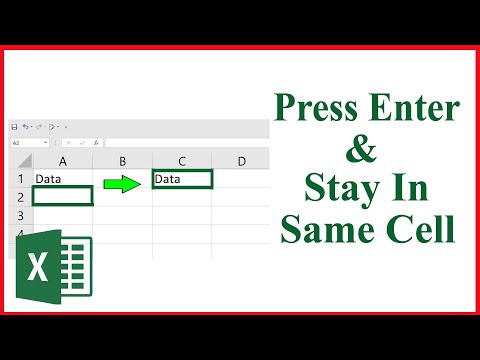
How To Stay In The Same Cell After Pressing The Enter Key In Excel
ChannelExcel 10 tutorialDescription from the creator
What happens when you press enter key in excel?
When you press Enter in excel generally you enter the data and the selection moves down one cell. If you want you can change selection moving direction. Though your selection moves down one cell generally still you can configure this in a way that it could move one cell UP, DOWN, LEFT, RIGHT also you can configure it in a way that the selection stays in the same cell.
The easiest way to keep the selection in the same cell after pressing the Enter key is to use a keyboard shortcut key CTRL+ENTER. If you use this keyboard shortcut you will not only enter the value but also keep the selection in the same cell.
Now i will explain how you can press enter and move the selection to Right, Left, Down, Up and also in the same cell using nothing but excel feature.
Lets get started.
Step 1: Click on the file
Step 2: Select "Option"
Step 3: Click on "Advanced"
Step 4: Now at the top of the screen you will find "After pressing enter, move selection" drop-down list.
Step 5: Now if you select up, down, left and right the selection will move up, down, left and right one cell respectively.
Step 6: If you want to keep the selection in the same cell after pressing enter then you'll have to un-check "After pressing enter, move selection" option.
Done. Now you can use both keyboard shortcut and also excel feature to press enter and keep the selection in the same cell.
Thanks for watching.
#PressEnterAndMoveSelection #KeyboardShortcut
-------------------------------------------------------------------------------------------------------------
Support the channel with as low as $5
patreon.com/excel10tutorial
-------------------------------------------------------------------------------------------------------------
Please subscribe to #excel10tutorial
goo.gl/uL8fqQ
Playlists:
Excel Data Validation: Allow Specific Entries, Dates, Dropdown lists and More: bit.ly/49kV7vD
Advance Excel Tutorial: goo.gl/ExYy7v
Excel Tutorial for Beginners: goo.gl/UDrDcA
Excel Case: goo.gl/xiP3tv
Combine Workbook & Worksheets: bit.ly/2Tpf7DB
Excel VBA Programming Course: bit.ly/excelvbacourse
Social media:
Facebook: facebook.com/excel10tutorial
Twitter: twitter.com/excel10tutorial
Blogger: excel10tutorial.blogspot.com
Tumblr: excel10tutorial.tumblr.com
Instagram: instagram.com/excel_10_tutorial
Hubpages: hubpages.com/@excel10tutorial *Become a member and enjoy exclusive perks while supporting the channel you love!*
youtube.com/@Excel10tutorial/join
When you press Enter in excel generally you enter the data and the selection moves down one cell. If you want you can change selection moving direction. Though your selection moves down one cell generally still you can configure this in a way that it could move one cell UP, DOWN, LEFT, RIGHT also you can configure it in a way that the selection stays in the same cell.
The easiest way to keep the selection in the same cell after pressing the Enter key is to use a keyboard shortcut key CTRL+ENTER. If you use this keyboard shortcut you will not only enter the value but also keep the selection in the same cell.
Now i will explain how you can press enter and move the selection to Right, Left, Down, Up and also in the same cell using nothing but excel feature.
Lets get started.
Step 1: Click on the file
Step 2: Select "Option"
Step 3: Click on "Advanced"
Step 4: Now at the top of the screen you will find "After pressing enter, move selection" drop-down list.
Step 5: Now if you select up, down, left and right the selection will move up, down, left and right one cell respectively.
Step 6: If you want to keep the selection in the same cell after pressing enter then you'll have to un-check "After pressing enter, move selection" option.
Done. Now you can use both keyboard shortcut and also excel feature to press enter and keep the selection in the same cell.
Thanks for watching.
#PressEnterAndMoveSelection #KeyboardShortcut
-------------------------------------------------------------------------------------------------------------
Support the channel with as low as $5
patreon.com/excel10tutorial
-------------------------------------------------------------------------------------------------------------
Please subscribe to #excel10tutorial
goo.gl/uL8fqQ
Playlists:
Excel Data Validation: Allow Specific Entries, Dates, Dropdown lists and More: bit.ly/49kV7vD
Advance Excel Tutorial: goo.gl/ExYy7v
Excel Tutorial for Beginners: goo.gl/UDrDcA
Excel Case: goo.gl/xiP3tv
Combine Workbook & Worksheets: bit.ly/2Tpf7DB
Excel VBA Programming Course: bit.ly/excelvbacourse
Social media:
Facebook: facebook.com/excel10tutorial
Twitter: twitter.com/excel10tutorial
Blogger: excel10tutorial.blogspot.com
Tumblr: excel10tutorial.tumblr.com
Instagram: instagram.com/excel_10_tutorial
Hubpages: hubpages.com/@excel10tutorial *Become a member and enjoy exclusive perks while supporting the channel you love!*
youtube.com/@Excel10tutorial/join
About this tutorial
Excel 10 tutorial published this 2:16 video tutorial on October 28, 2019. It has been watched 181,129 times on YouTube.
- Channel
- Excel 10 tutorial
- Category
- Education
- Duration
- 2:16
- Published
- October 28, 2019
- Views
- 181,129
- Likes
- 913
Tags
Share
This tutorial in other languages
- FRComment faire pour rester dans la cellule même après avoir appuyé sur la touche Entrée Dans Excel
- ESCómo permanecer en la misma celda después de pulsar la tecla Enter En Excel
- PTComo manter-se na mesma célula Depois de pressionar a tecla Enter No Excel
- ITCome rimanere nella stessa cella dopo aver premuto il tasto Invio In Excel
- DEWie zu bleiben in der gleichen Zelle nach dem Drücken der Enter-Taste in Excel
- NLHow To Stay in dezelfde cel na het indrukken van de Enter-toets in Excel
- RUКак остаться в той же камере После нажатия на клавишу ввода в Excel
- PLJak zatrzymać się w tej samej komórce po naciśnięciu klawisza Enter w Excelu
- JAどのように同じセル内に滞在入力キーでExcelを押した後、
- ARكيفية البقاء في نفس الزنزانة بعد الضغط على مفتاح Enter في Excel
- HIकैसे करने के लिए स्टे समान सेल में दर्ज करें कुंजी में एक्सेल दबाने के बाद
- IDCara Stay In The Same Sel Setelah Menekan Enter Kunci Dalam Excel