Playback starts YouTube’s embedded player (privacy-enhanced mode).
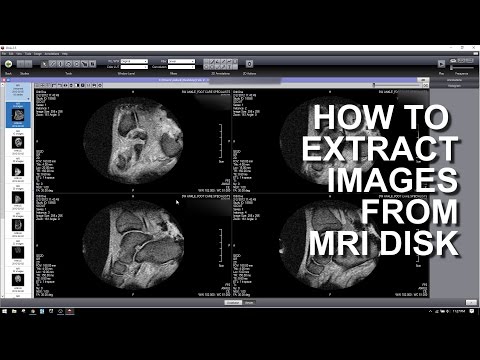
HOW TO EXTRACT IMAGES FROM A MRI DICOM DISK
ChannelGroundworkTCDescription from the creator
Whether you need to extract the images so you view them on a phone or tablet, or whether you want to extract the images so you can add them to Trial Director or TrialPad, the first step is getting the images off the disk and onto your laptop.
Then, use a DICOM viewer to open the images. Frequently, a DICOM viewer will be included with the disk you get in discovery. But, even if it does, I still prefer to use Onis Viewer 2.5. AND IT'S FREE.
onis-viewer.com/ProductInfo.aspx?id=19
Once the images are open, you'll need to extract them, a process that Onis Viewer makes incredibly simply compared to many of the other DICOM viewers I've used.
Once extracted, I then go an additional step and combine the jpegs of each series into a single PDF.
This process makes handling and viewing the images incredibly easy, but make sure you watch the full video to the end where I discuss the caveats and cases where you might want to bring a laptop with the Onis Viewer on it to the courtroom with you.
If you have any questions, feel free to drop a comment. I'll try to answer them the best I can.
-----
twitter: @groundworktc
snapchat: groundworktc
web: groundworktc.com
music:
Alvy - Alchimie, Pt. 2 [Majestic Color]
youtube.com/watch?v=5Qgo7NWf87A&index=2&…
end card music:
Quinn - Another Day In Paradise | www.youtube.com/watch?v=iR5lY... | provided by CopyrightFreeNetwork
Then, use a DICOM viewer to open the images. Frequently, a DICOM viewer will be included with the disk you get in discovery. But, even if it does, I still prefer to use Onis Viewer 2.5. AND IT'S FREE.
onis-viewer.com/ProductInfo.aspx?id=19
Once the images are open, you'll need to extract them, a process that Onis Viewer makes incredibly simply compared to many of the other DICOM viewers I've used.
Once extracted, I then go an additional step and combine the jpegs of each series into a single PDF.
This process makes handling and viewing the images incredibly easy, but make sure you watch the full video to the end where I discuss the caveats and cases where you might want to bring a laptop with the Onis Viewer on it to the courtroom with you.
If you have any questions, feel free to drop a comment. I'll try to answer them the best I can.
-----
twitter: @groundworktc
snapchat: groundworktc
web: groundworktc.com
music:
Alvy - Alchimie, Pt. 2 [Majestic Color]
youtube.com/watch?v=5Qgo7NWf87A&index=2&…
end card music:
Quinn - Another Day In Paradise | www.youtube.com/watch?v=iR5lY... | provided by CopyrightFreeNetwork
About this tutorial
GroundworkTC published this 21:42 video tutorial on October 29, 2017. It has been watched 413,703 times on YouTube.
- Channel
- GroundworkTC
- Category
- Entertainment
- Duration
- 21:42
- Published
- October 29, 2017
- Views
- 413,703
- Likes
- 2,818
Tags
Share
This tutorial in other languages
- FRCOMMENT extraire des images d'un disque DICOM IRM
- ESCómo extraer imágenes de una resonancia magnética DICOM DISCO
- PTComo extrair imagens de um MRI DICOM DISK
- ITCome estrarre immagini da una risonanza magnetica DICOM DISCO
- DEHOW TO EXTRACT Bilder von einem MRI DICOM DISK
- NLHOE afbeeldingen van een MRI DICOM DISK UITTREKSEL
- RUКак извлечь изображения из MRI DICOM DISK
- PLJak wyodrębnić obrazy z MRI DICOM DYSKU
- JAA MRI DICOM DISKから画像を抽出する方法
- ARكيفية استخراج الصور من التصوير بالرنين المغناطيسي DICOM DISK
- HIएक एमआरआई DICOM डिस्क से छवियों को निकालने कैसे
- IDCARA MENGAMBIL GAMBAR DARI MRI DICOM DISK