Playback starts YouTube’s embedded player (privacy-enhanced mode).
How to Add Free Fonts to Photoshop on Mac
ChannelMac OS X Tutorials and App reviews from HowTechDescription from the creator
This tutorial will show you how to add free fonts to Photoshop on Mac.
Don't forget to check out our site howtech.tv/ for more free how-to videos!
youtube.com/ithowtovids - our feed
facebook.com/howtechtv - join us on facebook
plus.google.com/103440382717658277879 - our group in Google+
In this tutorial you will learn how to add free fonts to Photoshop on the mac. Adding fonts to your existing collection is very important because it can spice up your design and graphic portfolio. Most of the time, you will get much better results by using fonts that don't come stock with the Photoshop library.
Step #1 -- Go to: dafont.com/
Dafont.com has a lot of great free fonts for you to start using in Photoshop. It has all of its fonts categorized in easy to find sections. So, if you want a cartoon font, simply look under the fancy tab, and you'll see "cartoon" This will give you many options to choose from.
Step #2 -- Click "Curly" under the "Fancy" Column
Once you do this, all of the library fonts for this category will show below. Scroll down to check them all out. Lets download the "Alice in Wonderland" font.
Step #3 -- Click Download
The download button is grey and is located to the far right of the font name. It will only take a few seconds for your font to download.
Step #4 -- Unzip the font
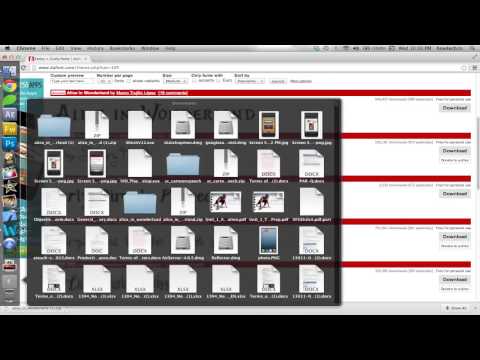
Locate our downloaded font, and simply left click on the zip file, and the Archive Utility will unzip it for us. Head back to the downloads section of the computer, and you will see the blue folder holding our font content.
Step #4 -- Open Font Book Application
Spotlight search for "Font Book". The Font Book is where are going to be adding our recently downloaded "Alice in Wonderland" font to.
Step #5 -- Locate the font
Click File - Add fonts. The hot key for this is "Command O". You will then begin locating the unzipped font folder. Ours is saved in the "Downloads" section. Navigate to here, and you will see our folder.
Step #7 -- Adding the font
Double click the blue folder that contains our font content. From here, you will see the font name with a .ttf extension. This is a very common font format. There can also be a .otf extension. Double click the font and it will automatically import to your font book.
Step #8 -- Check font in Photoshop
Open Photoshop and view your font library. You will soon locate the font we added to our font library, "Alice in Wonderland".
Leave your comments below or contact us by email. This was a Howtech.tv tutorial. Thanks for watching!
Don't forget to check out our site howtech.tv/ for more free how-to videos!
youtube.com/ithowtovids - our feed
facebook.com/howtechtv - join us on facebook
plus.google.com/103440382717658277879 - our group in Google+
In this tutorial you will learn how to add free fonts to Photoshop on the mac. Adding fonts to your existing collection is very important because it can spice up your design and graphic portfolio. Most of the time, you will get much better results by using fonts that don't come stock with the Photoshop library.
Step #1 -- Go to: dafont.com/
Dafont.com has a lot of great free fonts for you to start using in Photoshop. It has all of its fonts categorized in easy to find sections. So, if you want a cartoon font, simply look under the fancy tab, and you'll see "cartoon" This will give you many options to choose from.
Step #2 -- Click "Curly" under the "Fancy" Column
Once you do this, all of the library fonts for this category will show below. Scroll down to check them all out. Lets download the "Alice in Wonderland" font.
Step #3 -- Click Download
The download button is grey and is located to the far right of the font name. It will only take a few seconds for your font to download.
Step #4 -- Unzip the font
Locate our downloaded font, and simply left click on the zip file, and the Archive Utility will unzip it for us. Head back to the downloads section of the computer, and you will see the blue folder holding our font content.
Step #4 -- Open Font Book Application
Spotlight search for "Font Book". The Font Book is where are going to be adding our recently downloaded "Alice in Wonderland" font to.
Step #5 -- Locate the font
Click File - Add fonts. The hot key for this is "Command O". You will then begin locating the unzipped font folder. Ours is saved in the "Downloads" section. Navigate to here, and you will see our folder.
Step #7 -- Adding the font
Double click the blue folder that contains our font content. From here, you will see the font name with a .ttf extension. This is a very common font format. There can also be a .otf extension. Double click the font and it will automatically import to your font book.
Step #8 -- Check font in Photoshop
Open Photoshop and view your font library. You will soon locate the font we added to our font library, "Alice in Wonderland".
Leave your comments below or contact us by email. This was a Howtech.tv tutorial. Thanks for watching!
About this tutorial
Mac OS X Tutorials and App reviews from HowTech published this 2:38 video tutorial on October 31, 2013. It has been watched 76,180 times on YouTube.
- Category
- Howto & Style
- Duration
- 2:38
- Published
- October 31, 2013
- Views
- 76,180
- Likes
- 577
Share
This tutorial in other languages
- FRComment ajouter les polices de caractères gratuit à Photoshop sur Mac
- ESCómo agregar Fuentes de Photoshop en Mac
- PTComo adicionar Fontes Grátis para Photoshop no Mac
- ITCome aggiungere font caratteri a Photoshop su Mac
- DEWie Frei Schriftart zu Photoshop auf dem Mac hinzufügen
- NLHoe kan ik toevoegen Gratis een lettertype naar Photoshop op Mac
- RUКак добавить бесплатные шрифты для Photoshop на Mac
- PLJak dodać czcionki darmowe do Photoshopa na Mac
- JAMac上でPhotoshopのにフリーフォントを追加する方法
- ARكيفية إضافة خطوط تنزيل لفوتوشوب على ماك
- HIकैसे मैक पर फ़ोटोशॉप करने के लिए नि: शुल्क फ़ॉन्ट्स जोड़ें
- IDBagaimana Tambahkan Gratis Fonts ke Photoshop di Mac