Playback starts YouTube’s embedded player (privacy-enhanced mode).
How to Calculate GPA Using MS Excel
ChannelExcel, Word and PowerPoint Tutorials from HowtechDescription from the creator
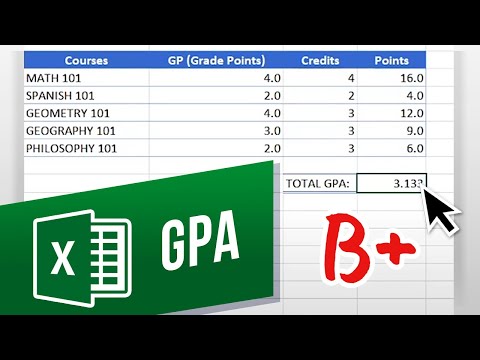
GPA stands for Grade Point Average and it is one of the most common stats a college will use to gauge a student. If you are wondering what your GPA is or what it might look like depending on your grades, it is very handy to make a GPA calculator. Let’s create a GPA calculator in Excel.
The chart on the right is a standard GPA chart. Not all curriculums are the same, so you may need to check in with your school to see what number each letter grade corresponds to.
1. Input your course data with course names, Grade Points corresponding to the letter grade you received, and the credit hours for each class.
2. Now we are going to multiply the GP with the Credits. Click the top cell in the Points column and write this formula: =C7*D7. Hover the mouse over the bottom-right of the cell until the cursor changes then click and drag it down the column.
3. Finally, we will calculate the GPA. We will take the sum of the Points and divide it by the sum of the Credits to get the GPA. Click in the Total GPA cell and type this formula: =(SUM(E7:E11)/SUM(D7:D11)).
And that’s how to calculate your GPA in Excel!
❓💬 What other handy calculations would you like to learn? Let us know in the comments below.
#HowTech #Excel
--------------------------------------------------------------------------------------------------------------
✅ All our announcements are available here t.me/howtechtv
✅ Commercial questions [email protected]
✅ Instagram instagram.com/howtechprojects
✅ Twitter twitter.com/howtechprojects
About this tutorial
Excel, Word and PowerPoint Tutorials from Howtech published this 1:54 video tutorial on July 25, 2020. It has been watched 204,118 times on YouTube.
- Category
- Howto & Style
- Duration
- 1:54
- Published
- July 25, 2020
- Views
- 204,118
- Likes
- 1,207
Tags
Share
Further reading
-
How to Create an Excel spreadsheet to calculate your GPA ...
ms-office.wonderhowto.com
Open Microsoft Office Excel. Across the top notice letters (columns), along the sides are numbers (rows). The columns and rows can be extended by highlighting sections and right clicking and choosing the high of the row…
-
How To Calculate Your Cgpa Or Gpa Using Ms-Excel - Step By ...
microsofttut.com
see the step by step how to calculate your academic CGPA for a full academic session or GPA for a semester with practical illustrations, definitions of some cgpa terms, gpa,tnu, ctnu, ctgp, gp, grade system, credit unit…
-
Free GPA Calculator for Excel - How to Calculate GPA
vertex42.com
GPA stands for Grade Point Average, but most of the time, to calculate GPA requires using a weighted average. For example, if you earned an A in a 3-credit course and a B in a 2-credit course, your GPA is not simply the…
This tutorial in other languages
- FRComment calculer GPA utilisant MS Excel
- ES¿Cómo calcular el GPA El uso de MS Excel
- PTComo calcular GPA Usando o MS Excel
- ITCome Calcolare GPA Utilizzando MS Excel
- DEWie zu berechnen GPA Verwendung von MS Excel
- NLHoe te berekenen GPA met behulp van MS Excel
- RUКак рассчитать средний балл Использование MS Excel
- PLJak obliczyć GPA Korzystanie z MS Excel
- JAMS Excelを使用して計算GPAにどのように
- ARكيفية حساب المعدل التراكمي عن طريق إكسل
- HIकैसे की गणना करने के लिए जीपीए एमएस एक्सेल का उपयोग करना
- IDCara Menghitung IPK Menggunakan MS Excel