Playback starts YouTube’s embedded player (privacy-enhanced mode).
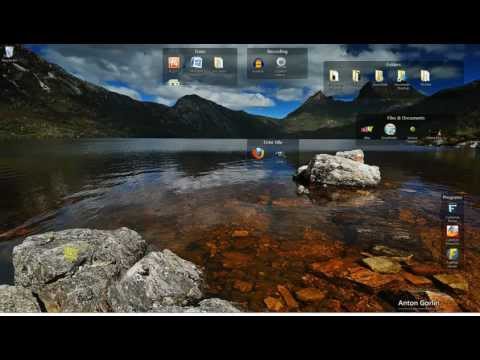
How to change desktop background photo speed and content in Windows 8.
ChannelTimzart7Description from the creator
How to change desktop background photo slideshow speed -- the speed at which the photos change -- and content in Windows 8.
Downloading slideshow sets free from Microsoft is easy, and so is controlling which photos you want in your slideshow (including your own), as well as the speed at which they change.
Here is the step sequence as explained in the video. It starts with the Windows key which is the key between Cntrl and Alt that has the Windows logo on it:
Windows key+c, Settings, Personalization, Desktop Slide Show (bottom left of screen), Change Picture every...
And if you want to select your personal photos -- photos you've taken yourself -- do the same sequence as above but as the last step click on PICTURE LOCATION, which is above the photo sets and browse to the directory where you have your personal photos.
Also, the quick way to get to personalization, without using the Charms bar, is to right click on the desktop in an empty space and select "personlization."
Downloading slideshow sets free from Microsoft is easy, and so is controlling which photos you want in your slideshow (including your own), as well as the speed at which they change.
Here is the step sequence as explained in the video. It starts with the Windows key which is the key between Cntrl and Alt that has the Windows logo on it:
Windows key+c, Settings, Personalization, Desktop Slide Show (bottom left of screen), Change Picture every...
And if you want to select your personal photos -- photos you've taken yourself -- do the same sequence as above but as the last step click on PICTURE LOCATION, which is above the photo sets and browse to the directory where you have your personal photos.
Also, the quick way to get to personalization, without using the Charms bar, is to right click on the desktop in an empty space and select "personlization."
About this tutorial
Timzart7 published this 1:08 video tutorial on November 10, 2013. It has been watched 5,983 times on YouTube.
- Channel
- Timzart7
- Category
- Howto & Style
- Duration
- 1:08
- Published
- November 10, 2013
- Views
- 5,983
- Likes
- 13
Tags
Share
This tutorial in other languages
- FRComment changer la vitesse de photo de fond d'écran et le contenu dans Windows 8.
- ESCómo cambiar el fondo de escritorio velocidad de foto y contenido en Windows 8.
- PTComo mudar o fundo do desktop velocidade fotografia e conteúdo no Windows 8.
- ITCome cambiare sfondo del desktop velocità di foto e contenuti in Windows 8.
- DEWie Desktop-Hintergrund Foto Geschwindigkeit und Inhalt in Windows 8 ändern.
- NLHoe maak je bureaublad achtergrond foto snelheid en de inhoud te veranderen in Windows 8.
- RUКак изменить фон рабочего стола скорость фото и содержание в Windows 8.
- PLJak zmienić tło pulpitu prędkość zdjęć i treści w Windows 8.
- JAWindowsの8でデスクトップの背景の写真スピードと内容を変更する方法。
- ARكيفية تغيير خلفية سطح المكتب سرعة الصور والمحتوى في ويندوز 8.
- HIकैसे Windows 8 में डेस्कटॉप पृष्ठभूमि तस्वीर की गति और सामग्री को बदलने के लिए।
- IDBagaimana mengubah latar belakang desktop kecepatan foto dan konten dalam Windows 8.