Playback starts YouTube’s embedded player (privacy-enhanced mode).
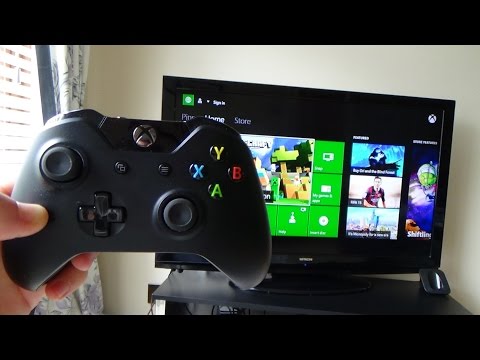
How To Connect a wireless Xbox One controller to your console
ChannelMy Mate VINCEIn brief
Pairing a wireless Xbox One controller with your console is quick and straightforward. This guide covers three methods—using the console’s connect button, Kinect, or a USB cable—so you can get your controller ready for gaming in minutes. It’s ideal for anyone who wants to avoid tangled wires or needs a backup connection.
Key steps
- Insert two fresh AA batteries into the controller.
- Press and hold the Xbox button until it pulses (not solid).
- Press and release the console’s connect button.
- Within 20 seconds, hold the controller’s connect button until the Xbox button flashes quickly, then turns solid.
Questions & answers
Can I use a USB cable instead of wireless?
Yes, the video also shows how to connect using a USB to micro-USB cable.
What if the Xbox button stays solid?
The controller is already connected to the console.
Description from the creator
Hi, this 'How To' video shows you how to sync your Xbox One controller to your Xbox One.
There are three ways that you can connect your controller:
•Using the console’s connect button
•Using Kinect (requires Kinect sensor)
•Using a USB to micro-USB cable.
1. Turn on your Xbox One console.
2. Insert 2 new AA batteries into the controller.
3. Turn on your controller by pressing and holding the Xbox button until the controller turns on. The Xbox button will pulse, indicating it’s not yet connected to the console. If the Xbox button is lit solid, then the controller is already connected.
4.Press and release the connect button on the console.
5.Within 20 seconds, press and hold the connect button on the controller until the controller’s Xbox button quickly flashes a few times, indicating that it’s searching for the console. It then switches to a solid light when it's connected.
Your controller is now connected to your console. Repeat this procedure for every extra controller that you want to add.
Many thanks Vince
There are three ways that you can connect your controller:
•Using the console’s connect button
•Using Kinect (requires Kinect sensor)
•Using a USB to micro-USB cable.
1. Turn on your Xbox One console.
2. Insert 2 new AA batteries into the controller.
3. Turn on your controller by pressing and holding the Xbox button until the controller turns on. The Xbox button will pulse, indicating it’s not yet connected to the console. If the Xbox button is lit solid, then the controller is already connected.
4.Press and release the connect button on the console.
5.Within 20 seconds, press and hold the connect button on the controller until the controller’s Xbox button quickly flashes a few times, indicating that it’s searching for the console. It then switches to a solid light when it's connected.
Your controller is now connected to your console. Repeat this procedure for every extra controller that you want to add.
Many thanks Vince
About this tutorial
My Mate VINCE published this 2:33 video tutorial on November 2, 2015. It has been watched 5,990,763 times on YouTube.
- Channel
- My Mate VINCE
- Category
- Howto & Style
- Duration
- 2:33
- Published
- November 2, 2015
- Views
- 5,990,763
- Likes
- 58,937
Tags
Share
This tutorial in other languages
- FRComment connecter un contrôleur sans fil Xbox One à votre console
- ESCómo conectar un controlador de Xbox One inalámbrico a la consola
- PTComo conectar um Xbox Um controlador sem fio ao seu console
- ITCome collegare un controller wireless Xbox One per la console
- DEHow To Connect ein drahtloser Xbox One-Controller an der Konsole
- NLHoe u een verbinding met een draadloos Xbox One controller op je console
- RUКак подключить беспроводной Xbox Один контроллер для консоли
- PLJak podłączyć kontroler bezprzewodowy Xbox One do konsoli
- JAどのように接続するコンソールへのワイヤレスXboxの一つコントローラ
- ARكيفية توصيل وحدة تحكم إكس بوكس واحد لاسلكي إلى وحدة التحكم الخاصة بك
- HIकैसे करने के लिए कनेक्ट अपने कंसोल के लिए एक वायरलेस Xbox वन नियंत्रक
- IDCara Connect nirkabel Xbox One controller untuk konsol Anda