Playback starts YouTube’s embedded player (privacy-enhanced mode).
How to Create Flash Banner
ChannelInternet Services and Social Networks Tutorials from HowTechDescription from the creator
This tutorial will show you how to create a flash banner online.
Don't forget to check out our site howtech.tv/ for more free how-to videos!
youtube.com/ithowtovids - our feed
Facebook.com/howtechtv - join us on Facebook
plus.google.com/103440382717658277879 - our group in Google+
In this tutorial you are going to learn how to create a flash banner online using a design service that doesn't require any coding knowledge.
Step # 1 -- Logging into BannerSnack
First you are going to need to visit the site "www.bannersnack.com". Click the "make a banner" button on the front page then click "Sign in with Google". If you would rather use an alternative sign in method, do so. Enter your Google log in details and hit return, then accept the agreement for using BannerSnack.
Step # 2 -- Selecting a Starting Template
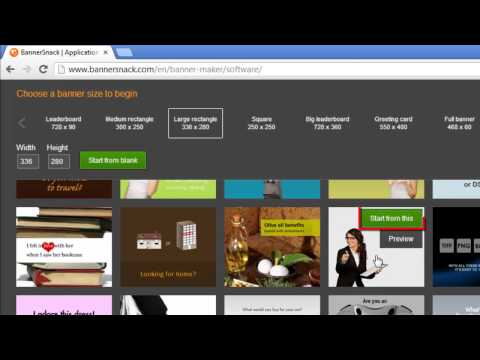
Return to the BannerSnack window and you will see several banner options to choose from. Select a type you want to use at the top then find a template lower down the page and hover your mouse over it, click the green "Start from this" option.
Step # 3 -- Customizing Your Banner
You will then be taken to the editor and there are a huge number of options available here for you to experiment with. Click "Play" at the top to get an idea of what your banner currently looks like, wait for it to play then click "Cancel" to return to the previous page. You can use the time line at the bottom to select which part you are viewing. Click on items and drag them to change their position or use the options on the right to change their properties.
Step # 4 -- Finishing the Banner
The designing will require a bit of inspiration on your part and you'll just need to experiment with the interface. When you are ready to publish the banner click the "Publish" icon in the main toolbar at the top. Give the banner a name and a URL and then click "Publish". After a moment of loading your banner will load and you can see how it will appear.
Step # 5 -- Exporting the Banner
Scroll down the page and you can see several export options, here we are going to look at a free HTML5 option, so click on this. Click "Use free" in the pop up window. A bit of HTML code you can use to put the banner on your website will appear, use this however you wish. If you do want to remove the watermark from the banner you will need to pay for the premium version and that is how to create flash banner online.
Don't forget to check out our site howtech.tv/ for more free how-to videos!
youtube.com/ithowtovids - our feed
Facebook.com/howtechtv - join us on Facebook
plus.google.com/103440382717658277879 - our group in Google+
In this tutorial you are going to learn how to create a flash banner online using a design service that doesn't require any coding knowledge.
Step # 1 -- Logging into BannerSnack
First you are going to need to visit the site "www.bannersnack.com". Click the "make a banner" button on the front page then click "Sign in with Google". If you would rather use an alternative sign in method, do so. Enter your Google log in details and hit return, then accept the agreement for using BannerSnack.
Step # 2 -- Selecting a Starting Template
Return to the BannerSnack window and you will see several banner options to choose from. Select a type you want to use at the top then find a template lower down the page and hover your mouse over it, click the green "Start from this" option.
Step # 3 -- Customizing Your Banner
You will then be taken to the editor and there are a huge number of options available here for you to experiment with. Click "Play" at the top to get an idea of what your banner currently looks like, wait for it to play then click "Cancel" to return to the previous page. You can use the time line at the bottom to select which part you are viewing. Click on items and drag them to change their position or use the options on the right to change their properties.
Step # 4 -- Finishing the Banner
The designing will require a bit of inspiration on your part and you'll just need to experiment with the interface. When you are ready to publish the banner click the "Publish" icon in the main toolbar at the top. Give the banner a name and a URL and then click "Publish". After a moment of loading your banner will load and you can see how it will appear.
Step # 5 -- Exporting the Banner
Scroll down the page and you can see several export options, here we are going to look at a free HTML5 option, so click on this. Click "Use free" in the pop up window. A bit of HTML code you can use to put the banner on your website will appear, use this however you wish. If you do want to remove the watermark from the banner you will need to pay for the premium version and that is how to create flash banner online.
About this tutorial
Internet Services and Social Networks Tutorials from HowTech published this 1:53 video tutorial on November 10, 2013. It has been watched 4,439 times on YouTube.
- Category
- Howto & Style
- Duration
- 1:53
- Published
- November 10, 2013
- Views
- 4,439
- Likes
- 10
Share
This tutorial in other languages
- FRComment créer Flash Banner
- ESCómo crear Flash Banner
- PTComo criar Flash Banner
- ITCome creare banner Flash
- DESo erstellen Sie Flash-Banner
- NLHoe maak je Flash Banner
- RUСоздание Flash баннеров
- PLJak utworzyć Flash Banner
- JAFlashバナーの作成方法
- ARكيفية إنشاء فلاش راية
- HIकैसे फ्लैश बैनर बनाने के लिए
- IDCara Membuat Flash Banner