Playback starts YouTube’s embedded player (privacy-enhanced mode).
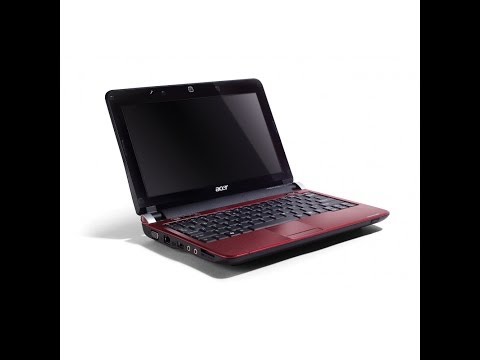
How to Enable a higher screen resolution (1024x768) on a Netbook
ChannelWonderzDescription from the creator
Many netbooks come with a default 1024x600 pixels (or similar) small screen resolution, which can cause problems in some apps or a lot of awkward scrolling. If you want to increase the amount of screen real estate you have on your netbook or be able to use apps that require higher-resolution displays (such as the Metro-style apps in Windows 8) The steps:
1.Go to the Start menu and type in regedit in the search box, then hit Enter.
2.Scroll up on the left pane to make sure you are at the very top of the tree.
3.At the top menu, go to Edit then Find... and search for
"Display1_DownScalingSupported"
4.Change each instance you find (you'll likely find 2 results for this) from "0" to "1". Make sure you change every found instance, because otherwise the method won't work (in my experience).
5.Once done, restart the system.
6.When your system has restarted, when you right-click on your desktop and choose to change your screen resolution, you should now see options for 1024x768 as well as 1152x864 resolutions for your netbook, in addition to your previous resolutions.
Keep in mind that while this registry method has been shown to work with a number of netbooks from different manufacturers, it might not work with all netbooks, and modifying your registry is always something you do at your own risk. It's always a good idea to backup your registry before making any changes by going to the file menu and exporting it. Any damage made to your netbook will not be held resposible with me.
1.Go to the Start menu and type in regedit in the search box, then hit Enter.
2.Scroll up on the left pane to make sure you are at the very top of the tree.
3.At the top menu, go to Edit then Find... and search for
"Display1_DownScalingSupported"
4.Change each instance you find (you'll likely find 2 results for this) from "0" to "1". Make sure you change every found instance, because otherwise the method won't work (in my experience).
5.Once done, restart the system.
6.When your system has restarted, when you right-click on your desktop and choose to change your screen resolution, you should now see options for 1024x768 as well as 1152x864 resolutions for your netbook, in addition to your previous resolutions.
Keep in mind that while this registry method has been shown to work with a number of netbooks from different manufacturers, it might not work with all netbooks, and modifying your registry is always something you do at your own risk. It's always a good idea to backup your registry before making any changes by going to the file menu and exporting it. Any damage made to your netbook will not be held resposible with me.
About this tutorial
Wonderz published this 5:51 video tutorial on November 13, 2014. It has been watched 97,986 times on YouTube.
- Channel
- Wonderz
- Category
- Howto & Style
- Duration
- 5:51
- Published
- November 13, 2014
- Views
- 97,986
- Likes
- 271
Tags
Share
This tutorial in other languages
- FRComment faire pour activer une résolution d'écran supérieure (1024x768) sur un Netbook
- ESCómo habilitar una mayor resolución de pantalla (1024x768) en un netbook
- PTComo ativar uma maior resolução de tela (1024x768) em um Netbook
- ITCome abilitare una risoluzione dello schermo più alta (1024x768) su un netbook
- DESo aktivieren Sie eine höhere Bildschirmauflösung (1024x768) auf einem Netbook
- NLHoe maak je een hogere schermresolutie (1024x768) op een Netbook inschakelen
- RUКак включить разрешение выше экрана (1024x768) на нетбуке
- PLJak włączyć wyższą rozdzielczość ekranu (1024x768) na netbooku
- JAネットブックの高い画面解像度(1024×768)を有効にする方法
- ARكيفية تمكين دقة أعلى الشاشة (1024x768) على النت بوك
- HIकैसे एक उच्च स्क्रीन संकल्प (1024x768) एक नेटबुक पर सक्षम करने के लिए
- IDCara Aktifkan resolusi layar lebih tinggi (1024x768) pada Netbook