Playback starts YouTube’s embedded player (privacy-enhanced mode).
How to Fix Can’t Edit or Delete Windows Registry
ChannelAAN CreationDescription from the creator
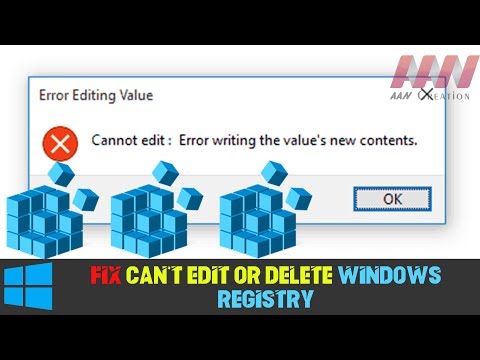
How to Fix Can’t Edit or Delete Windows Registry. The Registry is a database that stores Windows operating system and application settings. Sometimes, you need to change those values manually. ‘Can’t edit Registry‘ is an error you’ll face when you try to edit a key in Registry but you don’t have the necessary permissions to do it.
How to edit any Registry key
You can start editing any Registry key you want by gaining permission to do it. Before you follow the step-by-step guide to gain permission, you should know that editing the Registry is a very dangerous thing to do.
If you edit it without knowing specifically what to do, you can break your computer. You must make sure to create a restore point, back up your Registry, and edit with extreme caution.
Fix ‘Can’t edit Registry’ through Advanced Security Settings
You can change the owner of the Registry keys or folder to yourself. This will give you control to edit, delete, or insert keys in the folder. The only downfall of this method is that you have to repeat the steps for each folder you want to edit. Here’s how you do it:
01. Search for Regedit in Start and right-click on it, and from the menu, you should click on Run as administrator.
02. Navigate to the folder you want to edit.
03. Right-click on the folder and then click on Permissions.
04. The Permissions window will open, click on the Advanced button near the bottom-right corner.
05. The Advanced Security Settings will open. At the top of the window, you’ll see, “Owner: [name]”, where [name] is most likely the name of the program that created the folder. Click on the Change Link.
06. In the Select User or Group form, under entering the object name to select, prove your username on that computer or your Microsoft email address if it is associated with your computer. You then have to click on Check Names.
07. Click OK both on the Select User or Group window and the Advanced Security Settings window.
08. Before closing the Permissions Window, select Users from the Group or user names list and check the box under allow for Full Control. After that, close the window by clicking OK.
You now have full access to the folder. More specifically, the current user has full control. If you are using more than one user on your computer, you have to repeat these steps every time you access a folder that’s owned by a program or the other user.
More Windows Tips: aancreation.com/2019/06/how-to-fix-cant-edit-or…
********** 👤Connect with Us: ******************
AAN Website: www.aancreation.com
MAKE DONATE: paypal.me/aancreationD
Facebook: facebook.com/AANCreationFan/
Twitter: twitter.com/AAN_Creation
********* // Other Great Resources: ***********
Gaming: youtube.com/c/AANGame
AAN: youtube.com/channel/UC5_T0dvWFu54NrYg_PlLjww
AAN Farm: youtube.com/c/AANOShamo
How to edit any Registry key
You can start editing any Registry key you want by gaining permission to do it. Before you follow the step-by-step guide to gain permission, you should know that editing the Registry is a very dangerous thing to do.
If you edit it without knowing specifically what to do, you can break your computer. You must make sure to create a restore point, back up your Registry, and edit with extreme caution.
Fix ‘Can’t edit Registry’ through Advanced Security Settings
You can change the owner of the Registry keys or folder to yourself. This will give you control to edit, delete, or insert keys in the folder. The only downfall of this method is that you have to repeat the steps for each folder you want to edit. Here’s how you do it:
01. Search for Regedit in Start and right-click on it, and from the menu, you should click on Run as administrator.
02. Navigate to the folder you want to edit.
03. Right-click on the folder and then click on Permissions.
04. The Permissions window will open, click on the Advanced button near the bottom-right corner.
05. The Advanced Security Settings will open. At the top of the window, you’ll see, “Owner: [name]”, where [name] is most likely the name of the program that created the folder. Click on the Change Link.
06. In the Select User or Group form, under entering the object name to select, prove your username on that computer or your Microsoft email address if it is associated with your computer. You then have to click on Check Names.
07. Click OK both on the Select User or Group window and the Advanced Security Settings window.
08. Before closing the Permissions Window, select Users from the Group or user names list and check the box under allow for Full Control. After that, close the window by clicking OK.
You now have full access to the folder. More specifically, the current user has full control. If you are using more than one user on your computer, you have to repeat these steps every time you access a folder that’s owned by a program or the other user.
More Windows Tips: aancreation.com/2019/06/how-to-fix-cant-edit-or…
********** 👤Connect with Us: ******************
AAN Website: www.aancreation.com
MAKE DONATE: paypal.me/aancreationD
Facebook: facebook.com/AANCreationFan/
Twitter: twitter.com/AAN_Creation
********* // Other Great Resources: ***********
Gaming: youtube.com/c/AANGame
AAN: youtube.com/channel/UC5_T0dvWFu54NrYg_PlLjww
AAN Farm: youtube.com/c/AANOShamo
About this tutorial
AAN Creation published this 1:18 video tutorial on November 11, 2019. It has been watched 14,713 times on YouTube.
- Channel
- AAN Creation
- Category
- Howto & Style
- Duration
- 1:18
- Published
- November 11, 2019
- Views
- 14,713
- Likes
- 61
Tags
Share
This tutorial in other languages
- FRComment réparer ne pouvez pas modifier ou supprimer le Registre Windows
- ESCómo arreglar No se puede editar o eliminar ventanas Registro
- PTComo corrigir não pode editar ou apagar o Windows Registry
- ITCome risolvere non possono Modifica o del Registro di sistema di Windows Elimina
- DEWie Fix nicht bearbeiten oder löschen können Windows-Registrierung
- NLHow To Fix Can niet bewerken of verwijderen Windows-register
- RUКак исправить не может редактировать или удалить реестра Windows
- PLJak naprawić nie można edytować lub usunąć rejestru systemu Windows
- JAすることはできません編集または削除Windowsのレジストリを修正する方法
- ARكيفية إصلاح لا يمكن تحرير أو حذف سجل ويندوز
- HIठीक करने के लिए कैसे संपादित कर सकते हैं नहीं या हटाएं Windows रजिस्ट्री
- IDCara Perbaiki Can tidak Sunting atau Delete Registry Windows