Playback starts YouTube’s embedded player (privacy-enhanced mode).
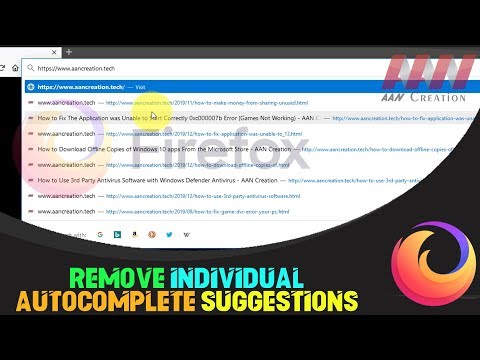
How to Remove Individual Autocomplete Suggestions in Firefox Browser
ChannelAAN CreationDescription from the creator
Mozilla Firefox's autocomplete feature is designed to make browsing faster by predicting and completing your queries based on your browsing history, bookmarks, and open tabs. While this feature is convenient, it can sometimes suggest entries that are outdated or no longer relevant. Fortunately, Firefox allows you to remove individual autocomplete suggestions easily. Here's a detailed guide on how to do it.
Why Remove Autocomplete Suggestions?
Privacy: Prevent sensitive or outdated information from appearing.
Relevance: Ensure only useful and current suggestions are displayed.
Cleanliness: Maintain a clutter-free browsing experience.
Steps to Remove Individual Autocomplete Suggestions
Follow these simple steps to remove unwanted autocomplete suggestions from the Firefox browser:
Step 01: Open Firefox
Launch your Mozilla Firefox browser.
Step 02: Access the Address Bar
Click on the address bar where you typically type URLs or search queries.
Step 03: Start Typing
Begin typing a URL or search term to trigger the autocomplete suggestions. As you type, a dropdown list of suggestions will appear.
Step 04: Highlight the Unwanted Suggestion
Use the arrow keys on your keyboard to navigate through the list of suggestions. Highlight the suggestion you want to remove.
Step 05: Remove the Suggestion
Press Shift + Delete on your keyboard. The highlighted suggestion will be removed from the autocomplete list.
Additional Tips
Clear Browsing Data: For a broader cleanup, consider clearing your browsing history, cookies, and cache.
Manage Search Suggestions: You can manage search suggestions by navigating to Firefox settings and adjusting preferences under Privacy & Security.
Conclusion
Removing individual autocomplete suggestions in Firefox is a quick and straightforward process that enhances your browsing experience by ensuring that only relevant and current suggestions appear. By following the steps outlined above, you can maintain a cleaner and more private browsing environment.
Blog: aancreation.com/2024/08/how-to-remove-individua…
********** 👤Connect with Us: ******************
AAN Website: www.aancreation.com
MAKE DONATE: paypal.me/aancreationD
Facebook: facebook.com/AANCreationFan/
Twitter: twitter.com/AAN_Creation
********* // Other Great Resources: ***********
Gaming: youtube.com/c/AANGame
AAN: youtube.com/channel/UC5_T0dvWFu54NrYg_PlLjww
AAN Farm: youtube.com/c/AANOShamo
Why Remove Autocomplete Suggestions?
Privacy: Prevent sensitive or outdated information from appearing.
Relevance: Ensure only useful and current suggestions are displayed.
Cleanliness: Maintain a clutter-free browsing experience.
Steps to Remove Individual Autocomplete Suggestions
Follow these simple steps to remove unwanted autocomplete suggestions from the Firefox browser:
Step 01: Open Firefox
Launch your Mozilla Firefox browser.
Step 02: Access the Address Bar
Click on the address bar where you typically type URLs or search queries.
Step 03: Start Typing
Begin typing a URL or search term to trigger the autocomplete suggestions. As you type, a dropdown list of suggestions will appear.
Step 04: Highlight the Unwanted Suggestion
Use the arrow keys on your keyboard to navigate through the list of suggestions. Highlight the suggestion you want to remove.
Step 05: Remove the Suggestion
Press Shift + Delete on your keyboard. The highlighted suggestion will be removed from the autocomplete list.
Additional Tips
Clear Browsing Data: For a broader cleanup, consider clearing your browsing history, cookies, and cache.
Manage Search Suggestions: You can manage search suggestions by navigating to Firefox settings and adjusting preferences under Privacy & Security.
Conclusion
Removing individual autocomplete suggestions in Firefox is a quick and straightforward process that enhances your browsing experience by ensuring that only relevant and current suggestions appear. By following the steps outlined above, you can maintain a cleaner and more private browsing environment.
Blog: aancreation.com/2024/08/how-to-remove-individua…
********** 👤Connect with Us: ******************
AAN Website: www.aancreation.com
MAKE DONATE: paypal.me/aancreationD
Facebook: facebook.com/AANCreationFan/
Twitter: twitter.com/AAN_Creation
********* // Other Great Resources: ***********
Gaming: youtube.com/c/AANGame
AAN: youtube.com/channel/UC5_T0dvWFu54NrYg_PlLjww
AAN Farm: youtube.com/c/AANOShamo
About this tutorial
AAN Creation published this 1:17 video tutorial on July 8, 2020. It has been watched 3,943 times on YouTube.
- Channel
- AAN Creation
- Category
- Howto & Style
- Duration
- 1:17
- Published
- July 8, 2020
- Views
- 3,943
- Likes
- 43
Tags
Share
This tutorial in other languages
- FRComment faire pour supprimer l'individu Autocomplete Suggestions dans le navigateur Firefox
- ESCómo quitar sugerencias individuales Autocompletar en el navegador Firefox
- PTComo remover Individual preenchimento automático Sugestões em navegador Firefox
- ITCome rimuovere singoli completamento automatico suggerimenti in Firefox Browser
- DEWie man Einzelne automatische Vervollständigung Vorschläge in Firefox Browser entfernen
- NLHoe te verwijderen van individuele suggesties voor automatisch aanvullen in Firefox Browser
- RUКак удалить отдельные автозаполнения Предложения в браузере Firefox
- PLJak usunąć indywidualna autouzupełniania sugestie w przeglądarce Firefox
- JAFirefoxブラウザで個々のオートコンプリートの提案を削除する方法
- ARكيفية إزالة اقتراحات الفردية الإكمال التلقائي في متصفح فايرفوكس
- HIकैसे फ़ायरफ़ॉक्स ब्राउज़र में व्यक्तिगत स्वत: पूर्ण सुझाव निकालें
- IDCara Hapus Individu Autocomplete Saran di Firefox Browser