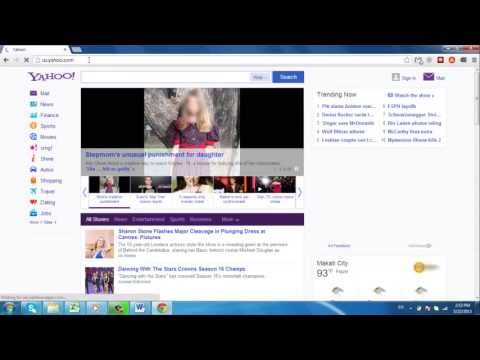
Playback starts YouTube’s embedded player (privacy-enhanced mode).
How to Make Yahoo My Homepage
ChannelInternet Services and Social Networks Tutorials from HowTechDescription from the creator
This tutorial will show you how to make Yahoo your homepage in Google Chrome.
Don't forget to check out our site howtech.tv/ for more free how-to videos!
youtube.com/ithowtovids - our feed
facebook.com/howtechtv - join us on facebook
plus.google.com/103440382717658277879 - our group in Google+
In this tutorial you are going to learn how to make Yahoo your homepage in Google Chrome.
Step # 1 -- Opening Chrome's Settings
Start Chrome and in the top right of the browser you will see three horizontal lines, click this and a menu will pop up, within this click "Settings". A new tab will open and this contains the settings of the browser.
Step # 2 -- Setting Yahoo as the Homepage
Look for the section called "On startup" and underneath this heading click the "Set pages" link. Next to the "Add a new page" text you will see a text box, into this type "www.yahoo.com" and click "OK". That is essentially how to make Yahoo your homepage.
Step # 3 -- Testing the Change
To make sure that this has worked close Chrome and then start the program again and you will see that you will be taken to the Yahoo homepage.
Don't forget to check out our site howtech.tv/ for more free how-to videos!
youtube.com/ithowtovids - our feed
facebook.com/howtechtv - join us on facebook
plus.google.com/103440382717658277879 - our group in Google+
In this tutorial you are going to learn how to make Yahoo your homepage in Google Chrome.
Step # 1 -- Opening Chrome's Settings
Start Chrome and in the top right of the browser you will see three horizontal lines, click this and a menu will pop up, within this click "Settings". A new tab will open and this contains the settings of the browser.
Step # 2 -- Setting Yahoo as the Homepage
Look for the section called "On startup" and underneath this heading click the "Set pages" link. Next to the "Add a new page" text you will see a text box, into this type "www.yahoo.com" and click "OK". That is essentially how to make Yahoo your homepage.
Step # 3 -- Testing the Change
To make sure that this has worked close Chrome and then start the program again and you will see that you will be taken to the Yahoo homepage.
About this tutorial
Internet Services and Social Networks Tutorials from HowTech published this 0:46 video tutorial on October 25, 2013. It has been watched 192,836 times on YouTube.
- Category
- Howto & Style
- Duration
- 0:46
- Published
- October 25, 2013
- Views
- 192,836
- Likes
- 131
Share
This tutorial in other languages
- FRComment faire Yahoo My Homepage
- ESCómo hacer Yahoo My Homepage
- PTComo fazer Yahoo My Homepage
- ITCome fare Yahoo My Homepage
- DEWie man Yahoo My Homepage
- NLHoe maak je Yahoo My Homepage
- RUКак сделать Yahoo My Homepage
- PLJak zrobić Yahoo moją stronę główną
- JAYahooの私のホームページを作る方法
- ARكيفية جعل ياهو بلدي الصفحة الرئيسية
- HIकैसे याहू मेरे मुखपृष्ठ बनाने के लिए
- IDCara Membuat Yahoo My Homepage