Playback starts YouTube’s embedded player (privacy-enhanced mode).
How to Make Smart Playlist in iTunes
ChannelMac OS X Tutorials and App reviews from HowTechDescription from the creator
This tutorial you will learn how to make a smart playlist in iTunes.
Don't forget to check out our site howtech.tv/ for more free how-to videos!
youtube.com/ithowtovids - our feed
facebook.com/howtechtv - join us on facebook
plus.google.com/103440382717658277879 - our group in Google+
In this tutorial you will learn how to make a smart playlist in iTunes. With a smart playlist, you have the option to only include certain songs with high ratings, types of music, or other specific criteria. For example, you could create a playlist that's no more than 3 GB, and choose all of your highest rated rock n' roll songs.
Step #1 -- Open iTunes
Step #2 -- Choose file - New - Smart Playlist
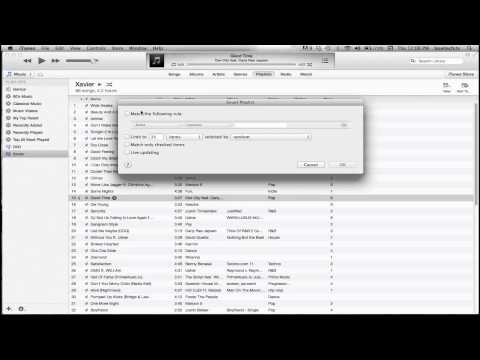
You will then see a pop up window appear, which will allow us to set the criteria we want.
Step #3 -- Select "Match the following rule"
This will ensure that iTunes will add songs that match a specific criteria set. You can set criteria such as certain styles of music, songs with the highest ratings or even by the duration of the song.
Step #4 -- Select "Limit to"
Selecting this will make the playlist a certain duration or size.
Step #5 -- Select "Live Updating"
Selecting this will continually update your Smart Playlist as songs are added to or removed from your library.
Step #6 -- Click "OK"
Once you click OK, you will then be prompted to make a name for the playlist. Any songs in your library that match the criteria you set are added to this playlist we just created. You will know it's a Smart Playlist because of the gear symbol associated with it.
Leave your comments below or contact us by email. This was a Howtech.tv tutorial. Thanks for watching!
Don't forget to check out our site howtech.tv/ for more free how-to videos!
youtube.com/ithowtovids - our feed
facebook.com/howtechtv - join us on facebook
plus.google.com/103440382717658277879 - our group in Google+
In this tutorial you will learn how to make a smart playlist in iTunes. With a smart playlist, you have the option to only include certain songs with high ratings, types of music, or other specific criteria. For example, you could create a playlist that's no more than 3 GB, and choose all of your highest rated rock n' roll songs.
Step #1 -- Open iTunes
Step #2 -- Choose file - New - Smart Playlist
You will then see a pop up window appear, which will allow us to set the criteria we want.
Step #3 -- Select "Match the following rule"
This will ensure that iTunes will add songs that match a specific criteria set. You can set criteria such as certain styles of music, songs with the highest ratings or even by the duration of the song.
Step #4 -- Select "Limit to"
Selecting this will make the playlist a certain duration or size.
Step #5 -- Select "Live Updating"
Selecting this will continually update your Smart Playlist as songs are added to or removed from your library.
Step #6 -- Click "OK"
Once you click OK, you will then be prompted to make a name for the playlist. Any songs in your library that match the criteria you set are added to this playlist we just created. You will know it's a Smart Playlist because of the gear symbol associated with it.
Leave your comments below or contact us by email. This was a Howtech.tv tutorial. Thanks for watching!
About this tutorial
Mac OS X Tutorials and App reviews from HowTech published this 1:33 video tutorial on November 10, 2013. It has been watched 2,871 times on YouTube.
- Category
- Howto & Style
- Duration
- 1:33
- Published
- November 10, 2013
- Views
- 2,871
- Likes
- 8
Share
This tutorial in other languages
- FRComment faire dans iTunes liste de lecture intelligente
- ESCómo hacer lista de reproducción inteligente en iTunes
- PTComo fazer lista de reprodução inteligente no iTunes
- ITCome fare playlist speciale in iTunes
- DEWie man intelligente Wiedergabeliste in iTunes
- NLHoe maak slimme afspeellijst in iTunes
- RUКак сделать смарт-плейлист в Itunes
- PLJak zrobić inteligentną listę odtwarzania w iTunes
- JAiTunesでスマートプレイリストを作成する方法
- ARكيفية جعل قائمة التشغيل الذكية في اي تيونز
- HIकैसे iTunes में स्मार्ट प्लेलिस्ट बनाने के लिए
- IDCara Membuat Smart Playlist di iTunes