Playback starts YouTube’s embedded player (privacy-enhanced mode).
How to Make Video Call in Yahoo
ChannelInternet Services and Social Networks Tutorials from HowTechDescription from the creator
This video tutorial is going to show you how to make video call in yahoo
Don't forget to check out our site howtech.tv/ for more free how-to videos!
youtube.com/ithowtovids - our feed
facebook.com/howtechtv - join us on facebook
plus.google.com/103440382717658277879 - our group in Google+
With yahoo messenger, you can make video calls to your contacts online for free. But first you need to download and install Yahoo Messenger in your computer.
Step #1 login to messenger.yahoo.com and download
To get started, login to messenger.yahoo.com and click download. Install yahoo massager once the download is complete. This may take few minutes to install.
Step# 2 Install yahoo messenger in your computer
When your installation is complete, yahoo messenger will open automatically. This will be added on your start menu. Sign in with your yahoo mail details.
Step#3 Click on actions on the menu bar and choose start video call
On your yahoo messenger window, click on actions on the menu bar, scroll down and click start video call.
Step#4 choose who you want to contact
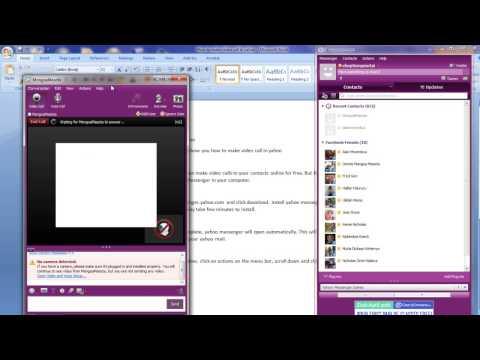
Choose the person you want to communicate with on your video call and click 'ok' to initiate your call. Ensure that your webcam is properly plugged in. You can adjust your voice and video settings by clicking on 'conversations.' Scroll down and select preferences. Here you will successfully made your video call in yahoo.
Thanks for watching this video tutorial, Leave comments and ask your questions by our e-mail [email protected] was Howtech dot TV tutorial. Thank you for watching!
Don't forget to check out our site howtech.tv/ for more free how-to videos!
youtube.com/ithowtovids - our feed
facebook.com/howtechtv - join us on facebook
plus.google.com/103440382717658277879 - our group in Google+
With yahoo messenger, you can make video calls to your contacts online for free. But first you need to download and install Yahoo Messenger in your computer.
Step #1 login to messenger.yahoo.com and download
To get started, login to messenger.yahoo.com and click download. Install yahoo massager once the download is complete. This may take few minutes to install.
Step# 2 Install yahoo messenger in your computer
When your installation is complete, yahoo messenger will open automatically. This will be added on your start menu. Sign in with your yahoo mail details.
Step#3 Click on actions on the menu bar and choose start video call
On your yahoo messenger window, click on actions on the menu bar, scroll down and click start video call.
Step#4 choose who you want to contact
Choose the person you want to communicate with on your video call and click 'ok' to initiate your call. Ensure that your webcam is properly plugged in. You can adjust your voice and video settings by clicking on 'conversations.' Scroll down and select preferences. Here you will successfully made your video call in yahoo.
Thanks for watching this video tutorial, Leave comments and ask your questions by our e-mail [email protected] was Howtech dot TV tutorial. Thank you for watching!
About this tutorial
Internet Services and Social Networks Tutorials from HowTech published this 1:17 video tutorial on November 12, 2013. It has been watched 56,451 times on YouTube.
- Category
- Howto & Style
- Duration
- 1:17
- Published
- November 12, 2013
- Views
- 56,451
- Likes
- 75
Share
This tutorial in other languages
- FRComment faire des appels vidéo dans Yahoo
- ESCómo hacer videollamada en Yahoo
- PTComo fazer chamadas de vídeo no Yahoo
- ITCome fare video chiamate in Yahoo
- DEWie man Videoanruf in Yahoo
- NLHoe maak video-oproep in Yahoo
- RUКак сделать видеовызов в Yahoo
- PLJak zrobić Połączenie wideo w Skype
- JAヤフーでビデオ通話を作る方法
- ARكيفية إجراء مكالمة فيديو في ياهو
- HIबनाने के लिए कैसे याहू में वीडियो कॉल
- IDCara Membuat Video Call di Yahoo