Playback starts YouTube’s embedded player (privacy-enhanced mode).
How to Motion Tween in Adobe Flash
ChannelInternet Services and Social Networks Tutorials from HowTechDescription from the creator
Follow this tutorial in order to learn how to create motion tween in flash.
Don't forget to check out our site howtech.tv/ for more free how-to videos!
youtube.com/ithowtovids - our feed
facebook.com/howtechtv - join us on facebook
plus.google.com/103440382717658277879 - our group in Google+
This tutorial is about motion tween in flash. It is a very important concept and also the basic of moving objects in flash. This helps modify the properties of a symbol given over a specific time period.
Motion Tween can alter many properties of a symbol like the size, transparency, angle, tint and many more. In this tutorial, we will teach you how to motion tween in Flash.
First, let's do a basic animation using the concept motion tween in flash. Here we are going to move a circle through four corners of the stage.
Step 1: Create a new Flash Project
Follow this tutorial to learn how to motion tween in Flash. First of all, open Flash on your computer. Once you are there, create a new Flash project. Choose ActionScript 3.0 as the type.
Step 2: Create a basic shape
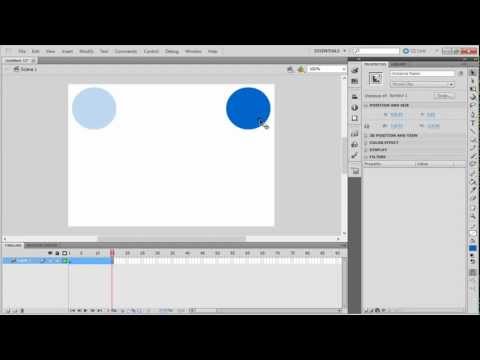
The project opens up a stage area. We will draw a circle with the help of the oval tool. We will place it in the upper left corner of the stage. Convert the circle into a symbol by right clicking on the circle and choosing "Convert to symbol" option in the context menu.
Step 3: Create motion tween
Next, go to the first frame of the timeline and right click on it. In the context menu, select the option titled "create motion tween". You can always perform the same action by using the menu: Insert / Timeline / Create motion tween. This is the start point of the animation.
Step 4 : Setting up the end point for animation
Right click on frame 15 and select 'Insert Keyframe' from the context menu. This acts as the end point of the animation.
Step 5 : Create multiple intermediating points
You don't have to restrict yourself when animating from point A to point B.You can always set up as many intermediate points as you want.
Continuing the animation, let's add 3 more keyframes at 30, 45 and 60. Each time the position of the symbol is going to vary. The circle moves through the corner of the stage.
To run the animation, go to Control/Play. The circle moves from one corner to another until it reaches the start point. This is a simple example of movement of a symbol.
Motion tweening is not just about movement; it can mask, alter and resize any symbol.
Don't forget to check out our site howtech.tv/ for more free how-to videos!
youtube.com/ithowtovids - our feed
facebook.com/howtechtv - join us on facebook
plus.google.com/103440382717658277879 - our group in Google+
This tutorial is about motion tween in flash. It is a very important concept and also the basic of moving objects in flash. This helps modify the properties of a symbol given over a specific time period.
Motion Tween can alter many properties of a symbol like the size, transparency, angle, tint and many more. In this tutorial, we will teach you how to motion tween in Flash.
First, let's do a basic animation using the concept motion tween in flash. Here we are going to move a circle through four corners of the stage.
Step 1: Create a new Flash Project
Follow this tutorial to learn how to motion tween in Flash. First of all, open Flash on your computer. Once you are there, create a new Flash project. Choose ActionScript 3.0 as the type.
Step 2: Create a basic shape
The project opens up a stage area. We will draw a circle with the help of the oval tool. We will place it in the upper left corner of the stage. Convert the circle into a symbol by right clicking on the circle and choosing "Convert to symbol" option in the context menu.
Step 3: Create motion tween
Next, go to the first frame of the timeline and right click on it. In the context menu, select the option titled "create motion tween". You can always perform the same action by using the menu: Insert / Timeline / Create motion tween. This is the start point of the animation.
Step 4 : Setting up the end point for animation
Right click on frame 15 and select 'Insert Keyframe' from the context menu. This acts as the end point of the animation.
Step 5 : Create multiple intermediating points
You don't have to restrict yourself when animating from point A to point B.You can always set up as many intermediate points as you want.
Continuing the animation, let's add 3 more keyframes at 30, 45 and 60. Each time the position of the symbol is going to vary. The circle moves through the corner of the stage.
To run the animation, go to Control/Play. The circle moves from one corner to another until it reaches the start point. This is a simple example of movement of a symbol.
Motion tweening is not just about movement; it can mask, alter and resize any symbol.
About this tutorial
Internet Services and Social Networks Tutorials from HowTech published this 1:19 video tutorial on November 11, 2013. It has been watched 65,206 times on YouTube.
- Category
- Howto & Style
- Duration
- 1:19
- Published
- November 11, 2013
- Views
- 65,206
- Likes
- 529
Share
This tutorial in other languages
- FRComment une interpolation de mouvement dans Adobe Flash
- ESCómo interpolación de movimiento en Adobe Flash
- PTComo Motion Tween no Adobe Flash
- ITCome interpolazione movimento in Adobe Flash
- DEWie Motion Tween in Adobe Flash
- NLHoe kan ik Motion Tween in Adobe Flash
- RUКак Motion Tween в Adobe Flash
- PLJak Motion Tween w Adobe Flash
- JAどのようにはAdobe Flashでモーショントゥイーンへ
- ARكيفية الحركة توين في أدوبي فلاش
- HIकैसे एडोब फ्लैश इन मोशन बीच करने के लिए
- IDCara Motion Tween di Adobe Flash