Playback starts YouTube’s embedded player (privacy-enhanced mode).
How to Order Checks - Carousel Checks
ChannelCarouselChecksMediaDescription from the creator
How to Order Checks
This is the homepage of CarouselChecks.com. There is a search bar at the top of the page where you can search for any of the checks, stamps, labels, and covers. In the right hand corner, you will see a McAfee Secure image, and the updated date when the site was tested for security. Here at Carousel Checks, we believe that your security is most important.
The top bar of the main page has nine tabs: personal checks, business checks, computer checks, desksets, deposit tickets, covers, labels, and stamps. If you click on the Personal Checks tab, you will be brought to the Personal Checks Categories main page. Here is where all the personal checks are broken down into subcategories. You can either choose to do a custom photo check, or choose any of the 24 categories. Once you have chosen one, you will be brought to the page that has all the checks that are relevant to the category that you have chosen. As you scroll down, you will see that the checks are organized in alphabetical order for your convenience.
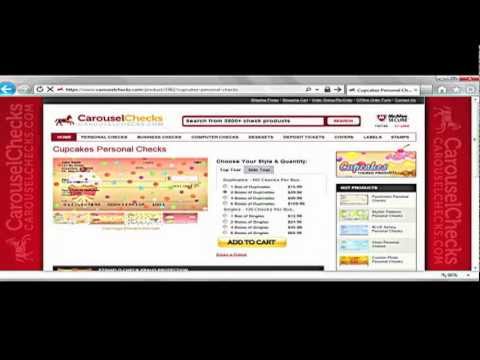
After you click on your desired check, you will be brought to the order style and quantity of the check. You will notice that we offer two styles of checks here at Carousel Checks. We offer at Top Tear style check that is the standard and most common check ordered. We also offer the Side Tear check. These checks only fit in a specially designed checkbook cover, and also have perforated marks on the side for tearing instead of on the top.
After you have chosen the style and quantity of the checks you want, you will click on "Add to Cart," and this will bring you to the secure and encrypted information page. Here's where you will personalize your checks. If you have a copy of any current checks, you can use one of those to help make sure that all the information is correct and the way you want it.
The first area of this page is for personal information that is needed on the check. The first line is for your first and last name. To the right of this line one is a block that is for bold font. You will need to check it for your name to be bold. Line two is for another name or your street. Line three is for the town, state, and zip code.
The step is to now fill out your bank name and address. The bank name is the only required information needed. To help you with this process on the right side of the webpage, you will notice images of a check with the area circled that is used for the step. After you are done and have looked over your personal information and banking, you can move down to the next area.
This part of the page is where you will be entering all the necessary banking numbers needed. The first box is for your bank routing number. This must have nine digits exactly starting with zero, one, two or three. After your bank routing number, you will then type in your checking account number in the box below. This will be 6-17 digits with spaces or dash symbol. If you are a credit union member, please enter all of the numbers at the bottom of your current check -- not just your member number.
Next step is the starting check number. This number is located on the bottom right, and sometimes the middle of the check. Now you're at the deposit ticket routing number. This has 0-9, space or dash symbol only, and must be 9 characters. Sometimes this is the same as your bank's routing number. If you do not have a deposit ticket, enter your bank's routing number. The transcode number is optional. If you are not sure what this number is, just leave this box blank.
As you look down the page, you will see that we offer many different styles of fonts, monograms, and clipart to personalize your check even more. We also offer the ability to add a message above the signature line. We are now completed with this page. Look through it one last time, and click on "Review & Confirm."
You are now at the Review and Confirm Page of your order. This is where you can double check the information shown. All the information is encrypted, and stored for re-order records only. After you have checked the information and if it is correct, click on "My info is correct, add this item to my cart." But if the information is wrong, you can press you Back button and go back to make your changes.
After clicking on "My info is correct, add this item to my cart," you will be in your Shopping Cart. This is where you are able to store the items that you want to purchase. Every check that we offer has the option to extra protection from EZ Shield.
After you are done shopping, you can click the "Checkout" button. This will bring you to a page where you can login or create a new account. Once you have logged in, you will type all the information that is needed.
After you have completed the information that is needed, just click "Process Order" and you are done.
This is the homepage of CarouselChecks.com. There is a search bar at the top of the page where you can search for any of the checks, stamps, labels, and covers. In the right hand corner, you will see a McAfee Secure image, and the updated date when the site was tested for security. Here at Carousel Checks, we believe that your security is most important.
The top bar of the main page has nine tabs: personal checks, business checks, computer checks, desksets, deposit tickets, covers, labels, and stamps. If you click on the Personal Checks tab, you will be brought to the Personal Checks Categories main page. Here is where all the personal checks are broken down into subcategories. You can either choose to do a custom photo check, or choose any of the 24 categories. Once you have chosen one, you will be brought to the page that has all the checks that are relevant to the category that you have chosen. As you scroll down, you will see that the checks are organized in alphabetical order for your convenience.
After you click on your desired check, you will be brought to the order style and quantity of the check. You will notice that we offer two styles of checks here at Carousel Checks. We offer at Top Tear style check that is the standard and most common check ordered. We also offer the Side Tear check. These checks only fit in a specially designed checkbook cover, and also have perforated marks on the side for tearing instead of on the top.
After you have chosen the style and quantity of the checks you want, you will click on "Add to Cart," and this will bring you to the secure and encrypted information page. Here's where you will personalize your checks. If you have a copy of any current checks, you can use one of those to help make sure that all the information is correct and the way you want it.
The first area of this page is for personal information that is needed on the check. The first line is for your first and last name. To the right of this line one is a block that is for bold font. You will need to check it for your name to be bold. Line two is for another name or your street. Line three is for the town, state, and zip code.
The step is to now fill out your bank name and address. The bank name is the only required information needed. To help you with this process on the right side of the webpage, you will notice images of a check with the area circled that is used for the step. After you are done and have looked over your personal information and banking, you can move down to the next area.
This part of the page is where you will be entering all the necessary banking numbers needed. The first box is for your bank routing number. This must have nine digits exactly starting with zero, one, two or three. After your bank routing number, you will then type in your checking account number in the box below. This will be 6-17 digits with spaces or dash symbol. If you are a credit union member, please enter all of the numbers at the bottom of your current check -- not just your member number.
Next step is the starting check number. This number is located on the bottom right, and sometimes the middle of the check. Now you're at the deposit ticket routing number. This has 0-9, space or dash symbol only, and must be 9 characters. Sometimes this is the same as your bank's routing number. If you do not have a deposit ticket, enter your bank's routing number. The transcode number is optional. If you are not sure what this number is, just leave this box blank.
As you look down the page, you will see that we offer many different styles of fonts, monograms, and clipart to personalize your check even more. We also offer the ability to add a message above the signature line. We are now completed with this page. Look through it one last time, and click on "Review & Confirm."
You are now at the Review and Confirm Page of your order. This is where you can double check the information shown. All the information is encrypted, and stored for re-order records only. After you have checked the information and if it is correct, click on "My info is correct, add this item to my cart." But if the information is wrong, you can press you Back button and go back to make your changes.
After clicking on "My info is correct, add this item to my cart," you will be in your Shopping Cart. This is where you are able to store the items that you want to purchase. Every check that we offer has the option to extra protection from EZ Shield.
After you are done shopping, you can click the "Checkout" button. This will bring you to a page where you can login or create a new account. Once you have logged in, you will type all the information that is needed.
After you have completed the information that is needed, just click "Process Order" and you are done.
About this tutorial
CarouselChecksMedia published this 5:20 video tutorial on November 6, 2011. It has been watched 15,642 times on YouTube.
- Channel
- CarouselChecksMedia
- Category
- Howto & Style
- Duration
- 5:20
- Published
- November 6, 2011
- Views
- 15,642
- Likes
- 21
Tags
Share
This tutorial in other languages
- FRComment vérifications de l'ordre - Chèques Carousel
- ESCómo Solicitar Cheques - Cheques carrusel
- PTComo encomendar cheques - Carrossel Cheques
- ITCome Ordinare Controlli - Controlli Carousel
- DEWie bestellen Checks - Karussell-Checks
- NLHoe te bestellen Checks - Carousel Controles
- RUКак чеки заказа - Carousel Проверка
- PLJak kontrolom zamówienie - Sprawdza Carousel
- JAどのように注文をチェックする - カルーセルチェック
- ARكيفية الشيكات بالدفع - الشيكات كاروسيل
- HIकैसे आदेश चेकों को - कैरोसेल चेकों
- IDCara Cek Order - Carousel Cek