Playback starts YouTube’s embedded player (privacy-enhanced mode).
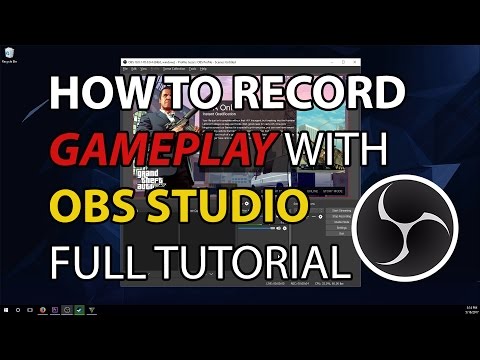
How To Record Gameplay With OBS Studio - Full Tutorial + Best Settings
ChannelJESSEverythingDescription from the creator
This tutorial will teach you how to record your PC gameplay using the free program OBS Studio. Setup your first scene, add game capture and audio sources on multiple tracks, setup your microphone, then learn the best settings for recording in 1080p at 60fps. For people with slow computers, this tutorial will explain what each setting does, as well as which ones to adjust if your computer is not capable of recording at the highest possible settings.
If you have any questions, please leave them in the comments and I will try to help you.
Here is a breakdown of the video:
1) 0:30 - Install OBS Studio
2) 0:42 - Change OBS from light to dark theme
3) 1:10 - Adding a Scene
4) 1:33 - Adding Game Capture to Sources
5) 1:49 - Game Capture Mode #1 - "Capture any fullscreen application"
6) 2:09 - Opening game to record from Steam
7) 2:50 - Game Capture Mode #2 - "Capture specific window"
8) 3:25 - Game Capture Mode #3 - "Capture foreground window with hotkey"
9) 3:41 - Setting Hotkey for Capture Foreground Window
10) 5:07 - Audio Settings - Sample rate
11) 7:04 - Audio Settings - Desktop audio device
12) 7:32 - Audio Settings - Mic/Auxillary audio device
13) 8:00 - Output - changing from simple to advanced mode
14) 8:08 - Output/Audio - Setting audio track bitrate / naming audio tracks
15) 9:26 - Mixer Settings - Downmix to Mono for microphone
16) 9:31 - Mixer Settings - Selecting audio track numbers
17) 10:45 - Video Settings - Base (Canvas) Resolution
18) 11:31 - Video Settings - Output (Scaled) Resolution
19) 11:58 - Video Settings - Downscale Filter
20) 12:40 - Video Settings - Common FPS Values
21) 12:58 - Discussing reducing video settings for slow computers
22) 13:45 - Output/Recording Settings
23) 13:55 - Output/Recording Settings - Type
24) 13:58 - Output/Recording Settings - Recording Path
25) 14:09 - Output/Recording Settings - Generate file name without spaces
26) 14:25 - Output/Recording Settings - Recording Format (mp4)
27) 14:59 - Output/Recording Settings - Audio Track
28) 15:20 - Output/Recording Settings - Encoder (NVENC, Quicksync, x264)
29) 17:15 - Output/Recording Settings - Rescale Output
30) 17:57 - Output/Recording Settings - Rate Control (VBR vs CBR)
31) 18:37 - Output/Recording Settings - Bitrate (Quality vs file size, YouTube compression)
32) 20:24 - Output/Recording Settings - Custom Buffer Size
33) 20:30 - Output/Recording Settings - Keyframe Interval
34) 21:29 - Output/Recording Settings - Cpu Usage Preset
35) 22:11 - Output/Recording Settings - Profile
36) 22:32 - Output/Recording Settings - Tune
37) 22:42 - Output/Recording Settings - Quick Review of all settings
38) 23:08 - Open game to record and target with hotkey (Game Capture Mode #3)
39) 23:39 - Start / Stop Recording
40) 23:44 - Opening sample video recording
41) 24:01 - Discussing Cpu usage of OBS while recording
42) 24:10 - How to troubleshoot bad recordings, stuttering, slow computer, etc.
If you have any questions, please leave them in the comments and I will try to help you.
Here is a breakdown of the video:
1) 0:30 - Install OBS Studio
2) 0:42 - Change OBS from light to dark theme
3) 1:10 - Adding a Scene
4) 1:33 - Adding Game Capture to Sources
5) 1:49 - Game Capture Mode #1 - "Capture any fullscreen application"
6) 2:09 - Opening game to record from Steam
7) 2:50 - Game Capture Mode #2 - "Capture specific window"
8) 3:25 - Game Capture Mode #3 - "Capture foreground window with hotkey"
9) 3:41 - Setting Hotkey for Capture Foreground Window
10) 5:07 - Audio Settings - Sample rate
11) 7:04 - Audio Settings - Desktop audio device
12) 7:32 - Audio Settings - Mic/Auxillary audio device
13) 8:00 - Output - changing from simple to advanced mode
14) 8:08 - Output/Audio - Setting audio track bitrate / naming audio tracks
15) 9:26 - Mixer Settings - Downmix to Mono for microphone
16) 9:31 - Mixer Settings - Selecting audio track numbers
17) 10:45 - Video Settings - Base (Canvas) Resolution
18) 11:31 - Video Settings - Output (Scaled) Resolution
19) 11:58 - Video Settings - Downscale Filter
20) 12:40 - Video Settings - Common FPS Values
21) 12:58 - Discussing reducing video settings for slow computers
22) 13:45 - Output/Recording Settings
23) 13:55 - Output/Recording Settings - Type
24) 13:58 - Output/Recording Settings - Recording Path
25) 14:09 - Output/Recording Settings - Generate file name without spaces
26) 14:25 - Output/Recording Settings - Recording Format (mp4)
27) 14:59 - Output/Recording Settings - Audio Track
28) 15:20 - Output/Recording Settings - Encoder (NVENC, Quicksync, x264)
29) 17:15 - Output/Recording Settings - Rescale Output
30) 17:57 - Output/Recording Settings - Rate Control (VBR vs CBR)
31) 18:37 - Output/Recording Settings - Bitrate (Quality vs file size, YouTube compression)
32) 20:24 - Output/Recording Settings - Custom Buffer Size
33) 20:30 - Output/Recording Settings - Keyframe Interval
34) 21:29 - Output/Recording Settings - Cpu Usage Preset
35) 22:11 - Output/Recording Settings - Profile
36) 22:32 - Output/Recording Settings - Tune
37) 22:42 - Output/Recording Settings - Quick Review of all settings
38) 23:08 - Open game to record and target with hotkey (Game Capture Mode #3)
39) 23:39 - Start / Stop Recording
40) 23:44 - Opening sample video recording
41) 24:01 - Discussing Cpu usage of OBS while recording
42) 24:10 - How to troubleshoot bad recordings, stuttering, slow computer, etc.
About this tutorial
JESSEverything published this 25:43 video tutorial on October 26, 2017. It has been watched 427,383 times on YouTube.
- Channel
- JESSEverything
- Category
- Howto & Style
- Duration
- 25:43
- Published
- October 26, 2017
- Views
- 427,383
- Likes
- 9,164
Tags
Share
This tutorial in other languages
- FRComment enregistrer Gameplay Avec OBS Studio - Plein + meilleurs réglages Tutoriel
- ESCómo grabar juego con OBS - Studio completa Mejor Tutorial Settings +
- PTComo gravar Gameplay Com OBS Estúdio - completa Tutorial + Melhores ajustes
- ITCome registrare gioco con OBS Studio - Tutorial + Regolazioni migliori completi
- DESo zeichnen Gameplay mit OBS Studio - Full Tutorial + Best-Einstellungen
- NLHow To Record Gameplay Met OBS Studio - Full Tutorial + Best Instellingen
- RUКак Запись Геймплей с OBS Studio - полное руководство + Лучшие настройки
- PLJak nagrywać Gameplay z OBS Studio - Full Tutorial + Najlepsze Ustawienia
- JAどのようにレコードのゲームプレイではOBSメーカー - フルチュートリアル+ベストセッティング
- ARكيفية تسجيل اللعب مع OBS ستوديو - كاملة دروس + أفضل إعدادات
- HIकैसे करने के लिए रिकॉर्ड गेमप्ले के साथ OBS स्टूडियो - पूर्ण ट्यूटोरियल + बेस्ट सेटिंग
- IDCara Rekam Gameplay Dengan OBS Studio - Full Tutorial + Pengaturan Terbaik