Playback starts YouTube’s embedded player (privacy-enhanced mode).
How to Use DeviantArt Emoticons
ChannelInternet Services and Social Networks Tutorials from HowTechDescription from the creator
This tutorial is going to show you how to use emoticons on DeviantArt
Don't forget to check out our site howtech.tv/ for more free how-to videos!
youtube.com/ithowtovids - our feed
Facebook.com/howtechtv - join us on Facebook
plus.google.com/103440382717658277879 - our group in Google+
In this tutorial you are going to learn how to use DeviantArt emoticons which can be a great way to express yourself on the website.
Step # 1 -- Accessing the Comments Section
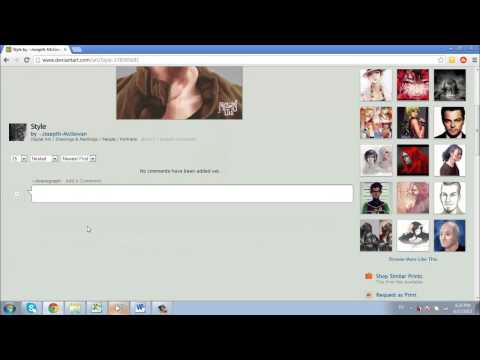
First you are going to need to go to "deviantart.com"; and make sure that you are logged into your account. Let's just click on any image on the homepage so we can access the comments section where we can create an emoticon.
Step # 2 -- Copying the Emoticon Text
Scroll down the page that loads and click in the comments section. Type whatever message you wish and then you need to click the "Emoticons" link below the box. A pop up window will appear and you can select how you want to sort your emoticons from one of the tabs at the top, in this example we are leaving it on the default view. Highlight the text of the emoticon you want and then copy it to the clipboard.
Step # 3 -- Adding the Emoticon
Click "Close" and then paste the text for the emoticon into the comments box. You can repeat this process for any emoticon that you want to add. You can also use the standard emoticon symbols, such as ":)" to make things a bit quicker.
When you are done with your comment click the "Add Comment" button -- as you can see the comment now appears and the emoticons are included and that is how to use DeviantArt emoticons.
Don't forget to check out our site howtech.tv/ for more free how-to videos!
youtube.com/ithowtovids - our feed
Facebook.com/howtechtv - join us on Facebook
plus.google.com/103440382717658277879 - our group in Google+
In this tutorial you are going to learn how to use DeviantArt emoticons which can be a great way to express yourself on the website.
Step # 1 -- Accessing the Comments Section
First you are going to need to go to "deviantart.com"; and make sure that you are logged into your account. Let's just click on any image on the homepage so we can access the comments section where we can create an emoticon.
Step # 2 -- Copying the Emoticon Text
Scroll down the page that loads and click in the comments section. Type whatever message you wish and then you need to click the "Emoticons" link below the box. A pop up window will appear and you can select how you want to sort your emoticons from one of the tabs at the top, in this example we are leaving it on the default view. Highlight the text of the emoticon you want and then copy it to the clipboard.
Step # 3 -- Adding the Emoticon
Click "Close" and then paste the text for the emoticon into the comments box. You can repeat this process for any emoticon that you want to add. You can also use the standard emoticon symbols, such as ":)" to make things a bit quicker.
When you are done with your comment click the "Add Comment" button -- as you can see the comment now appears and the emoticons are included and that is how to use DeviantArt emoticons.
About this tutorial
Internet Services and Social Networks Tutorials from HowTech published this 1:12 video tutorial on October 28, 2013. It has been watched 6,113 times on YouTube.
- Category
- Howto & Style
- Duration
- 1:12
- Published
- October 28, 2013
- Views
- 6,113
- Likes
- 63
Share
This tutorial in other languages
- FRComment faire pour utiliser DeviantArt émoticônes
- ESCómo utilizar emoticonos DeviantArt
- PTComo usar DeviantArt Emoticons
- ITCome usare DeviantArt Emoticons
- DEWie zu verwenden DeviantArt Emoticons
- NLHoe te gebruiken DeviantArt Emoticons
- RUКак использовать DeviantArt смайликов
- PLJak korzystać z deviantART emotikonów
- JA使い方がdeviantart絵文字へ
- ARكيفية استخدام الوسام التعبيرية
- HIकैसे उपयोग DeviantArt इमोटिकॉन्स के लिए
- IDCara Gunakan DeviantArt Emoticons