Playback starts YouTube’s embedded player (privacy-enhanced mode).
How to Use Skype: Making and Answering Calls
ChannelHowcastTechGadgetsDescription from the creator
Watch more How to Use Skype videos: howcast.com/videos/488628-How-to-Use-Skype-Maki…
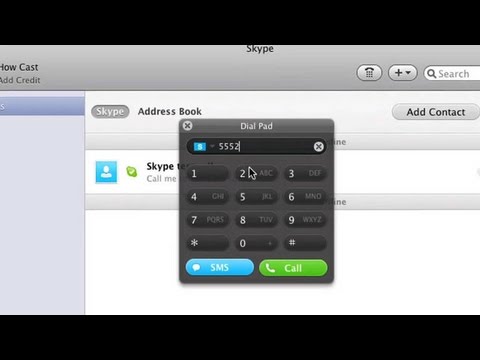
So let's make some calls with Skype. When you first download Skype, it allows you to make one free call. So you just click the dial pad and add in a number. Any number. And then you click "Call," and then it'll call it for you. If you want to keep making calls like this, you can just add Skype credit by going to "Add Credit" under your name and then you just add your credit card information and then you'll be able to add credit to your Skype account. Skype is in fact free, but in order to call landlines and cell phones, you need to add credit. You can make free calls but you just have to have friends and family who also have Skype on their computers. And here's how you add someone who has Skype already installed on their computer. Go to the ""Add"" button. Add Contact. I'm gonna add my friend Ben. Type in the name...and there he is. So you click this little green person plus sign and that will add your buddy. Type him a nice cool message so he knows it's you. Then you click send, and it should go to his device. So here you can actually change your picture. Click "Change Picture," which I'll do right now. And there we go, you'll click set.
And that's your new profile picture. Alright, so now that my friend has accepted his request, we can make a call to him. You can click the camera tab to make a video call, or click the call tab to make a voice call. Let's do a camera.
Ben: Hello.
Howcast: Hello.
Ben: How's it going?
Howcast: Pretty good, how you doin'?
Ben: Pretty good man.
Howcast: Isn't this the coolest app ever?
Ben: Yeah it's really awesome.
So just like that you can start video calls.
Howcast: Bye Ben.
Ben: Bye.
[end call]
If you just want to make a call and you dont
want to see his face [Howcast laughs],
you just click the phone
and dial.
[phone rings]
Ben: Hello.
Howcast: Hello, you can't see me right?
Ben: Nah, I can't see you at all.
Howcast: [makes sound of relief] that's good 'cause I don't think you want to see what I got going on over here. All right, see you later.
Ben: Bye.
[end call]
Then you click the "End" tab, and you're done. That's how you make video and voice calls on Skype.
So let's make some calls with Skype. When you first download Skype, it allows you to make one free call. So you just click the dial pad and add in a number. Any number. And then you click "Call," and then it'll call it for you. If you want to keep making calls like this, you can just add Skype credit by going to "Add Credit" under your name and then you just add your credit card information and then you'll be able to add credit to your Skype account. Skype is in fact free, but in order to call landlines and cell phones, you need to add credit. You can make free calls but you just have to have friends and family who also have Skype on their computers. And here's how you add someone who has Skype already installed on their computer. Go to the ""Add"" button. Add Contact. I'm gonna add my friend Ben. Type in the name...and there he is. So you click this little green person plus sign and that will add your buddy. Type him a nice cool message so he knows it's you. Then you click send, and it should go to his device. So here you can actually change your picture. Click "Change Picture," which I'll do right now. And there we go, you'll click set.
And that's your new profile picture. Alright, so now that my friend has accepted his request, we can make a call to him. You can click the camera tab to make a video call, or click the call tab to make a voice call. Let's do a camera.
Ben: Hello.
Howcast: Hello.
Ben: How's it going?
Howcast: Pretty good, how you doin'?
Ben: Pretty good man.
Howcast: Isn't this the coolest app ever?
Ben: Yeah it's really awesome.
So just like that you can start video calls.
Howcast: Bye Ben.
Ben: Bye.
[end call]
If you just want to make a call and you dont
want to see his face [Howcast laughs],
you just click the phone
and dial.
[phone rings]
Ben: Hello.
Howcast: Hello, you can't see me right?
Ben: Nah, I can't see you at all.
Howcast: [makes sound of relief] that's good 'cause I don't think you want to see what I got going on over here. All right, see you later.
Ben: Bye.
[end call]
Then you click the "End" tab, and you're done. That's how you make video and voice calls on Skype.
About this tutorial
HowcastTechGadgets published this 2:25 video tutorial on November 1, 2011. It has been watched 213,174 times on YouTube.
- Channel
- HowcastTechGadgets
- Category
- Howto & Style
- Duration
- 2:25
- Published
- November 1, 2011
- Views
- 213,174
- Likes
- 466
Tags
Share
This tutorial in other languages
- FRComment utiliser Skype: des appels et téléphoner
- ESCómo utilizar Skype: realizar y contestar llamadas
- PTComo usar o Skype: Atender e efectuar chamadas
- ITCome usare Skype: effettuare e ricevere chiamate
- DEWie zu verwenden Skype: Anrufe annehmen und Telefonieren
- NLHoe te gebruiken Skype: Bellen en gebeld worden
- RUКак использовать Skype: Посылка и прием вызовов
- PLJak używać Skype: nawiązywanie i odbieranie połączeń
- JA使い方スカイプへ:電話をかけると応答
- ARكيفية استخدام سكايب: صنع والرد على المكالمات
- HIकैसे उपयोग करने के लिए स्काइप: मेकिंग और उत्तर कॉल
- IDCara Gunakan Skype: Membuat dan Menjawab Panggilan