Playback starts YouTube’s embedded player (privacy-enhanced mode).
Apogee Control Remote Tutorial
ChannelApogee ElectronicsDescription from the creator
Hi and welcome back to the Apogee Element Series Video Tutorials
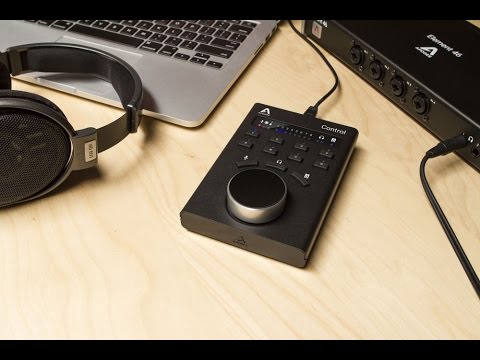
In this video, we introduce the Apogee Control hardware remote accessory, and demonstrate some of the ways it enhances your workflow. If you absolutely, positively must have a physical control under your fingertips, then you’ll want to check out Apogee Control.
Using just the 3 Control Knob focus buttons and the large Control knob, you can access any Element level setting with just a few taps.
For example, to set Input gain, tap the Input focus button once, then turn the control knob to the desired gain setting. The selected input is indicated in the Remote’s LED window and in Element Control using the orange Focus ring.
To choose another input, simply tap the input focus button repeatedly until the desired input is selected.
The headphone output levels are just as easily accessed using the headphone focus button, which toggles through all available headphone outputs.
The speaker focus button provides instant control over the speaker level, a handy feature when you need to adjust volume quickly.
The eight user-assignable buttons plus the Control Knob tap can be set to perform a wide variety of operations, some of which are exclusive to the hardware remote.
To assign button functions, open Element Control software, then click the Toolbar Remote button or choose Remote in the Window menu. In the Assignments window, click on any button to assign its function.
There’s a very wide variety of functions available,
input settings such as Analog level, 48 volt phantom power, soft limit and more.
You can even set button so they directly select specific inputs for the most immediate access.
Also available are typical Monitoring functions like mute, dim and sum to mono, Reference level set, Talkback, and speaker switching on Element 88.
You can even launch Element Control software with a button.
So, if you can’t live without hardware buttons and knobs, Apogee Control is the best way to provide instant access your Element series interface from right under your fingertips.
In this video, we introduce the Apogee Control hardware remote accessory, and demonstrate some of the ways it enhances your workflow. If you absolutely, positively must have a physical control under your fingertips, then you’ll want to check out Apogee Control.
Using just the 3 Control Knob focus buttons and the large Control knob, you can access any Element level setting with just a few taps.
For example, to set Input gain, tap the Input focus button once, then turn the control knob to the desired gain setting. The selected input is indicated in the Remote’s LED window and in Element Control using the orange Focus ring.
To choose another input, simply tap the input focus button repeatedly until the desired input is selected.
The headphone output levels are just as easily accessed using the headphone focus button, which toggles through all available headphone outputs.
The speaker focus button provides instant control over the speaker level, a handy feature when you need to adjust volume quickly.
The eight user-assignable buttons plus the Control Knob tap can be set to perform a wide variety of operations, some of which are exclusive to the hardware remote.
To assign button functions, open Element Control software, then click the Toolbar Remote button or choose Remote in the Window menu. In the Assignments window, click on any button to assign its function.
There’s a very wide variety of functions available,
input settings such as Analog level, 48 volt phantom power, soft limit and more.
You can even set button so they directly select specific inputs for the most immediate access.
Also available are typical Monitoring functions like mute, dim and sum to mono, Reference level set, Talkback, and speaker switching on Element 88.
You can even launch Element Control software with a button.
So, if you can’t live without hardware buttons and knobs, Apogee Control is the best way to provide instant access your Element series interface from right under your fingertips.
About this tutorial
Apogee Electronics published this 2:26 video tutorial on November 9, 2017. It has been watched 27,219 times on YouTube.
- Channel
- Apogee Electronics
- Category
- Music
- Duration
- 2:26
- Published
- November 9, 2017
- Views
- 27,219
- Likes
- 116
Tags
Share
This tutorial in other languages
- FRApogee Remote Control Tutorial
- ESApogeo de control remoto Tutorial
- PTApogee Controlo Remoto Tutorial
- ITApogee Controllo remoto Tutorial
- DEApogee Control Remote-Tutorial
- NLApogee Controle Remote Tutorial
- RUАпогей Пульт дистанционного управления Учебное пособие
- PLApogee zdalnego sterowania Tutorial
- JAApogeeのコントロールリモートチュートリアル
- ARالأوج تحكم دروس عن بعد
- HIपराकाष्ठा नियंत्रण रिमोट ट्यूटोरियल
- IDApogee Remote Control Tutorial