Playback starts YouTube’s embedded player (privacy-enhanced mode).
How to Setup Raspberry Pi WiFi
ChannelPi My Life UpDescription from the creator
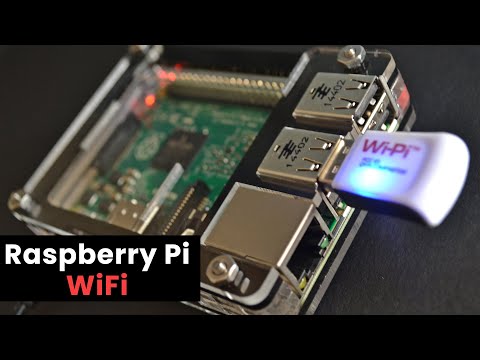
This Raspberry Pi WiFi guide will take you through the steps required to get your Pi connected your local WiFi network.
Full Tutorial: pimylifeup.com/setting-up-raspberry-pi-wifi/
In this guide I take you through how to setup the Raspberry Pi WiFi command line and also via the GUI. Both of these steps are really easy to do so choose the one that you feel more comfortable at doing.
At the time of writing of this tutorial there was two different versions of the WiFi GUI. The newer one is much more like windows where all you have to is select the network and then enter your password.
If you’re doing the command line method then the text below is what you will need to place in your WPA_Supplicant file. Be sure to replace the relevant text with the correct ones of your own network otherwise it will not work.
network={
ssid=”The SSID of your network (eg. Network name)”
psk=”Your Wifi Password”
}
There are several commands you can use to force the WiFi network up and down using terminal such as sudo ifdown wlan0 and sudo ifup wlan0.
If you still have trouble setting up the Raspberry Pi WiFi, then be sure to check out the full tutorial linked above. This may have a solution to the problem you are currently facing. Also another thing to check is that your dongle is in fact supported by Raspbian (The default Pi OS), you can check this by googling “supported Raspbian WiFi dongles”.
If you have enjoyed this video then be sure to check out the many more tutorials we have and subscribe so you can stay up to date with all the latest and greats Pi projects, guides and much more.
Full Tutorial: pimylifeup.com/setting-up-raspberry-pi-wifi/
In this guide I take you through how to setup the Raspberry Pi WiFi command line and also via the GUI. Both of these steps are really easy to do so choose the one that you feel more comfortable at doing.
At the time of writing of this tutorial there was two different versions of the WiFi GUI. The newer one is much more like windows where all you have to is select the network and then enter your password.
If you’re doing the command line method then the text below is what you will need to place in your WPA_Supplicant file. Be sure to replace the relevant text with the correct ones of your own network otherwise it will not work.
network={
ssid=”The SSID of your network (eg. Network name)”
psk=”Your Wifi Password”
}
There are several commands you can use to force the WiFi network up and down using terminal such as sudo ifdown wlan0 and sudo ifup wlan0.
If you still have trouble setting up the Raspberry Pi WiFi, then be sure to check out the full tutorial linked above. This may have a solution to the problem you are currently facing. Also another thing to check is that your dongle is in fact supported by Raspbian (The default Pi OS), you can check this by googling “supported Raspbian WiFi dongles”.
If you have enjoyed this video then be sure to check out the many more tutorials we have and subscribe so you can stay up to date with all the latest and greats Pi projects, guides and much more.
About this tutorial
Pi My Life Up published this 3:12 video tutorial on November 15, 2015. It has been watched 36,079 times on YouTube.
- Channel
- Pi My Life Up
- Category
- People & Blogs
- Duration
- 3:12
- Published
- November 15, 2015
- Views
- 36,079
- Likes
- 140
Tags
Share
This tutorial in other languages
- FRComment installer Raspberry Pi connexion Wi-Fi
- ESCómo configurar Frambuesa Pi Wi-Fi
- PTComo configurar Raspberry Pi WiFi
- ITCome impostare Raspberry Pi WiFi
- DEWie Setup Raspberry Pi WiFi
- NLHoe je Raspberry Pi WiFi
- RUКак настроить Raspberry Pi WiFi
- PLJak skonfigurować Raspberry Pi WiFi
- JAどのようにセットアップラズベリーパイのWiFiへ
- ARكيفية إعداد التوت بي واي فاي
- HIकैसे सेटअप रास्पबेरी Pi Wi-Fi से
- IDCara Setup Raspberry Pi WiFi