Playback starts YouTube’s embedded player (privacy-enhanced mode).
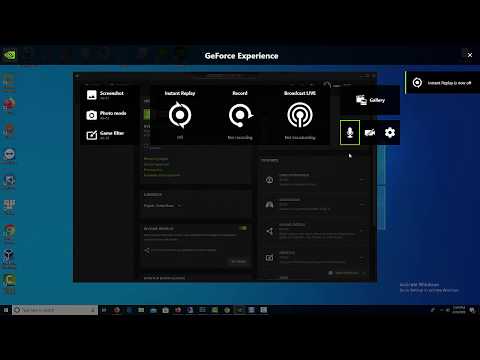
How to turn off Geforce Experience ALT+Z
ChannelWindows 10 FixDescription from the creator
This video will show you how to Disable NVIDIA’s GeForce Experience In-Game Overlay Icons & Alt+Z Notification.
How to disable Geforce Experience ALT+Z
- open the Share overlay by pressing Alt+Z
- click on the Cogwheel icon in the top right.
- Select “Notifications”
- Change the “Open/close in game overlay” notification to “Off”.
If you don't want to see Geforce Experience overlay, follow these steps below:
how to disable Nvidia overlay
- Open the GeForce Experience application.
- Click the “Share” icon to the left of your name.
- Click the “Instant Replay” icon in the overlay and then choose “Turn Off”.
- Close the overlay.
how to disable nvidia overlay: youtu.be/Eexxqv9iYmo
how to disable geforce experience alt+z
How to Hide the Alt+Z Notification
How to disable Geforce Experience ALT+Z
- open the Share overlay by pressing Alt+Z
- click on the Cogwheel icon in the top right.
- Select “Notifications”
- Change the “Open/close in game overlay” notification to “Off”.
If you don't want to see Geforce Experience overlay, follow these steps below:
how to disable Nvidia overlay
- Open the GeForce Experience application.
- Click the “Share” icon to the left of your name.
- Click the “Instant Replay” icon in the overlay and then choose “Turn Off”.
- Close the overlay.
how to disable nvidia overlay: youtu.be/Eexxqv9iYmo
how to disable geforce experience alt+z
How to Hide the Alt+Z Notification
About this tutorial
Windows 10 Fix published this 0:58 video tutorial on April 29, 2020. It has been watched 198,518 times on YouTube.
- Channel
- Windows 10 Fix
- Category
- People & Blogs
- Duration
- 0:58
- Published
- April 29, 2020
- Views
- 198,518
- Likes
- 1,323
Tags
Share
This tutorial in other languages
- FRComment désactiver ALT + Geforce Expérience Z
- ESCómo desactivar Geforce Experiencia ALT + Z
- PTComo desativar Geforce Experiência ALT + Z
- ITCome disattivare Geforce Experience ALT + Z
- DEWie deaktivieren Geforce Experience ALT + Z
- NLHoe uit te schakelen Geforce Experience ALT + Z
- RUКак отключить Geforce Опыт ALT + Z
- PLJak wyłączyć Geforce Experience ALT + Z
- JAGeForce経験ALT + Zをオフにする方法
- ARكيفية إيقاف غيفورسي الخبرة ALT + Z
- HIकैसे Geforce अनुभव Alt + Z बंद करने के लिए
- IDCara mematikan Geforce Experience ALT + Z