Playback starts YouTube’s embedded player (privacy-enhanced mode).
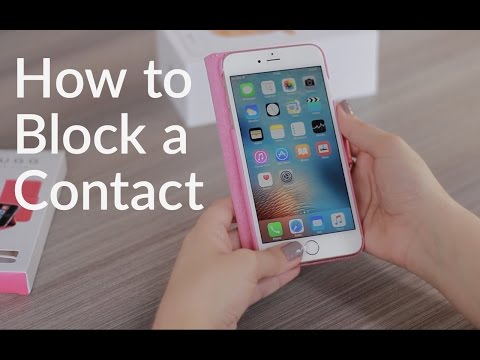
How To Block Contacts On iPhone
ChannelSnuggDescription from the creator
Most of us have had the pain of receiving numerous nuisance calls. Fortunately, there is a way to block these calls from your iPhone - forever! So, if you’re having trouble with unwanted calls then follow our easy step by step guide. We’ll also explain how to unblock those numbers you might not want permanently blocked.
Step by step how to block someone from calling your iPhone:
1 – Open up the Phone app from the Home screen of your device
2 – Select the Recent Calls tab found on along the bottom of your screen
3 – Find the contact that you want to block and tap the Info button located next to their phone number
4 – Scroll down on the info screen and tap the Block this Caller option – it will be highlighted in red.
Alternate way to block a number:
1 – From the Home screen of your device tap settings
2 – Select the Phone option then tap Blocked
3 – Selected Add New and to bring up all your contacts
4 – Tap a contact and it will bring you back to the blocked page automatically, now showing that contact as blocked
How to unblock a contact:
1 – Select Setting from the Home screen on your device
2 – Tap the Phone option and then select Blocked
3 – Next tap Edit in the top right corner and swipe to unblock this contact
Will they know they’ve been blocked?
In short, no they won’t know you’ve blocked them. They might however release something isn’t quite right when they no long will be able to get in contact with you! When a blocked contact tries to call you they will immediately be sent to voicemail. Any messages left by a blocked caller will be held in a separate folder called Blocked Messages, which you can listen to.
If a blocked number tried to send you an iMessage or text, it will appear to them as though the message has send but you won’t have to see the message.
Watch our quick and helpful video above/below, guides you through step by step on how to block and unblock a caller.
How to close and switch between apps on iPhone
Multitasking is part of modern day life, and it’s the same when we are using our smartphone. On your iPhone you can use multiple apps at once! There are also features like Slide Over, Split View, and Picture in Picture on certain iPad models.
Check Us Out On Amazon
----------------------------------------------------------------------------------------------------------------
United Kingdom:
amazon.co.uk/s/ref=nb_sb_noss?url=me%3DAAN216OR…
United States:
amazon.com/Snugg/b/ref=bl_dp_s_web_3447077011?i…
Our Social Media Links
----------------------------------------------------------------------------------------------------------------
Instagram: instagram.com/snugguk/
Facebook: facebook.com/thesnugg/
Twitter: twitter.com/TheSnugg
Step by step how to block someone from calling your iPhone:
1 – Open up the Phone app from the Home screen of your device
2 – Select the Recent Calls tab found on along the bottom of your screen
3 – Find the contact that you want to block and tap the Info button located next to their phone number
4 – Scroll down on the info screen and tap the Block this Caller option – it will be highlighted in red.
Alternate way to block a number:
1 – From the Home screen of your device tap settings
2 – Select the Phone option then tap Blocked
3 – Selected Add New and to bring up all your contacts
4 – Tap a contact and it will bring you back to the blocked page automatically, now showing that contact as blocked
How to unblock a contact:
1 – Select Setting from the Home screen on your device
2 – Tap the Phone option and then select Blocked
3 – Next tap Edit in the top right corner and swipe to unblock this contact
Will they know they’ve been blocked?
In short, no they won’t know you’ve blocked them. They might however release something isn’t quite right when they no long will be able to get in contact with you! When a blocked contact tries to call you they will immediately be sent to voicemail. Any messages left by a blocked caller will be held in a separate folder called Blocked Messages, which you can listen to.
If a blocked number tried to send you an iMessage or text, it will appear to them as though the message has send but you won’t have to see the message.
Watch our quick and helpful video above/below, guides you through step by step on how to block and unblock a caller.
How to close and switch between apps on iPhone
Multitasking is part of modern day life, and it’s the same when we are using our smartphone. On your iPhone you can use multiple apps at once! There are also features like Slide Over, Split View, and Picture in Picture on certain iPad models.
Check Us Out On Amazon
----------------------------------------------------------------------------------------------------------------
United Kingdom:
amazon.co.uk/s/ref=nb_sb_noss?url=me%3DAAN216OR…
United States:
amazon.com/Snugg/b/ref=bl_dp_s_web_3447077011?i…
Our Social Media Links
----------------------------------------------------------------------------------------------------------------
Instagram: instagram.com/snugguk/
Facebook: facebook.com/thesnugg/
Twitter: twitter.com/TheSnugg
About this tutorial
Snugg published this 1:10 video tutorial on October 25, 2016. It has been watched 26,466 times on YouTube.
- Channel
- Snugg
- Category
- Science & Technology
- Duration
- 1:10
- Published
- October 25, 2016
- Views
- 26,466
- Likes
- 80
Tags
Share
This tutorial in other languages
- FRComment bloquer les contacts sur iPhone
- ESCómo bloquear contactos en el iPhone
- PTComo bloquear Contactos No iPhone
- ITCome bloccare contatti su iPhone
- DEHow To Block-Kontakte auf dem iPhone
- NLHow To Block Contacten Op de iPhone
- RUКак Блочные Контакты На iPhone
- PLJak zablokować kontaktów na iPhone
- JAiPhone上でどのようにするにはブロックコンタクト
- ARكيفية كتلة اتصالات على أجهزة iPhone
- HIकैसे करने के लिए ब्लॉक संपर्क iPhone पर
- IDCara Blok Kontak Pada iPhone