Playback starts YouTube’s embedded player (privacy-enhanced mode).
How to Change the Screensaver on a Mac | Mac Basics
ChannelHowcastDescription from the creator
Full Playlist: youtube.com/playlist?list=PLLALQuK1NDriZe-Bw9Hg…
-
-
Watch more How to Use a Mac videos: howcast.com/videos/515918-How-to-Change-the-Scr…
Hi, Lisa here, and I'm going to show you how to change your screen saver on a Mac. So the first thing you want to do is go to your system preferences. After that, you're going to look for the desktop and screensaver icon in the first row. Now up here you have two options, desktop, and screensaver, so we're going to be on the screensaver side. And right now, the very first one is selected for us, the one called floating. Over here you get a little preview of it and if you click on the preview button that pops up when you put your mouse on the black window, it will actually show you what it looks like on the full screen. So you can see it kind of coming in slowly there from the bottom. Now you can choose different ones, and they all have different names, and again, you can preview them.
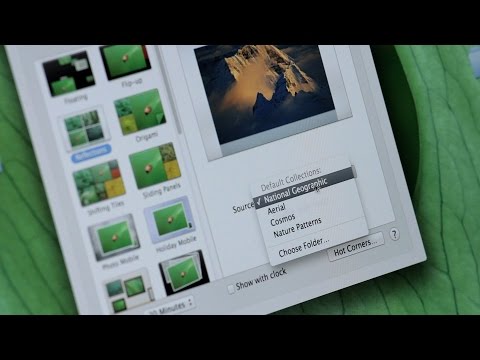
Now also, you can see underneath this bar with the preview, where the source of the pictures are coming from. So by default, they come from National Geographic, but you can choose different pictures, areal photo's, Cosmo space photo's, or you can even choose a folder of your own pictures. We have a couple other options as well, such as shuffling the side order, or showing the screen saver with the clock on, and that would look like that with the clock there on the right. You can decide when you want the screen saver to start as well, from one minute, all the way up to an hour. There you go, that's how you change your screensaver on a Mac.
-
-
Watch more How to Use a Mac videos: howcast.com/videos/515918-How-to-Change-the-Scr…
Hi, Lisa here, and I'm going to show you how to change your screen saver on a Mac. So the first thing you want to do is go to your system preferences. After that, you're going to look for the desktop and screensaver icon in the first row. Now up here you have two options, desktop, and screensaver, so we're going to be on the screensaver side. And right now, the very first one is selected for us, the one called floating. Over here you get a little preview of it and if you click on the preview button that pops up when you put your mouse on the black window, it will actually show you what it looks like on the full screen. So you can see it kind of coming in slowly there from the bottom. Now you can choose different ones, and they all have different names, and again, you can preview them.
Now also, you can see underneath this bar with the preview, where the source of the pictures are coming from. So by default, they come from National Geographic, but you can choose different pictures, areal photo's, Cosmo space photo's, or you can even choose a folder of your own pictures. We have a couple other options as well, such as shuffling the side order, or showing the screen saver with the clock on, and that would look like that with the clock there on the right. You can decide when you want the screen saver to start as well, from one minute, all the way up to an hour. There you go, that's how you change your screensaver on a Mac.
About this tutorial
Howcast published this 1:47 video tutorial on October 31, 2014. It has been watched 75,451 times on YouTube.
- Channel
- Howcast
- Category
- Science & Technology
- Duration
- 1:47
- Published
- October 31, 2014
- Views
- 75,451
- Likes
- 247
Tags
Share
This tutorial in other languages
- FRComment changer l'écran de veille sur un Mac | Mac Basics
- ESCómo cambiar el protector de pantalla en un Mac | Básicos del Mac
- PTComo alterar o protetor de tela em um Mac | Mac Basics
- ITCome modificare il salvaschermo su un Mac | Mac Basics
- DEWie die Screensaver auf einem Mac ändern | Mac Basics
- NLHoe de Screensaver wijzigen op een Mac | Grondbeginselen van de Mac
- RUКак изменить заставку на Mac | Mac Основы
- PLJak zmienić wygaszacz ekranu na komputerze Mac | Mac Basics
- JAMacでスクリーンセーバーを変更する方法| Macの基本
- ARكيفية تغيير شاشة التوقف على ماك | ماك أساسيات
- HIकैसे पर एक मैक स्क्रीनसेवर बदलने के लिए | मैक मूल बातें
- IDCara Mengubah Screensaver pada Mac | Mac Dasar