Playback starts YouTube’s embedded player (privacy-enhanced mode).
How to Change your Sender Name in Gmail
ChannelThe GooruDescription from the creator
Most people assume they are locked into their sender name in Gmail. But what if you want to create something that's easily identifiable with everyone you communicate with?
With a few easy steps, you can change your name for sent messages into anything you want. We don't suggest changing it to anything crazy, but it can be a great opportunity for company branding.
For example, I could change my name from 'John Doe' to 'John Doe | Google Gooru' so people immediately associate my name with Google Gooru.
To get started on changing your sender name in Gmail, follow these easy steps:
1.) Click on the Settings gear at the top of your Gmail inbox, then click 'Settings'
2.) Click the 'Accounts' tab, then find the 'Send mail as:' section
3.) Select the 'edit info' link directly across from the sender name you'd like to change
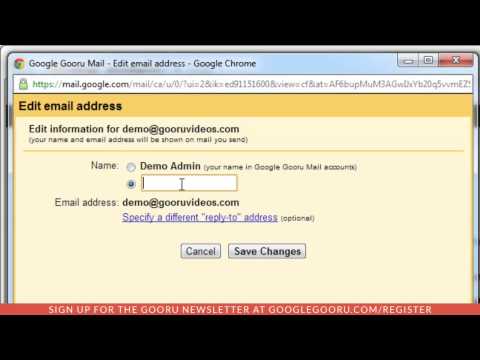
4.) Enter in your new sender name in the text box below your current sender name
5.) Save Changes
To watch the updated video and read the full article on the BetterCloud Monitor, visit:
bettercloud.com/monitor/the-academy/how-to-chan…
With a few easy steps, you can change your name for sent messages into anything you want. We don't suggest changing it to anything crazy, but it can be a great opportunity for company branding.
For example, I could change my name from 'John Doe' to 'John Doe | Google Gooru' so people immediately associate my name with Google Gooru.
To get started on changing your sender name in Gmail, follow these easy steps:
1.) Click on the Settings gear at the top of your Gmail inbox, then click 'Settings'
2.) Click the 'Accounts' tab, then find the 'Send mail as:' section
3.) Select the 'edit info' link directly across from the sender name you'd like to change
4.) Enter in your new sender name in the text box below your current sender name
5.) Save Changes
To watch the updated video and read the full article on the BetterCloud Monitor, visit:
bettercloud.com/monitor/the-academy/how-to-chan…
About this tutorial
The Gooru published this 2:08 video tutorial on October 29, 2013. It has been watched 108,185 times on YouTube.
- Channel
- The Gooru
- Category
- Science & Technology
- Duration
- 2:08
- Published
- October 29, 2013
- Views
- 108,185
- Likes
- 316
Tags
Share
This tutorial in other languages
- FRComment changer votre nom de l'expéditeur dans Gmail
- ESCómo cambiar el nombre del remitente en Gmail
- PTComo alterar o seu nome de remetente no Gmail
- ITCome modificare il nome del mittente in Gmail
- DESo ändern Sie Ihren Absendernamen in Gmail
- NLHet wijzigen van uw Sender Name in Gmail
- RUКак изменить свое Имя отправителя в Gmail
- PLJak zmienić swoją nazwę nadawcy w Gmailu
- JAGmailであなたの送信者名を変更する方法
- ARكيفية تغيير اسم المرسل في Gmail
- HIकैसे Gmail में अपने भेजने वाले का नाम बदलने के लिए
- IDCara Mengubah Nama Pengirim Anda di Gmail