Playback starts YouTube’s embedded player (privacy-enhanced mode).
How to Enable Restrictions | iPhone Tips
ChannelHowcastDescription from the creator
Watch more iPhone Tips & Tricks videos: howcast.com/videos/515308-How-to-Enable-Restric…
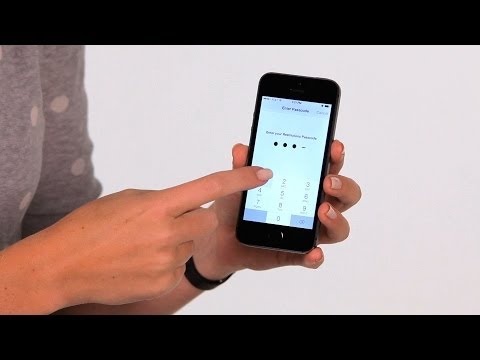
Hi, Lisa here. And I'm gonna show you how you can enable the restrictions on your iPhone. So, first you're gonna go to your settings. Then once you're in there, you'll choose general, then you can scroll down until you see restrictions. You'll tap on restrictions and first you have to enable them. When you tap on that, it will make you enter restrictions pass code. This is so you can go back in and change this at a later time. So, here we'll just enter in 1 1 1 1. Once you're in here, you're gonna have a lot of options. Some of your options include, which apps you allow to be access from the home screen, allowed content from the app store, such as; what radiance from the music.
Whether you can allow download in explicit music or not. You can change the privacy of restrictions and you can also state what changes can be made. Whether or not you can add accounts and delete them. Whether you can add cellular data use, things like that. So, let's have an example. Let's say, we don't allow Safari to be used on the home screen. You turn it off, now we go back, and now when we look in our home screen, Safari is no longer an option where it previously was. So, if we go back into the settings, back into restrictions, we enter that pass code.
We can turn Safari back on, and when we go back to the home screen, Safari is an option again. So, that's basic enter on how to use restrictions on your iPhone.
Hi, Lisa here. And I'm gonna show you how you can enable the restrictions on your iPhone. So, first you're gonna go to your settings. Then once you're in there, you'll choose general, then you can scroll down until you see restrictions. You'll tap on restrictions and first you have to enable them. When you tap on that, it will make you enter restrictions pass code. This is so you can go back in and change this at a later time. So, here we'll just enter in 1 1 1 1. Once you're in here, you're gonna have a lot of options. Some of your options include, which apps you allow to be access from the home screen, allowed content from the app store, such as; what radiance from the music.
Whether you can allow download in explicit music or not. You can change the privacy of restrictions and you can also state what changes can be made. Whether or not you can add accounts and delete them. Whether you can add cellular data use, things like that. So, let's have an example. Let's say, we don't allow Safari to be used on the home screen. You turn it off, now we go back, and now when we look in our home screen, Safari is no longer an option where it previously was. So, if we go back into the settings, back into restrictions, we enter that pass code.
We can turn Safari back on, and when we go back to the home screen, Safari is an option again. So, that's basic enter on how to use restrictions on your iPhone.
About this tutorial
Howcast published this 1:51 video tutorial on October 31, 2014. It has been watched 195,128 times on YouTube.
- Channel
- Howcast
- Category
- Science & Technology
- Duration
- 1:51
- Published
- October 31, 2014
- Views
- 195,128
- Likes
- 460
Tags
Share
This tutorial in other languages
- FRComment Activer les restrictions | Conseils iPhone
- ESCómo habilitar restricciones | Consejos iPhone
- PTComo ativar Restrições | Dicas iPhone
- ITCome abilitare restrizioni | iPhone Tips
- DEWie Einschränkungen aktivieren | iPhone Tipps
- NLHoe te Beperkingen inschakelen | iPhone Tips
- RUКак Включить ограничения | iPhone Советы
- PLJak włączyć ograniczenia | iPhone Porady
- JA制限を有効にする方法| iPhoneのヒント
- ARكيفية تمكين القيود | نصائح فون
- HIप्रतिबंध सक्षम कैसे | iPhone युक्तियाँ
- IDCara Aktifkan Pembatasan | Tips iPhone