Playback starts YouTube’s embedded player (privacy-enhanced mode).
How to Enable Task Manager in Windows
ChannelHowcastDescription from the creator
Full Playlist: youtube.com/playlist?list=PLLALQuK1NDrheOFip252…
-
-
Watch more How to Understand Computers videos: howcast.com/videos/316377-How-to-Enable-Task-Ma…
Step 1: Run the registry editor
Click on the Start menu, and then click Run. When the window comes up, type Regedit.exe and press Enter.
Step 2: Navigate to the system folder
Open HKEYCURRENTUSER. Then go to Software, then Microsoft, Windows, CurrentVersion, Policies, and then the System folder.
Step 3: Delete DisableTskMgr
Move the cursor to the right panel and click DisableTaskManager. Delete this item by pressing the Delete key.
Tip
You can also right-click DisableTskMgr, click Modify, and then change the value data number to zero to enable it.
Step 4: Test the task manager
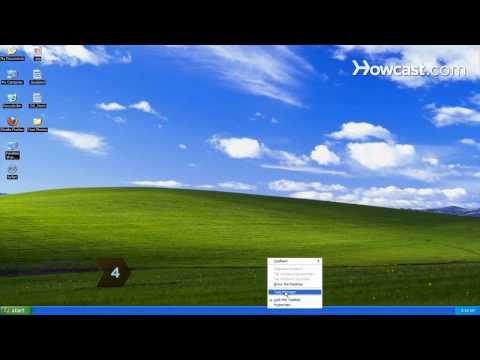
Test the task manager by right-clicking the task bar at the bottom of the screen, and then click Task Manager. Or press Control-Alt-Delete. If the Task Manager comes up, you have successfully enabled Task Manager.
Step 5: Check virus software
Check your virus software or contact your computer manufacturer's technical support. Sometimes a virus on your computer can disable the task manager.
Did You Know?
In 1980, Microsoft partnered with IBM to create an operating system for IBM's first personal computer called MS-DOS.
-
-
Watch more How to Understand Computers videos: howcast.com/videos/316377-How-to-Enable-Task-Ma…
Step 1: Run the registry editor
Click on the Start menu, and then click Run. When the window comes up, type Regedit.exe and press Enter.
Step 2: Navigate to the system folder
Open HKEYCURRENTUSER. Then go to Software, then Microsoft, Windows, CurrentVersion, Policies, and then the System folder.
Step 3: Delete DisableTskMgr
Move the cursor to the right panel and click DisableTaskManager. Delete this item by pressing the Delete key.
Tip
You can also right-click DisableTskMgr, click Modify, and then change the value data number to zero to enable it.
Step 4: Test the task manager
Test the task manager by right-clicking the task bar at the bottom of the screen, and then click Task Manager. Or press Control-Alt-Delete. If the Task Manager comes up, you have successfully enabled Task Manager.
Step 5: Check virus software
Check your virus software or contact your computer manufacturer's technical support. Sometimes a virus on your computer can disable the task manager.
Did You Know?
In 1980, Microsoft partnered with IBM to create an operating system for IBM's first personal computer called MS-DOS.
About this tutorial
Howcast published this 1:23 video tutorial on November 12, 2010. It has been watched 30,784 times on YouTube.
- Channel
- Howcast
- Category
- Science & Technology
- Duration
- 1:23
- Published
- November 12, 2010
- Views
- 30,784
- Likes
- 110
Tags
Share
This tutorial in other languages
- FRComment faire pour activer le Gestionnaire des tâches dans Windows
- ESCómo habilitar el Administrador de tareas de Windows
- PTComo ativar o Gerenciador de Tarefas no Windows
- ITCome attivare il Task Manager in Windows
- DESo aktivieren Sie den Task-Manager in Windows
- NLHoe kan inschakelen Taakbeheer in Windows
- RUКак включить диспетчер задач в Windows,
- PLJak włączyć Menedżera zadań w systemie Windows
- JAWindowsのタスクマネージャを有効にする方法
- ARكيفية تمكين مدير المهام في ويندوز
- HIसक्षम करने के लिए कैसे Windows की Task Manager
- IDCara Aktifkan Task Manager pada Windows