Playback starts YouTube’s embedded player (privacy-enhanced mode).
How to Install Windows 8 Professional 64 bit (Easy To Follow Guide)
ChannelComputer Garage_orgDescription from the creator
Hi, In this video I will show you How to Install Windows 8 Professional 64 bit
Subscribe YouTube : youtube.com/user/lcp03o?sub_confirmation=1
Twitter : twitter.com/ComputerGarageo
Google+ : plus.google.com/u/0/110841393164005763306
Website : computergarage.org
The first step is to insert your windows 8 install media in to your machine, If you don't have an install media you can create one by downloading the microsoft tool ( youtube.com/watch?v=ugjSOToYLQk ) at microsoft.com/en-gb/software-download/windows8 once created insert the install media in to your machine and boot to it by pressing any key when prompted.
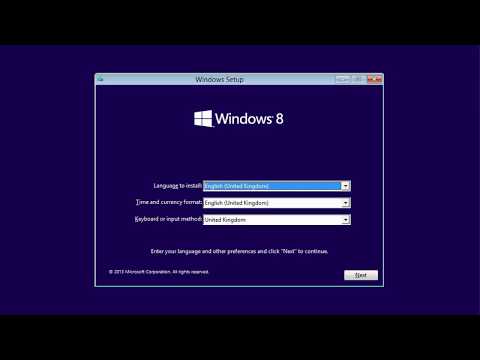
At the first screen select your region and click next. Click install now. Enter your windows 8 professional 64 bit license and click next.
Tick box and select next. Custom install next, Select drive to install to (Be aware it will format this drive so backup any data you have on the drive, click next.
Windows 8 will now start the install process, when prompted click restart now. Your machine will now continue the install and will reboot a few times.
You will get asked a few questions about your install, computer name, user name and so on, follow the prompts on how to install windows 8 professional 64 bit. If you need to recover a lost or forgotten windows 8 password you can using this guide youtube.com/watch?v=YKFgPp_Wn2I
When windows 8 has finished installing and you are at the desktop you need to do a few more things.
Update Device Drivers
Activate Windows 8 Professional 64 Bit
Install Anti-Virus
Install Latest Windows Updates
Thanks for watching this video How to Install Windows 8 Professional 64 bit If you have any feedback please post it below and hit the like button if you found this video useful. If you have time please subscribe to my channel @ youtube.com/user/lcp03o?sub_confirmation=1
Subscribe YouTube : youtube.com/user/lcp03o?sub_confirmation=1
Twitter : twitter.com/ComputerGarageo
Google+ : plus.google.com/u/0/110841393164005763306
Website : computergarage.org
The first step is to insert your windows 8 install media in to your machine, If you don't have an install media you can create one by downloading the microsoft tool ( youtube.com/watch?v=ugjSOToYLQk ) at microsoft.com/en-gb/software-download/windows8 once created insert the install media in to your machine and boot to it by pressing any key when prompted.
At the first screen select your region and click next. Click install now. Enter your windows 8 professional 64 bit license and click next.
Tick box and select next. Custom install next, Select drive to install to (Be aware it will format this drive so backup any data you have on the drive, click next.
Windows 8 will now start the install process, when prompted click restart now. Your machine will now continue the install and will reboot a few times.
You will get asked a few questions about your install, computer name, user name and so on, follow the prompts on how to install windows 8 professional 64 bit. If you need to recover a lost or forgotten windows 8 password you can using this guide youtube.com/watch?v=YKFgPp_Wn2I
When windows 8 has finished installing and you are at the desktop you need to do a few more things.
Update Device Drivers
Activate Windows 8 Professional 64 Bit
Install Anti-Virus
Install Latest Windows Updates
Thanks for watching this video How to Install Windows 8 Professional 64 bit If you have any feedback please post it below and hit the like button if you found this video useful. If you have time please subscribe to my channel @ youtube.com/user/lcp03o?sub_confirmation=1
About this tutorial
Computer Garage_org published this 7:49 video tutorial on November 4, 2017. It has been watched 31,050 times on YouTube.
- Channel
- Computer Garage_org
- Category
- Science & Technology
- Duration
- 7:49
- Published
- November 4, 2017
- Views
- 31,050
- Likes
- 188
Tags
Share
This tutorial in other languages
- FRComment faire pour installer Windows 8 bits Professional 64 (Guide facile à suivre)
- ESCómo instalar Windows 8 Professional de 64 bits (la guía fácil de seguir)
- PTComo instalar o Windows 8 Professional de 64 bits (Easy guia para seguir)
- ITCome installare Windows 8 Professional a 64 bit (guida facile da seguire)
- DESo installieren Sie Windows 8 Professional 64-Bit (leicht zu folgen Guide)
- NLHoe te installeren Windows 8 Professional 64-bits (makkelijk te volgen Guide)
- RUКак установить Windows 8 Professional 64 бит (Easy To Follow Guide)
- PLJak zainstalować Windows 8 Professional 64 bit (łatwy do naśladowania Guide)
- JAWindowsの8 Professionalをインストールする方法64ビット(簡単にするために従うガイド)
- ARكيفية تثبيت ويندوز 8 من الفئة الفنية 64 بت (سهل دليل لمتابعة)
- HIWindows 8 व्यावसायिक स्थापित करने के लिए कैसे 64 बिट (आसान करने के लिए का पालन गाइड)
- IDCara Instal Windows 8 Professional 64 bit (Mudah Untuk Ikuti Panduan)