Playback starts YouTube’s embedded player (privacy-enhanced mode).
How to Play Music on an Amazon Kindle
ChannelHowcastDescription from the creator
Full Playlist: youtube.com/playlist?list=PLLALQuK1NDri8wmmLlkp…
-
-
Watch more Digital Music & Music Downloads videos: howcast.com/videos/398298-How-to-Play-Music-on-…
If you're looking to get more from your Kindle, this guide will have you enjoying your favorite tunes and podcasts in just a few steps.
Step 1: Turn computer on
Turn your computer or laptop on and wait for it to boot before connecting your Kindle.
Tip
The Amazon Kindle will connect to both Windows and Apple operating systems.
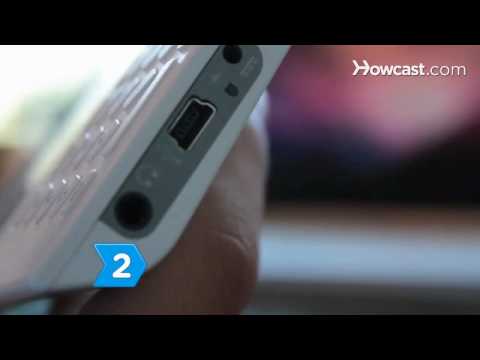
Step 2: Connect Kindle
Connect the Kindle by plugging one end of the included USB cable into the bottom of the unit and the other end into an open USB port on your computer.
Step 3: Locate Kindle
Locate the Kindle in your computer, which will appear as a Mass Storage Device, and open the Music folder.
Tip
Connecting the Kindle to your computer will shut off your Wi-Fi, stopping any downloads that are in progress.
Step 4: Drag and drop music
Drag and drop your MP3 music files, which are the only supported file type, into the Music folder on your Kindle.
Step 5: Disconnect Kindle
Disconnect the Kindle from your computer and then access your music by hitting the Home key, then Menu, and then selecting Play Music.
Step 6: Plug in headphones
Connect your headphones to your Kindle to get some privacy while you play a soundtrack to your favorite book.
Did You Know?
In 1731, Benjamin Franklin founded the first traveling library, which allowed people to borrow books who would otherwise not be able to afford them.
-
-
Watch more Digital Music & Music Downloads videos: howcast.com/videos/398298-How-to-Play-Music-on-…
If you're looking to get more from your Kindle, this guide will have you enjoying your favorite tunes and podcasts in just a few steps.
Step 1: Turn computer on
Turn your computer or laptop on and wait for it to boot before connecting your Kindle.
Tip
The Amazon Kindle will connect to both Windows and Apple operating systems.
Step 2: Connect Kindle
Connect the Kindle by plugging one end of the included USB cable into the bottom of the unit and the other end into an open USB port on your computer.
Step 3: Locate Kindle
Locate the Kindle in your computer, which will appear as a Mass Storage Device, and open the Music folder.
Tip
Connecting the Kindle to your computer will shut off your Wi-Fi, stopping any downloads that are in progress.
Step 4: Drag and drop music
Drag and drop your MP3 music files, which are the only supported file type, into the Music folder on your Kindle.
Step 5: Disconnect Kindle
Disconnect the Kindle from your computer and then access your music by hitting the Home key, then Menu, and then selecting Play Music.
Step 6: Plug in headphones
Connect your headphones to your Kindle to get some privacy while you play a soundtrack to your favorite book.
Did You Know?
In 1731, Benjamin Franklin founded the first traveling library, which allowed people to borrow books who would otherwise not be able to afford them.
About this tutorial
Howcast published this 1:31 video tutorial on November 12, 2010. It has been watched 45,244 times on YouTube.
- Channel
- Howcast
- Category
- Science & Technology
- Duration
- 1:31
- Published
- November 12, 2010
- Views
- 45,244
- Likes
- 75
Tags
Share
This tutorial in other languages
- FRComment jouer la musique sur un Kindle d'Amazon
- ESCómo reproducir música en un Kindle de Amazon
- PTComo Jogar Música em um Amazon Kindle
- ITCome giocare musica su un Amazon Kindle
- DEWie man spielt Musik auf einem Amazon Kindle
- NLHoe om muziek te spelen op een Amazon Kindle
- RUКак играть музыку на Amazon Kindle
- PLJak grać muzyki na Amazon Kindle
- JAAmazonのKindleで音楽を再生する方法
- ARكيفية تشغيل الموسيقى على الامازون أوقد
- HIकैसे एक अमेज़न Kindle पर संगीत खेलने के लिए
- IDCara Bermain Musik di Amazon Kindle