Playback starts YouTube’s embedded player (privacy-enhanced mode).
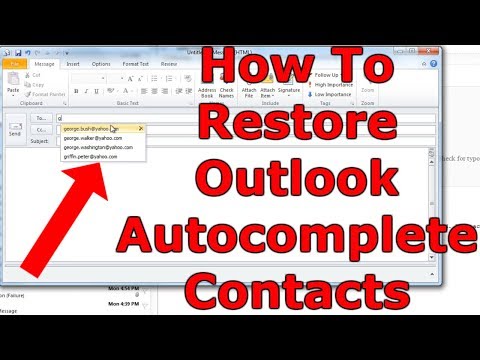
How To Restore Outlook Auto Complete (Outlook 2010)
Channelthe fiX filesDescription from the creator
In this video I show how to restore the auto complete list of contacts that Outlook builds as you send emails. The contacts are stored in a file so you will need to migrate that file over to your new computer.
The version used in this video is Outlook 2010. I know Outlook 2003 and 2007 use a different file, so the steps are different. I'm not sure about Outlook 2013 and 2016.
The version used in this video is Outlook 2010. I know Outlook 2003 and 2007 use a different file, so the steps are different. I'm not sure about Outlook 2013 and 2016.
About this tutorial
the fiX files published this 3:55 video tutorial on October 26, 2017. It has been watched 39,958 times on YouTube.
- Channel
- the fiX files
- Category
- Science & Technology
- Duration
- 3:55
- Published
- October 26, 2017
- Views
- 39,958
- Likes
- 170
Tags
Share
This tutorial in other languages
- FRComment restaurer Auto Outlook complet (Outlook 2010)
- ESCómo restaurar Perspectivas auto completo (Outlook 2010)
- PTComo restaurar o Outlook Auto Completo (Outlook 2010)
- ITCome ripristinare Outlook Completamento automatico (Outlook 2010)
- DEWie die Wiederherstellung von Outlook Auto Complete (Outlook 2010)
- NLHow To Outlook Auto Compleet (Outlook 2010) Herstel
- RUКак восстановить Outlook, автозаполнение (Outlook 2010)
- PLJak przywrócić Outlook Auto Complete (Outlook 2010)
- JA展望オートコンプリート(Outlook 2010の)を復元する方法
- ARكيفية استعادة توقعات السيارات كاملة (توقعات 2010)
- HIआउटलुक ऑटो पूर्ण (आउटलुक 2010) पुनर्स्थापित करने के लिए कैसे
- IDBagaimana Untuk Kembalikan Outlook Auto Complete (Outlook 2010)