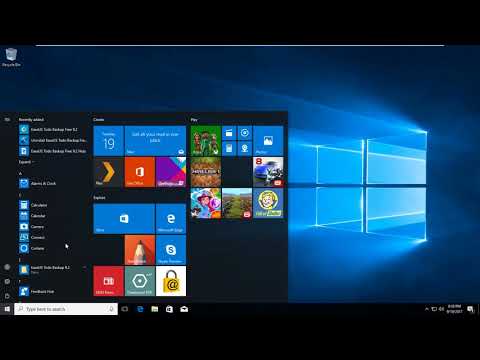
Playback starts YouTube’s embedded player (privacy-enhanced mode).
How to set auto logon on windows registry
ChannelAndrew RosenDescription from the creator
How to set auto logon on windows registry
To use Registry Editor to turn on automatic logon, follow these steps:
1. Click Start, and then click Run.
2. In the Open box, type Regedt32.exe, and then press Enter.
3. Locate the following subkey in the registry:
HKEY_LOCAL_MACHINE\SOFTWARE\Microsoft\Windows NT\CurrentVersion\Winlogon
4. Double-click the DefaultUserName entry, type your user name, and then click OK.
5. Double-click the DefaultPassword entry, type your password, and then click OK.
Note If the DefaultPassword value does not exist, it must be
added. To add the value, follow these steps:
a. On the Edit menu, click New, and then point to String Value.
b.Type DefaultPassword, and then press Enter.
c. Double-click DefaultPassword.
d. In the Edit String dialog, type your password and then click
OK.
Note If no DefaultPassword string is specified, Windows
automatically changes the value of the AutoAdminLogon key
from 1 (true) to 0 (false), disabling the AutoAdminLogon
feature.
6. On the Edit menu, click New, and then point to String Value.
7. Type AutoAdminLogon, and then press Enter.
8. Double-click AutoAdminLogon.
9. In the Edit String dialog box, type 1 and then click OK.
10. Exit Registry Editor.
11. Click Start, click Shutdown, and then type a reason in the Comment text box.
12. Click OK to turn off your computer.
13. Restart your computer. You can now log on automatically.
Note:
- To bypass the AutoAdminLogon process and to log on as a different user, press and hold the Shift key after you log off or after Windows restarts.
- This registry change does not work if the Logon Banner value is defined on the server either by a Group Policy object (GPO) or by a local policy. When the policy is changed so that it does not affect the server, the autologon feature works as expected.
- When Exchange Active Sync (EAS) password restrictions are active, the autologon feature does not work. This behavior is by design. This behavior is caused by a change in Windows 8.1 and does not affect Windows 8 or earlier versions. To work around this behavior in Windows 8.1 and later versions, remove the EAS policies in Control Panel.
- An interactive console logon that has a different user on the server changes the DefaultUserName registry entry as the last logged-on user indicator. AutoAdminLogon relies on the DefaultUserName entry to match the user and password. Therefore, AutoAdminLogon may fail. You can configure a shutdown script to set the correct DefaultUserName entry for AutoAdminLogonAs.
To use Registry Editor to turn on automatic logon, follow these steps:
1. Click Start, and then click Run.
2. In the Open box, type Regedt32.exe, and then press Enter.
3. Locate the following subkey in the registry:
HKEY_LOCAL_MACHINE\SOFTWARE\Microsoft\Windows NT\CurrentVersion\Winlogon
4. Double-click the DefaultUserName entry, type your user name, and then click OK.
5. Double-click the DefaultPassword entry, type your password, and then click OK.
Note If the DefaultPassword value does not exist, it must be
added. To add the value, follow these steps:
a. On the Edit menu, click New, and then point to String Value.
b.Type DefaultPassword, and then press Enter.
c. Double-click DefaultPassword.
d. In the Edit String dialog, type your password and then click
OK.
Note If no DefaultPassword string is specified, Windows
automatically changes the value of the AutoAdminLogon key
from 1 (true) to 0 (false), disabling the AutoAdminLogon
feature.
6. On the Edit menu, click New, and then point to String Value.
7. Type AutoAdminLogon, and then press Enter.
8. Double-click AutoAdminLogon.
9. In the Edit String dialog box, type 1 and then click OK.
10. Exit Registry Editor.
11. Click Start, click Shutdown, and then type a reason in the Comment text box.
12. Click OK to turn off your computer.
13. Restart your computer. You can now log on automatically.
Note:
- To bypass the AutoAdminLogon process and to log on as a different user, press and hold the Shift key after you log off or after Windows restarts.
- This registry change does not work if the Logon Banner value is defined on the server either by a Group Policy object (GPO) or by a local policy. When the policy is changed so that it does not affect the server, the autologon feature works as expected.
- When Exchange Active Sync (EAS) password restrictions are active, the autologon feature does not work. This behavior is by design. This behavior is caused by a change in Windows 8.1 and does not affect Windows 8 or earlier versions. To work around this behavior in Windows 8.1 and later versions, remove the EAS policies in Control Panel.
- An interactive console logon that has a different user on the server changes the DefaultUserName registry entry as the last logged-on user indicator. AutoAdminLogon relies on the DefaultUserName entry to match the user and password. Therefore, AutoAdminLogon may fail. You can configure a shutdown script to set the correct DefaultUserName entry for AutoAdminLogonAs.
About this tutorial
Andrew Rosen published this 5:24 video tutorial on October 29, 2017. It has been watched 39,920 times on YouTube.
- Channel
- Andrew Rosen
- Category
- Science & Technology
- Duration
- 5:24
- Published
- October 29, 2017
- Views
- 39,920
- Likes
- 249
Share
This tutorial in other languages
- FRComment définir la connexion automatique sur le registre Windows
- ESCómo configurar el inicio de sesión automático en el registro de Windows
- PTComo configurar logon automático no registro do Windows
- ITCome impostare l'accesso automatico sul registro di Windows
- DEWie erfolgt die automatische Anmeldung an Windows-Registry gesetzt
- NLHoe kan ik automatisch aanmelden op Windows-register ingesteld
- RUКак настроить автоматический вход в систему на окна реестра
- PLJak ustawić automatyczne logowanie w rejestrze systemu Windows
- JAWindowsレジストリで自動ログオンを設定する方法
- ARكيفية تعيين تسجيل الدخول التلقائي في سجل ويندوز
- HIखिड़कियों रजिस्ट्री पर स्वत: लॉगऑन कैसे सेट करें
- IDCara mengatur logon otomatis pada windows registry