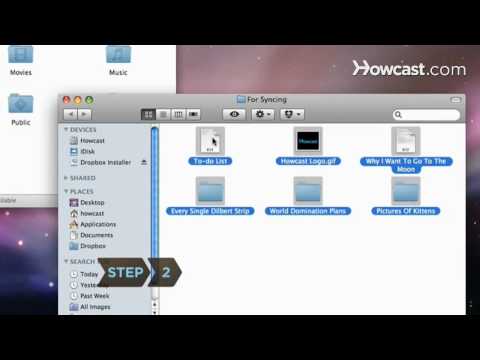
Playback starts YouTube’s embedded player (privacy-enhanced mode).
How to Sync Files with Dropbox
ChannelHowcastDescription from the creator
Full Playlist: youtube.com/playlist?list=PLLALQuK1NDrgBJWGd8Pb…
-
-
Watch more How to Use Computer Software videos: howcast.com/videos/329220-How-to-Sync-Files-wit…
The Dropbox utility can automatically sync your computer files with other devices each time you save them.
Step 1: Install
Download and install Dropbox on your computer or mobile device and on any other computer or device that you want it to sync with.
Tip
To install Dropbox and sync files, you must be connected to the internet. If you are disconnected, Dropbox will automatically sync when your connection is restored.
Step 2: Add files
Drag the files you want to sync to your Dropbox folder – found in Documents on a PC or the home directory on a Mac.
Tip
Another method of adding files is to click the Upload link and follow the instructions to add your files on the Dropbox website.
Step 3: Edit
Revise or edit the file in your Dropbox.
Step 4: Save
Click Save to save the file. Dropbox will update your saved changes on your other devices within moments.
Step 5: Confirm
Confirm that your files are synced by finding the icon that looks like a checkmark inside a green circle. This icon indicates that the file is up-to-date.
Did You Know?
The album Synchronicity by The Police went to number one on Billboard's album chart in November, 1983.
-
-
Watch more How to Use Computer Software videos: howcast.com/videos/329220-How-to-Sync-Files-wit…
The Dropbox utility can automatically sync your computer files with other devices each time you save them.
Step 1: Install
Download and install Dropbox on your computer or mobile device and on any other computer or device that you want it to sync with.
Tip
To install Dropbox and sync files, you must be connected to the internet. If you are disconnected, Dropbox will automatically sync when your connection is restored.
Step 2: Add files
Drag the files you want to sync to your Dropbox folder – found in Documents on a PC or the home directory on a Mac.
Tip
Another method of adding files is to click the Upload link and follow the instructions to add your files on the Dropbox website.
Step 3: Edit
Revise or edit the file in your Dropbox.
Step 4: Save
Click Save to save the file. Dropbox will update your saved changes on your other devices within moments.
Step 5: Confirm
Confirm that your files are synced by finding the icon that looks like a checkmark inside a green circle. This icon indicates that the file is up-to-date.
Did You Know?
The album Synchronicity by The Police went to number one on Billboard's album chart in November, 1983.
About this tutorial
Howcast published this 1:22 video tutorial on October 31, 2010. It has been watched 105,432 times on YouTube.
- Channel
- Howcast
- Category
- Science & Technology
- Duration
- 1:22
- Published
- October 31, 2010
- Views
- 105,432
- Likes
- 96
Tags
Share
This tutorial in other languages
- FRComment synchroniser des fichiers avec Dropbox
- ESCómo sincronizar los archivos con Dropbox
- PTComo sincronizar arquivos com Dropbox
- ITCome sincronizzare i file con Dropbox
- DEWie man Sync Dateien mit Dropbox
- NLHoe te Sync-bestanden met Dropbox
- RUКак синхронизировать файлы с Dropbox
- PLJak synchronizować pliki z Dropbox
- JAどのようにDropboxのと同期ファイルへ
- ARكيفية مزامنة الملفات مع Dropbox
- HIकैसे ड्रॉपबॉक्स के साथ सिंक करने के लिए फ़ाइलें
- IDCara Sync File dengan Dropbox