Playback starts YouTube’s embedded player (privacy-enhanced mode).
How to Use a Flash Drive or Memory Stick
ChannelHowcastDescription from the creator
Full Playlist: youtube.com/playlist?list=PLLALQuK1NDrjq2j4ooO7…
-
-
Watch more Data Management & Storage videos: howcast.com/videos/383503-How-to-Use-a-Flash-Dr…
Moving files from one computer to another has never been easier with a flash drive, also known as a memory stick.
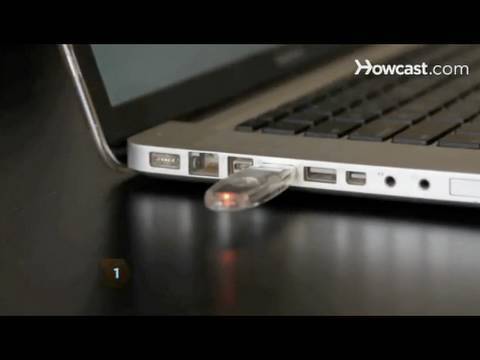
Step 1: Plug in the flash drive
Plug the flash drive into the computer in one of the USB ports on the side or on the back of your computer.
Step 2: Open My Computer
Open My Computer on a Windows machine to find the flash drive. It may be called drive D, E, or F depending on how many other drives are on your computer.
Step 3: Find the icon
Find the icon on a Mac computer that is on your desktop and says Flash Drive or Travel Drive.
Step 4: Find your files
Find the files on your computer that you want to save onto the flash drive.
Step 5: Drag the files
Drag the files you want in the flash drive either to the flash drive on My Computer or to the desktop icon on a Mac. A light will flash on the flash drive indicating it is copying the files.
Tip
If you are moving music, pictures, or video files and folders, make sure you have a flash drive with enough memory to hold it all.
Step 6: Eject the drive
Eject the drive properly by either right-clicking on it and selecting Eject on a Windows computer or dragging the flash drive icon into the trash on a Mac.
Step 7: Take the drive
Take the flash drive with you so you can access your files on any computer you come across during the course of your day.
Did You Know?
Early hard drives on computers held 20 megabytes and cost about $800. Today, an $8 flash drive holds 2 gigabytes, which is a 100-fold increase in capacity.
-
-
Watch more Data Management & Storage videos: howcast.com/videos/383503-How-to-Use-a-Flash-Dr…
Moving files from one computer to another has never been easier with a flash drive, also known as a memory stick.
Step 1: Plug in the flash drive
Plug the flash drive into the computer in one of the USB ports on the side or on the back of your computer.
Step 2: Open My Computer
Open My Computer on a Windows machine to find the flash drive. It may be called drive D, E, or F depending on how many other drives are on your computer.
Step 3: Find the icon
Find the icon on a Mac computer that is on your desktop and says Flash Drive or Travel Drive.
Step 4: Find your files
Find the files on your computer that you want to save onto the flash drive.
Step 5: Drag the files
Drag the files you want in the flash drive either to the flash drive on My Computer or to the desktop icon on a Mac. A light will flash on the flash drive indicating it is copying the files.
Tip
If you are moving music, pictures, or video files and folders, make sure you have a flash drive with enough memory to hold it all.
Step 6: Eject the drive
Eject the drive properly by either right-clicking on it and selecting Eject on a Windows computer or dragging the flash drive icon into the trash on a Mac.
Step 7: Take the drive
Take the flash drive with you so you can access your files on any computer you come across during the course of your day.
Did You Know?
Early hard drives on computers held 20 megabytes and cost about $800. Today, an $8 flash drive holds 2 gigabytes, which is a 100-fold increase in capacity.
About this tutorial
Howcast published this 1:34 video tutorial on October 31, 2010. It has been watched 809,989 times on YouTube.
- Channel
- Howcast
- Category
- Science & Technology
- Duration
- 1:34
- Published
- October 31, 2010
- Views
- 809,989
- Likes
- 1,971
Tags
Share
This tutorial in other languages
- FRComment utiliser un lecteur Flash ou Memory Stick
- ESCómo utilizar una unidad flash o Memory Stick
- PTComo usar uma unidade flash ou Memory Stick
- ITCome utilizzare un'unità flash o Memory Stick
- DEWie ein Flash-Laufwerk oder Memory Stick verwenden
- NLHoe maak je een flash drive of Memory Stick gebruiken
- RUКак использовать флэш-накопитель или карту памяти Memory Stick
- PLJak korzystać z pamięci flash lub karty Memory Stick
- JAフラッシュドライブまたはメモリースティックを使用する方法
- ARكيفية استخدام محرك أقراص فلاش أو ذاكرة Memory Stick
- HIएक फ्लैश ड्राइव या मेमोरी स्टिक का उपयोग कैसे करें
- IDCara menggunakan Flash Drive atau Memory Stick