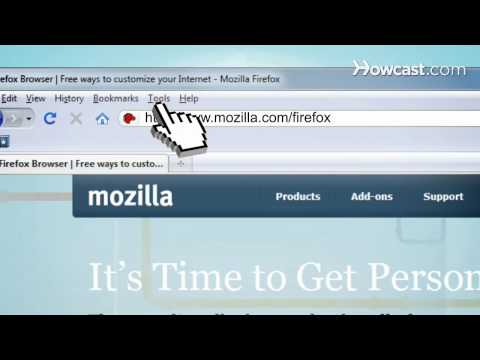
Playback starts YouTube’s embedded player (privacy-enhanced mode).
How to Use Firefox and Get the Most Out of Your Browser
ChannelHowcastDescription from the creator
Full Playlist: youtube.com/playlist?list=PLLALQuK1NDrgfCChmo4u…
-
-
Watch more Client Videos videos: howcast.com/videos/425129-How-to-Use-Firefox-an…
Want to get the most out of your internet experience? Check out the latest and greatest tips from Mozilla's Firefox.
Step 1: Use tabs
Browse multiple websites from a single Firefox window with tabs. Click the Plus sign to open a new tab; then, type a URL or search item right into the Location bar, as if it were a new window. Click and drag tabs to reorder them in a window or to move them to their own windows. To close a tab, click the X on the tab's right side.
Tip
When searching, switch the search engine you use by clicking on its icon in the search bar.
Step 2: Customize the browser
Make Firefox's settings work for you. In Windows, select Tools, then Options to set your own homepage, save your tabs for the next time Firefox starts, pick where to store downloaded files, change your tab settings, and much more. On a Mac, click Preferences under the Firefox menu.
Tip
You can always restore Firefox's default home page.
Step 3: Bookmark pages
Firefox makes it easy to find your favorite sites. Just click the star icon in the Location bar to bookmark a page; click it again to edit the bookmark's name and the folder where it's stored or to input searchable tags you can type into the Location bar to find the page quickly.
Tip
To view bookmarks in the browser window, press Command and B on a Mac or Control and B on a PC.
Step 4: Stay safe
Use Firefox for safe and secure browsing, too. Click Clear Recent History under Tools to erase private data, such as your browsing and search history, cookies, and cache, or choose Start Private Browsing and surf the web without saving any traceable data to your computer. Firefox also blocks pop-ups and possibly malicious sites automatically.
Step 5: Add more
Really want to get the most out of your browser? Check out the add-ons that make Firefox unique -- plug-ins and extensions that provide additional functionality and features, or personas and themes that change Firefox's visuals for a truly personal experience -- and discover how a great browser gets better every day.
Did You Know?
The Firefox support website, powered by volunteers from Mozilla's community, has lots of information about using Firefox.
-
-
Watch more Client Videos videos: howcast.com/videos/425129-How-to-Use-Firefox-an…
Want to get the most out of your internet experience? Check out the latest and greatest tips from Mozilla's Firefox.
Step 1: Use tabs
Browse multiple websites from a single Firefox window with tabs. Click the Plus sign to open a new tab; then, type a URL or search item right into the Location bar, as if it were a new window. Click and drag tabs to reorder them in a window or to move them to their own windows. To close a tab, click the X on the tab's right side.
Tip
When searching, switch the search engine you use by clicking on its icon in the search bar.
Step 2: Customize the browser
Make Firefox's settings work for you. In Windows, select Tools, then Options to set your own homepage, save your tabs for the next time Firefox starts, pick where to store downloaded files, change your tab settings, and much more. On a Mac, click Preferences under the Firefox menu.
Tip
You can always restore Firefox's default home page.
Step 3: Bookmark pages
Firefox makes it easy to find your favorite sites. Just click the star icon in the Location bar to bookmark a page; click it again to edit the bookmark's name and the folder where it's stored or to input searchable tags you can type into the Location bar to find the page quickly.
Tip
To view bookmarks in the browser window, press Command and B on a Mac or Control and B on a PC.
Step 4: Stay safe
Use Firefox for safe and secure browsing, too. Click Clear Recent History under Tools to erase private data, such as your browsing and search history, cookies, and cache, or choose Start Private Browsing and surf the web without saving any traceable data to your computer. Firefox also blocks pop-ups and possibly malicious sites automatically.
Step 5: Add more
Really want to get the most out of your browser? Check out the add-ons that make Firefox unique -- plug-ins and extensions that provide additional functionality and features, or personas and themes that change Firefox's visuals for a truly personal experience -- and discover how a great browser gets better every day.
Did You Know?
The Firefox support website, powered by volunteers from Mozilla's community, has lots of information about using Firefox.
About this tutorial
Howcast published this 2:53 video tutorial on November 13, 2010. It has been watched 60,142 times on YouTube.
- Channel
- Howcast
- Category
- Science & Technology
- Duration
- 2:53
- Published
- November 13, 2010
- Views
- 60,142
- Likes
- 126
Tags
Share
This tutorial in other languages
- FRComment utiliser Firefox et obtenir le maximum de votre navigateur
- ESCómo utilizar Firefox y sacar el máximo provecho de su navegador
- PTComo usar o Firefox e tirar o máximo proveito do seu navegador
- ITCome utilizzare Firefox e ottenere il massimo dal vostro browser
- DEWie zu verwenden Firefox und holen Sie das Beste aus Ihrem Browser
- NLHoe te gebruiken Firefox en Haal het meeste uit uw browser
- RUКак использовать Firefox и получить максимальную отдачу от Вашего браузера
- PLJak korzystać z Firefoksa i jak najlepiej z przeglądarki
- JAどのように使用のFirefoxにして、ブラウザのほとんどはアウトを取得します。
- ARكيفية استخدام فايرفوكس والحصول على أقصى استفادة من المستعرض الخاص بك
- HIका प्रयोग करें फ़ायरफ़ॉक्स कैसे और अपने ब्राउज़र का गेट आउट
- IDCara Gunakan Firefox dan Dapatkan Most Out of Browser Anda