Playback starts YouTube’s embedded player (privacy-enhanced mode).
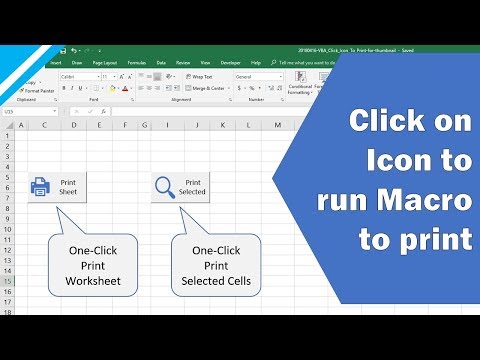
Excel VBA Tutorial: Click on icon to run print preview (or any VBA code) by assigning macro to shape
ChannelLaunch ExcelChapters
Description from the creator
→ launchexcel.com/record-your-first-macro-ebook
// Recommended Excel Courses //
1. Launch Excel Macros & VBA School: go.launchexcel.com/macros-vba-school-youtube
2. Excel Campus Elevate Program: go.launchexcel.com/excel-campus-elevate-youtube
3. My Online Training Hub Dashboards: go.launchexcel.com/moth-dashboard-course-youtube
4. Coursera Excel Specialisation: go.launchexcel.com/coursera-excel-specializatio…
5. Coursera Everyday Excel: go.launchexcel.com/coursera-everyday-excel-yout…
6. Coursera Excel Data Visualisation: go.launchexcel.com/coursera-data-vizualization-…
// Recommended Excel Templates //
If you are looking for pre-built, easy to use spreadsheets, check out Simple Sheets.
go.launchexcel.com/simple-sheets-templates-yout…
They have Excel templates covering cash flow planning, invoices, expense reports, personal budgets, and more!
DOWNLOAD WORKBOOK → launchexcel.com/media/samples/VBA/20180416-VBA_…
——
// EPISODE NOTES
In this tutorial video we look at how to set up a Print Button on any Excel worksheet that launches Print Preview when it's clicked.
Of course... you could use the normal Print function (with keyboard shortcut CTRL + P) for this purpose...
... but the value of this solution is that you can assign any VBA Macro to the Button and quickly run it from a worksheet.
For example, you could run macros to:
- Send off emails
- Show help forms (with documentation for your spreadsheet)
- Run automated reporting processes
... all with the click of a button on your worksheet.
Here we use the .printout method to print the worksheet.
Note: VBA = Visual Basic for Applications (Excel's built-in scripting language)
——
// VIDEO TIMINGS
0:00 - Introduction
0:36 - Viewer Request Explained
1:33 - Overview of 7 steps
3:30 - Step 1 Insert Button (Form Control)
5:15 - Step 2 Set Button property to allow print object
5:31 - Step 3 Insert Printer Icon
6:18 - Step 4 Resize Printer Icon (and change color)
7:17 - Step 5 Group shapes together
8:08 - Step 6 Assign Macro
8:32 - Step 7 Write VBA Code
8:55 - Testing how the Print Button works
——
// DOWNLOAD WORKBOOK FOR THIS TUTORIAL
Please follow these instructions to learn from the workbook download:
▸ Download the sample Excel workbook: launchexcel.com/media/samples/VBA/20180416-VBA_…
▸ Open the workbook and make sure to enable macros
▸ Follow the 7 steps on worksheet "Info" to create your own Print Icon
▸ Press ALT + F11 to open the VBA Editor
▸ Use F8 to step through the code in a subroutine (one line at a time)
▸ I suggest you adapt this to your own needs... just copy and paste the code, then change the code to work for you
▸ If you have a viewer request, leave me a comment below and I'll try to solve your problem in a new video
——
// REFERENCES
Excel Version: 2016 (used in video)
——
// VISIT MY WEBSITE
For more tutorials on Microsoft Excel and VBA visit my website
→ launchexcel.com
Connect with me on Social Media
→ twitter.com/VictorChan_
About this tutorial
Launch Excel published this 11:02 video tutorial on October 26, 2018. It has been watched 93,448 times on YouTube.
- Channel
- Launch Excel
- Category
- Education
- Duration
- 11:02
- Published
- October 26, 2018
- Views
- 93,448
- Likes
- 841
Tags
Share
Further reading
-
How to run macro in Excel and create a macro button
ablebits.com
One of the fastest ways to execute VBA in Excel is to run a macro from the Developer tab. If you have never dealt with VBA code before, you may need to activate the Developer tab first. And then, do the following: On th…
-
Add a Button and Assign a Macro in Excel - Automate Excel
automateexcel.com
Here you can assign an existing Macro to the button, record a new macro, create a new macro from scratch using VBA, or click “Cancel” and return to your button later. Assign Existing Macro to a Button. To assign an exis…
-
Print Worksheets VBA - Excel Macros
excelhowto.com
In Excel, when you click the Print button, Excel will not print hidden sheets, except use VBA.Here is a large examples of print Worksheets use Excel VBA, Before you read this tutorial, you may need to know the differenc…
This tutorial in other languages
- FRExcel VBA Tutoriel: Cliquez sur l'icône pour l'aperçu avant impression de l'exécution (ou tout autre code VBA) en attribuant à la forme macro
- ESExcel VBA Tutorial: Haga clic en el icono de vista previa tirada (o cualquier código VBA) mediante la asignación de macro a la forma
- PTExcel VBA Tutorial: Clique no ícone para visualização tiragem (ou qualquer código VBA), atribuindo macro de forma
- ITExcel VBA Esercitazione: Fare clic sull'icona di anteprima di stampa run (o qualsiasi codice VBA) assegnando macro di forma
- DETutorial Excel VBA: Klicken Sie auf das Symbol, um run Druckvorschau (oder jeder Code VBA) von Makro Form zuweisen
- NLExcel VBA Tutorial: Klik op het pictogram om run afdrukvoorbeeld (of een VBA code) door het toewijzen van macro tot bloei
- RUExcel VBA Учебник: Нажмите на значок, чтобы запустить предварительный просмотр печати (или любой код VBA), назначая макрос формы
- PLExcel VBA Tutorial: Kliknij na ikonę, aby uruchomić podgląd wydruku (lub dowolny kod VBA) poprzez przypisanie makra do kształtu
- JAエクセルVBAチュートリアル:形状にマクロを割り当てることによって、印刷プレビュー(または任意のVBAコード)を実行するアイコンをクリックしてください
- ARاكسل VBA دروس: اضغط على الأيقونة لمعاينة النسخ المطبوعة (أو أي رمز VBA) عن طريق تعيين ماكرو لشكل
- HIएक्सेल VBA ट्यूटोरियल: रन मुद्रण पूर्वावलोकन के लिए आइकन पर क्लिक करें (या किसी भी VBA कोड) आकार करने के लिए मैक्रो बताए द्वारा
- IDExcel VBA Tutorial: Klik ikon untuk pratinjau run cetak (atau kode VBA) dengan menetapkan makro untuk bentuk