Playback starts YouTube’s embedded player (privacy-enhanced mode).
How to Add a Border to an Image in Photoshop
ChannelPhotoshop EssentialsChapters
Description from the creator
Download the written PDF on my Patreon: patreon.com/photoshopessentials
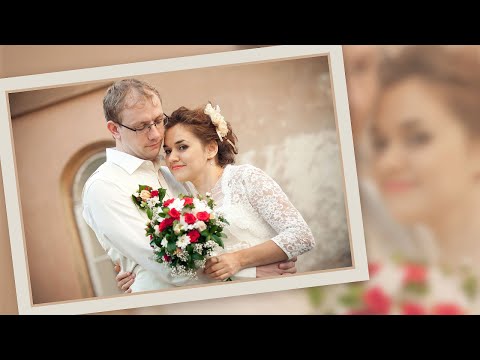
We start by adding more space around the image using Photoshop's Canvas Size command, and I show you the trick to getting the exact border size you need. Then we fill the space with color using a Solid Color fill layer. You'll learn how to choose a color from the Color Picker, and how to customize the border to your specific photo by grabbing a color directly from the image itself. Once we've added the main photo border, I'll show you how to add a second, smaller border around the image using a layer effect. Any recent version of Photoshop will work.
► Video chapters:
00:00 - Intro
00:16 - Unlock the Background layer
00:49 - Open the Canvas Size dialog box
01:00 - Add more canvas space around the photo
01:58 - How to undo the canvas size and try again
02:16 - Add a Solid Color fill layer
02:28 - Choose white for the color of the photo border
02:41 - Drag the fill layer below the image
02:51 - Changing the border color
03:14 - Choosing a border color from the image
03:34 - Add a stroke layer effect to the image
04:14 - Choosing a stroke color
04:37 - Adjusting the stroke size
► Get Photoshop here: prf.hn/l/dlXjD2w
► Image used in this video: prf.hn/l/MDQ3Gg9
► More Photo Border videos:
• PICTURE IN PICTURE effect: youtu.be/VEJxLEplI2Y
• PHOTO COLLAGE from a single image: youtu.be/ziJiOhfbi5M
• DROP SHADOW photo border: youtu.be/KR8QvnvXFpc
► Help support new videos and download my tutorials as PDFs!
Learn more: photoshopessentials.com/print-ready-pdfs/
#photoshoptutorial #photoshop #adobephotoshop
About this tutorial
Photoshop Essentials published this 5:18 video tutorial on October 25, 2018. It has been watched 423,193 times on YouTube.
- Channel
- Photoshop Essentials
- Category
- Education
- Duration
- 5:18
- Published
- October 25, 2018
- Views
- 423,193
- Likes
- 5,403
Tags
Share
Further reading
-
How to add a border or frame around a photo in Photoshop ...
helpx.adobe.com
Choose Image > Canvas Size, make sure the Relative checkbox is selected, and type the number of pixels to add around the image. Each number is split between edges, so entering 200 pixels in each field results in a borde…
-
The Ultimate Guide on How to Add a Border in Photoshop
colesclassroom.com
Creating a Grunge Border in Photoshop. Grunge borders add a chic feel to any image. It’s a creative alternative that takes just a few steps to create a grunge border for Photoshop. Step 1: Choose an Image of a Skyline.…
-
How to Add a Border to a Photo with Photoshop
photoshopessentials.com
Photo borders are a great way to add a sense of class and elegance to an image. And adding a border is easy once you know the steps. We'll start by adding more space around the image using Photoshop's Canvas Size comman…
This tutorial in other languages
- FRComment ajouter une bordure à une image dans Photoshop
- ESCómo agregar un borde a una imagen en Photoshop
- PTComo adicionar uma borda a uma imagem no Photoshop
- ITCome aggiungere un bordo a un'immagine in Photoshop
- DEWie man eine Grenze zu einem Bild in Photoshop hinzufügen
- NLHoe kan ik een Border Voeg toe aan een afbeelding in Photoshop
- RUКак добавить рамку к изображению в Photoshop
- PLJak dodać obramowanie do zdjęcia w Photoshopie
- JAPhotoshopで画像に境界線を追加する方法
- ARكيفية إضافة الحدود للصورة في برنامج فوتوشوب
- HIकैसे Photoshop में एक छवि के लिए एक सीमा जोड़ें
- IDBagaimana Tambahkan Perbatasan ke sebuah gambar di Photoshop