Playback starts YouTube’s embedded player (privacy-enhanced mode).
How to Compile and Run Java Program from Command Prompt
ChannelLearningLadDescription from the creator
In this video, we'll walk you through the process of running a Java program from the command prompt on your computer.
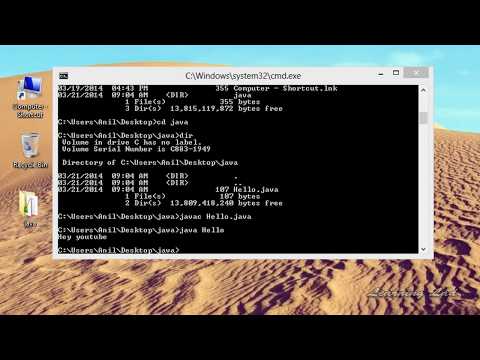
In the previous tutorial, we learned how to write a simple Java program using Eclipse IDE, where we could easily run the program by clicking the "Run" button. However, in this tutorial, we’ll dive into how you can execute your Java program directly from the command prompt by typing commands.
The first thing you'll need is to download and install the Java Development Kit (JDK) on your system and set the correct environment path variable. If you're not sure how to do this, I’ve created a separate video that walks you through the process, so check that out!
Once your system is ready, we’ll start by writing the Java code. I’ll be using Notepad++ to write the code, but you can use any text editor of your choice. We’ll create a simple class called Hello with a main method that prints "Hey YouTube" to the screen.
You’ll learn how to save the Java file with the correct extension (.java), then move to the command prompt where we’ll compile the code using the javac command. The compilation converts our Java code into bytecode, and we’ll execute it with the java command to get the output.
By the end of this tutorial, you’ll understand the steps involved in compiling and running a Java program from the command prompt.
Key Steps Covered:
Writing a basic Java program in a text editor.
Saving the file with the correct .java extension.
Compiling the program using the javac command.
Running the compiled .class file using the java command.
Understanding how the Java compilation and execution process works.
Get the source code of this tutorial at our website
LearningLad.com
Catch us on Social Media
facebook facebook.com/LearningLad
twitter twitter.com/LearningLadEdu
Google+ google.com/+LearningLad
In the previous tutorial, we learned how to write a simple Java program using Eclipse IDE, where we could easily run the program by clicking the "Run" button. However, in this tutorial, we’ll dive into how you can execute your Java program directly from the command prompt by typing commands.
The first thing you'll need is to download and install the Java Development Kit (JDK) on your system and set the correct environment path variable. If you're not sure how to do this, I’ve created a separate video that walks you through the process, so check that out!
Once your system is ready, we’ll start by writing the Java code. I’ll be using Notepad++ to write the code, but you can use any text editor of your choice. We’ll create a simple class called Hello with a main method that prints "Hey YouTube" to the screen.
You’ll learn how to save the Java file with the correct extension (.java), then move to the command prompt where we’ll compile the code using the javac command. The compilation converts our Java code into bytecode, and we’ll execute it with the java command to get the output.
By the end of this tutorial, you’ll understand the steps involved in compiling and running a Java program from the command prompt.
Key Steps Covered:
Writing a basic Java program in a text editor.
Saving the file with the correct .java extension.
Compiling the program using the javac command.
Running the compiled .class file using the java command.
Understanding how the Java compilation and execution process works.
Get the source code of this tutorial at our website
LearningLad.com
Catch us on Social Media
facebook facebook.com/LearningLad
twitter twitter.com/LearningLadEdu
Google+ google.com/+LearningLad
About this tutorial
LearningLad published this 6:27 video tutorial on November 7, 2014. It has been watched 1,372,101 times on YouTube.
- Channel
- LearningLad
- Category
- Education
- Duration
- 6:27
- Published
- November 7, 2014
- Views
- 1,372,101
- Likes
- 12,842
Tags
Share
This tutorial in other languages
- FRComment compiler et exécuter programme Java à partir invite de commande
- ESCómo compilar y ejecutar programas Java desde el símbolo del sistema
- PTComo compilar e executar programas Java a partir da Command Prompt
- ITCome compilare ed eseguire programmi Java dal prompt dei comandi
- DEWie zum Kompilieren und Ausführen von Java-Programm von Eingabeaufforderung
- NLHoe te compileren en uitvoeren van Java-programma van Command Prompt
- RUКак компилировать и запускать Java-программу из командной строки
- PLJak skompilować i uruchomić program Java z wiersza polecenia
- JAどのようにコマンドプロンプトからコンパイルして実行するJavaプログラムへ
- ARكيفية برنامج جافا ترجمة وتشغيل من موجه الأوامر
- HIकैसे कमांड प्रॉम्प्ट से संकलित करें और भागो जावा कार्यक्रम के लिए
- IDCara Kompilasi dan Jalankan Program Java dari Command Prompt