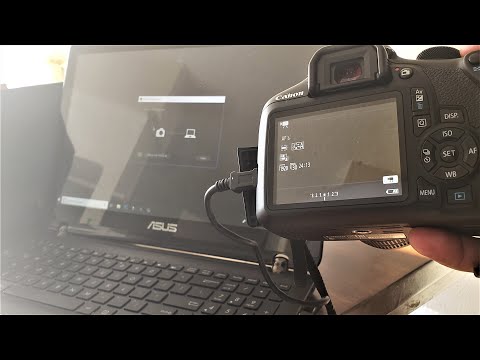
Playback starts YouTube’s embedded player (privacy-enhanced mode).
How To Connect Canon EOS Camera To Computer Using USB
ChanneldpirateDescription from the creator
How to connect a Canon T6 (or any similar Canon camera) to a laptop or PC using USB
LINK
Once you select your camera the latest EOS Utility program is the one you'll need to download.
usa.canon.com/internet/portal/us/home/support/s…
ALTERNATIVE STEPS
If these steps didn't work for your Canon camera, here's 10 steps to wireless connect your camera to a computer if needed.
1. Press the MENU button to display the menu.
2. Use the keys of the Multi-controller and select Wireless communication settings under the tab.
3. Select Wi-Fi/NFC
4. Select Enable
5. Under the tool tab, set Auto power off to Disable if necessary.
6. Select Wi-Fi function
7. Select the computer option
8. Select Easy connection then select OK
9. On your computer find the SSID (now displayed on the camera) within the wifi settings. So it'll be the same as connecting to any wifi. The Encryption key (also displayed on the camera) is what you'll use as the password. Once you're connected select OK on your camera when it says Start paring devices.
10. Open the EOS Utility program on your computer. If you don't have it yet you can download it here
usa.canon.com/internet/portal/us/home/support/s…
Once the program is up, and you're still on the camera's wifi connection, select Paring over WiFi/LAN, select the camera then OK. On your camera select OK when it shows the connection to your computer. After this, as long as you have the EOS Utility program installed, it should start right away.
LINK
Once you select your camera the latest EOS Utility program is the one you'll need to download.
usa.canon.com/internet/portal/us/home/support/s…
ALTERNATIVE STEPS
If these steps didn't work for your Canon camera, here's 10 steps to wireless connect your camera to a computer if needed.
1. Press the MENU button to display the menu.
2. Use the keys of the Multi-controller and select Wireless communication settings under the tab.
3. Select Wi-Fi/NFC
4. Select Enable
5. Under the tool tab, set Auto power off to Disable if necessary.
6. Select Wi-Fi function
7. Select the computer option
8. Select Easy connection then select OK
9. On your computer find the SSID (now displayed on the camera) within the wifi settings. So it'll be the same as connecting to any wifi. The Encryption key (also displayed on the camera) is what you'll use as the password. Once you're connected select OK on your camera when it says Start paring devices.
10. Open the EOS Utility program on your computer. If you don't have it yet you can download it here
usa.canon.com/internet/portal/us/home/support/s…
Once the program is up, and you're still on the camera's wifi connection, select Paring over WiFi/LAN, select the camera then OK. On your camera select OK when it shows the connection to your computer. After this, as long as you have the EOS Utility program installed, it should start right away.
About this tutorial
dpirate published this 1:35 video tutorial on November 2, 2019. It has been watched 1,175,068 times on YouTube.
Tags
Share
This tutorial in other languages
- FRComment connecter Canon EOS à l'ordinateur via USB
- ESCómo conectar Canon EOS cámara al ordenador con USB
- PTComo conectar Canon EOS câmera para o computador através de USB
- ITCome collegare Canon EOS la fotocamera al computer utilizzando la connessione USB
- DEHow To Connect Canon EOS Kamera auf den Computer Verwenden von USB
- NLHow To Connect Canon EOS camera naar de computer met behulp van USB
- RUКак подключить Canon EOS камеры к компьютеру с помощью USB
- PLJak podłączyć Canon EOS aparatu do komputera Korzystanie z USB
- JAどのようにUSBを使用して接続キヤノンEOSカメラにコンピュータ
- ARكيفية توصيل كانون EOS الكاميرا إلى جهاز الكمبيوتر عن طريق USB
- HIकैसे करने के लिए कनेक्ट Canon EOS कैमरा करने के लिए कंप्यूटर यूएसबी का उपयोग करना
- IDCara Connect Canon EOS Kamera Untuk Komputer Menggunakan USB