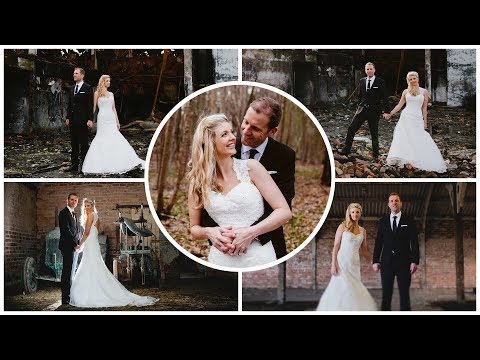
Playback starts YouTube’s embedded player (privacy-enhanced mode).
How to Make a Photo Collage in Photoshop
ChannelPhotoshop Tutorials by Layer LifeDescription from the creator
If you do not have "New Guide Layout", then follow these steps instead:
Go to View - New Guide. Then input Vertical 50%.
Then got to View - New Guide again. Then input Horizontal 50%.
Like and Subscribe. Comment if you have any questions.
Photo Credit:
John Hope
flickr.com/photos/johnhopephotography/8691574515
flickr.com/photos/johnhopephotography/8692690720
flickr.com/photos/johnhopephotography/8691571503
flickr.com/photos/johnhopephotography/8691571117
flickr.com/photos/johnhopephotography/8692687450
creativecommons.org/licenses/by/2.0/
Added photos to template collage.
About this tutorial
Photoshop Tutorials by Layer Life published this 6:13 video tutorial on October 25, 2017. It has been watched 709,568 times on YouTube.
- Category
- Education
- Duration
- 6:13
- Published
- October 25, 2017
- Views
- 709,568
- Likes
- 6,126
Tags
Share
Further reading
-
How to Make a Photoshop Collage in 9 Simple Steps
digital-photography-school.com
Collages are easy to put together in Photoshop, so let’s walk through the steps. Note that I am working on a Mac with Photoshop CS3, so your system may have slight variations in the key commands needed. Photo selection…
-
How to Make a Collage in Photoshop (Step by Step Guide!)
expertphotography.com
Using Photoshop to create a photo collage may seem daunting at first. But once you learn the details of the process, you’ll see that the steps are quite simple and easy to understand. What makes Photoshop different from…
-
Create collages, montages | Photoshop, Photoshop Elements
helpx.adobe.com
Learn to Create collages, montages | Photoshop, Photoshop Elements. Resize the layer by dragging the anchor points. Reposition the layer by clicking inside the bounding box and dragging.
This tutorial in other languages
- FRComment faire un collage photo dans Photoshop
- ESCómo hacer un collage de fotos en Photoshop
- PTComo fazer uma colagem da foto no Photoshop
- ITCome fare un collage di foto in Photoshop
- DEWie eine Foto-Collage in Photoshop Machen
- NLHoe maak je een foto Collage in Photoshop
- RUКак сделать коллаж из фотографий в Photoshop
- PLJak zrobić kolaż zdjęć w Photoshopie
- JAPhotoshopで写真のコラージュを作る方法
- ARكيفية جعل صورة مجمعة من صور في فوتوشوب
- HIकैसे में फ़ोटोशॉप चित्रों का कोलाज बनाने के लिए
- IDCara Membuat Kolase Foto di Photoshop