Playback starts YouTube’s embedded player (privacy-enhanced mode).
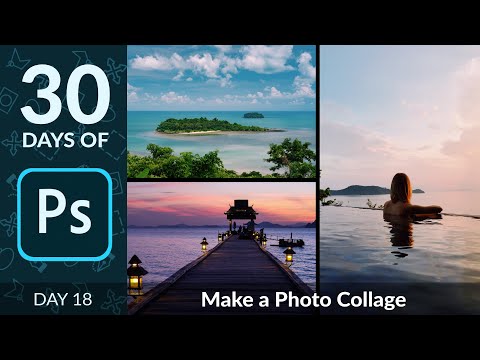
How to Create a Photo Collage in Photoshop | Day 18
ChannelPHLEARNChapters
Description from the creator
Two photo collages, one Photoshop trick — build a grid of clipping-mask squares once, then drop in Smart Object photos that you can resize, swap, and rearrange without ever losing quality.
CHAPTERS
00:00 Loading all your images into one document
01:44 Building a 4-square Instagram grid template
04:25 Converting layers to Smart Objects
05:52 Clipping photos into the grid with clipping masks
07:44 Adding a white divider line
09:03 Building an 8x10 print collage template
11:56 Why Smart Objects protect your resizing
THE STEPS
1. Go to File, then Scripts, then Load Files into Stack to pull all your source photos into one document at once.
2. Create a new document sized for your collage, then use black squares and Free Transform's percentage fields to build an even grid.
3. Right-click each photo layer and choose Convert to Smart Object before resizing, so shrinking and enlarging never costs you resolution.
4. Drag a photo above one of your grid squares, right-click, and choose Create Clipping Mask (or press Option/Alt+Command/Ctrl+G) so it only shows inside that shape.
5. Transform each clipped photo freely — since it's clipped to its square, you can't accidentally cover the wrong area.
6. Add a thin white marquee selection, fill it, duplicate, and rotate to create simple divider lines between panels.
7. Repeat the grid-and-clip process at print dimensions (8x10 inches at 300 PPI) for a version you can actually print.
Sign up for 30 Days of Photoshop:
phlearn.com/30-days-of-photoshop-signup
―
PHLEARN PRO: every PRO tutorial, one membership
◦ 200+ in-depth courses and masterclasses on Photoshop, Lightroom and photography
◦ 1,000+ downloadable PSDs, RAW images and sample files to follow along
◦ Presets, Photoshop actions and LUTs included
◦ New PRO tutorials every month, streamed in 4K with captions and chapters
◦ Rated 4.93/5 by 3,900+ students
◦ Cancel anytime, 100% money-back guarantee
▶ phlearn.com/pro
―
Follow us on social!
Instagram: instagram.com/phlearn/
Facebook: facebook.com/phlearn
Twitter: twitter.com/phlearn
#Photoshop #PhotoCollage #SmartObjects
About this tutorial
PHLEARN published this 13:14 video tutorial on January 25, 2020. It has been watched 610,990 times on YouTube.
Tags
Share
Further reading
-
Learn how to create a circular photo collage in Photoshop ...
blog.entheosweb.com
Step 4: Let’s give some bokeh effect to the background.Hence we’ll first need to select the Brush Tool.Click on the Brush Tool in the Tools panel to select it, or press the letter B.
-
How to Create a Photo Collage Effect Action in Photoshop
design.tutsplus.com
1. Set the Background for the Action Step 1. First, grab the photo that you want to edit. Step 2. Let's start creating our action. We want to put it in a separate set for easier management.
-
Create collages, montages | Photoshop, Photoshop Elements
helpx.adobe.com
Resize the layer by dragging the anchor points. Reposition the layer by clicking inside the bounding box and dragging. Note: If a layer displays larger than the collage image, drag the layer in any direction until you c…
This tutorial in other languages
- FRComment créer un collage photo dans Photoshop | jour 18
- ESCómo crear un collage de fotos en Photoshop | día 18
- PTComo criar uma colagem da foto no Photoshop | dia 18
- ITCome creare un collage di foto in Photoshop | giorno 18
- DEWie eine Foto-Collage in Photoshop erstellen | Tag 18
- NLHoe kan ik een Photo Collage maken in Photoshop | dag 18
- RUКак создать коллаж из фотографий в Photoshop | День 18
- PLJak utworzyć kolaż zdjęć w Photoshopie | dzień 18
- JAPhotoshopで写真のコラージュを作成する方法| 18日目
- ARكيفية إنشاء صورة مجمعة من صور في فوتوشوب | يوم 18
- HIकैसे Photoshop में एक फोटो कोलाज बनाने के लिए | दिवस 18
- IDCara Membuat Kolase Foto di Photoshop | hari 18