Playback starts YouTube’s embedded player (privacy-enhanced mode).
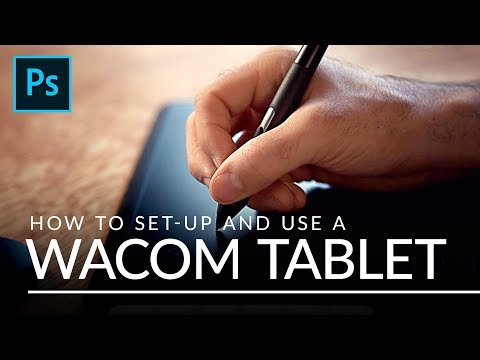
How to Set Up and Use a Wacom Tablet
ChannelPHLEARNChapters
Description from the creator
▶ Download the sample image and PDF guide for this tutorial (free with a PHLEARN account): phlearn.com/tutorial/use-wacom-tablet/
Set up a Wacom pen tablet to edit faster and more efficiently in Photoshop — driver setup, pressure sensitivity, mapping the tablet to your screen, and the brush and keyboard shortcut settings that actually matter for retouching work. Not sponsored, just Aaron's own workflow.
CHAPTERS
00:00 Why a tablet changes how you edit
01:27 Tablet setup and preferences
07:43 Brush settings in Photoshop
11:05 Keyboard shortcuts in Photoshop
13:53 Tablet vs. mouse, side by side
THE STEPS
1. Download and install the drivers from Wacom's website — this is what puts the tablet's preferences panel on your computer.
2. In the driver preferences, map the tablet to your screen and set pen pressure sensitivity to match how hard you naturally press.
3. In Photoshop's Brush Settings, turn on pen pressure controls for opacity and size so your strokes respond the way a real brush would.
4. Learn the keyboard shortcuts that pair with tablet work — zooming, changing brush size, and switching tools without leaving the canvas.
5. Compare a tablet stroke to a mouse stroke on the same detail work to see where the control difference actually shows up.
Get the same tablet Aaron uses:
amzn.to/3ccRxpY
We prefer the medium tablet over a smaller or cheaper alternative because of its higher pressure levels, PPS, and movement resolution — if there were a smaller size with the same specs, Aaron would be using it.
―
PHLEARN PRO: every PRO tutorial, one membership
◦ 200+ in-depth courses and masterclasses on Photoshop, Lightroom and photography
◦ 1,000+ downloadable PSDs, RAW images and sample files to follow along
◦ Presets, Photoshop actions and LUTs included
◦ New PRO tutorials every month, streamed in 4K with captions and chapters
◦ Rated 4.93/5 by 3,900+ students
◦ Cancel anytime, 100% money-back guarantee
▶ phlearn.com/pro
―
Follow us on social!
Instagram: instagram.com/phlearn/
Facebook: facebook.com/phlearn
Twitter: twitter.com/phlearn
Set up a Wacom pen tablet to edit faster and more efficiently in Photoshop — driver setup, pressure sensitivity, mapping the tablet to your screen, and the brush and keyboard shortcut settings that actually matter for retouching work. Not sponsored, just Aaron's own workflow.
CHAPTERS
00:00 Why a tablet changes how you edit
01:27 Tablet setup and preferences
07:43 Brush settings in Photoshop
11:05 Keyboard shortcuts in Photoshop
13:53 Tablet vs. mouse, side by side
THE STEPS
1. Download and install the drivers from Wacom's website — this is what puts the tablet's preferences panel on your computer.
2. In the driver preferences, map the tablet to your screen and set pen pressure sensitivity to match how hard you naturally press.
3. In Photoshop's Brush Settings, turn on pen pressure controls for opacity and size so your strokes respond the way a real brush would.
4. Learn the keyboard shortcuts that pair with tablet work — zooming, changing brush size, and switching tools without leaving the canvas.
5. Compare a tablet stroke to a mouse stroke on the same detail work to see where the control difference actually shows up.
Get the same tablet Aaron uses:
amzn.to/3ccRxpY
We prefer the medium tablet over a smaller or cheaper alternative because of its higher pressure levels, PPS, and movement resolution — if there were a smaller size with the same specs, Aaron would be using it.
―
PHLEARN PRO: every PRO tutorial, one membership
◦ 200+ in-depth courses and masterclasses on Photoshop, Lightroom and photography
◦ 1,000+ downloadable PSDs, RAW images and sample files to follow along
◦ Presets, Photoshop actions and LUTs included
◦ New PRO tutorials every month, streamed in 4K with captions and chapters
◦ Rated 4.93/5 by 3,900+ students
◦ Cancel anytime, 100% money-back guarantee
▶ phlearn.com/pro
―
Follow us on social!
Instagram: instagram.com/phlearn/
Facebook: facebook.com/phlearn
Twitter: twitter.com/phlearn
About this tutorial
PHLEARN published this 17:55 video tutorial on November 11, 2018. It has been watched 2,264,459 times on YouTube.
- Channel
- PHLEARN
- Category
- Education
- Duration
- 17:55
- Published
- November 11, 2018
- Views
- 2,264,459
- Likes
- 31,522
Tags
Share
This tutorial in other languages
- FRComment faire pour configurer et utiliser une tablette Wacom
- ESCómo configurar y utilizar una tableta Wacom
- PTComo configurar e usar um Tablet Wacom
- ITCome impostare e utilizzare una tavoletta Wacom
- DEWie Einrichten und Verwenden Sie ein Wacom Tablet
- NLHoe kan ik instellen en gebruiken van een Wacom tablet
- RUКак установить и использовать Wacom Tablet
- PLJak skonfigurować i używać tabletu Wacom
- JAどのようにセットアップし、使用するワコムのタブレット
- ARكيفية إعداد واستخدام لاكوم اللوحي
- HIकैसे सेट अप और उपयोग एक Wacom गोली करने के लिए
- IDCara Set Up dan Gunakan Wacom Tablet