Playback starts YouTube’s embedded player (privacy-enhanced mode).
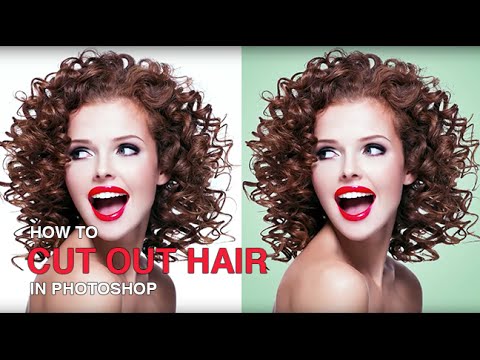
How to Cut Out Hair in Photoshop
ChannelPHLEARNChapters
Description from the creator
Cut out hair in Photoshop with real strand-level detail, using the Channels panel instead of a plain selection tool. It works best with dark hair on a light background or light hair on a dark background — the more contrast, the cleaner the cutout.
CHAPTERS
00:00 Why channels beat a normal selection for hair
02:36 Boosting contrast in the highest-contrast color channel with Levels
04:40 Turning the channel into a selection and layer mask
06:58 Fixing fringing with a clipping mask
10:50 Before and after
THE STEPS
1. In the Channels panel, find whichever channel (Red, Green, or Blue) shows the most contrast between the hair and the background.
2. Duplicate that channel and open Levels (Cmd/Ctrl+L). Push the black point up until the hair is extremely dark against the background — but not so far that the edges of individual strands turn coarse.
3. Cmd/Ctrl-click the channel copy to load it as a selection, go back to your layers, and click the layer mask icon.
4. Invert the mask (Cmd/Ctrl+I) so the subject is visible and the background drops out. Paint on the mask to fix any areas that shouldn't be transparent.
5. To remove fringing (a light or white edge left around the hair), create a new layer, right-click it and choose Create Clipping Mask, then sample nearby colors and paint over the fringe on that clipped layer.
See the full course on this technique (PHLEARN PRO):
phlearn.com/tutorial/cut-hair-photoshop/
―
PHLEARN PRO: every PRO tutorial, one membership
◦ 200+ in-depth courses and masterclasses on Photoshop, Lightroom and photography
◦ 1,000+ downloadable PSDs, RAW images and sample files to follow along
◦ Presets, Photoshop actions and LUTs included
◦ New PRO tutorials every month, streamed in 4K with captions and chapters
◦ Rated 4.93/5 by 3,900+ students
◦ Cancel anytime, 100% money-back guarantee
▶ phlearn.com/pro
―
Follow us on social!
Instagram: instagram.com/phlearn/
Facebook: facebook.com/phlearn
Twitter: twitter.com/phlearn
CHAPTERS
00:00 Why channels beat a normal selection for hair
02:36 Boosting contrast in the highest-contrast color channel with Levels
04:40 Turning the channel into a selection and layer mask
06:58 Fixing fringing with a clipping mask
10:50 Before and after
THE STEPS
1. In the Channels panel, find whichever channel (Red, Green, or Blue) shows the most contrast between the hair and the background.
2. Duplicate that channel and open Levels (Cmd/Ctrl+L). Push the black point up until the hair is extremely dark against the background — but not so far that the edges of individual strands turn coarse.
3. Cmd/Ctrl-click the channel copy to load it as a selection, go back to your layers, and click the layer mask icon.
4. Invert the mask (Cmd/Ctrl+I) so the subject is visible and the background drops out. Paint on the mask to fix any areas that shouldn't be transparent.
5. To remove fringing (a light or white edge left around the hair), create a new layer, right-click it and choose Create Clipping Mask, then sample nearby colors and paint over the fringe on that clipped layer.
See the full course on this technique (PHLEARN PRO):
phlearn.com/tutorial/cut-hair-photoshop/
―
PHLEARN PRO: every PRO tutorial, one membership
◦ 200+ in-depth courses and masterclasses on Photoshop, Lightroom and photography
◦ 1,000+ downloadable PSDs, RAW images and sample files to follow along
◦ Presets, Photoshop actions and LUTs included
◦ New PRO tutorials every month, streamed in 4K with captions and chapters
◦ Rated 4.93/5 by 3,900+ students
◦ Cancel anytime, 100% money-back guarantee
▶ phlearn.com/pro
―
Follow us on social!
Instagram: instagram.com/phlearn/
Facebook: facebook.com/phlearn
Twitter: twitter.com/phlearn
About this tutorial
PHLEARN published this 12:52 video tutorial on November 7, 2014. It has been watched 1,735,762 times on YouTube.
Tags
Share
This tutorial in other languages
- FRComment couper les cheveux dans Photoshop
- ESCómo cortar pelo en Photoshop
- PTComo cortar o cabelo fora em Photoshop
- ITCome tagliare i capelli in Photoshop
- DEWie auszuschneiden Haar in Photoshop
- NLHoe kan Cut Out Hair in Photoshop
- RUКак вырезать волосы в Photoshop
- PLJak wyciąć włosy w Photoshopie
- JAどのようにPhotoshopのカットアウト髪へ
- ARكيفية قطع الشعر في فوتوشوب
- HIकैसे Photoshop में कट आउट बाल करने के लिए
- IDCara Cut Out Rambut di Photoshop