Playback starts YouTube’s embedded player (privacy-enhanced mode).
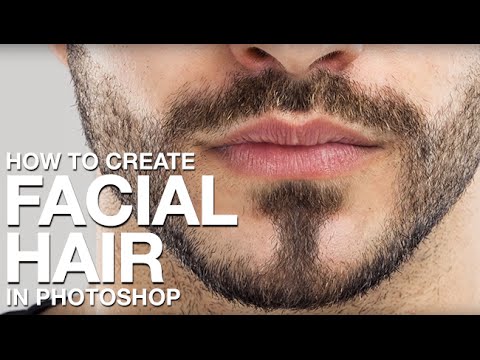
How to Create Facial Hair in Photoshop
ChannelPHLEARNIn brief
You’ll craft realistic facial hair in Photoshop—stubble, beards, or anything in between—by designing a custom brush from scratch. Instead of using generic overlays, this method lets you paint hair that looks natural and unique, perfect for retouching portraits or creative projects.
Key steps
- Paint a single, natural-looking hair stroke on a new layer with the Brush Tool.
- Select the hair and define it as a custom brush via Edit → Define Brush Preset.
- Adjust Brush Settings for Shape Dynamics, Scattering, and Angle Jitter to avoid repetitive patterns.
- Fine-tune spacing, roundness jitter, and opacity for irregular, lifelike hair strokes.
- Paint the hair onto the face, following natural growth directions.
- Sample varied colors (lights, darks, and highlights) while painting for realism.
Questions & answers
Do I need a specific brush shape to start?
No—you’ll create the brush from a single hair stroke you paint yourself.
Chapters
Description from the creator
▶ Download the Photoshop brush for this tutorial (free with a PHLEARN account): phlearn.com/tutorial/make-facial-hair-photoshop/
Create realistic facial hair in Photoshop from scratch — stubble, a beard, or anything in between — by building your own custom brush instead of relying on stock overlays. Once the brush is dialed in, painting the hair on is the easy part.
CHAPTERS
00:00 What you'll be able to do
02:12 Painting a single hair to build the custom brush
04:03 Turning it into a brush with Define Brush Preset
05:00 Dialing in the brush menu settings
08:40 Painting facial hair onto the face
11:05 Before and after
THE STEPS
1. On a new layer, paint one single, perfect hair with the Brush Tool — this becomes your custom brush, so make it count.
2. Select the hair (Marquee Tool, or Cmd/Ctrl-click the layer thumbnail), then go to Edit → Define Brush Preset and name it.
3. Open the Brush Settings panel (Window → Brush Settings) and dial in Shape Dynamics, Scattering, and Angle Jitter — this is what keeps the hair from looking like a repeated stamp.
4. Adjust spacing, roundness jitter, and opacity until test strokes look like real, irregular hair rather than a pattern.
5. Paint the hair onto the face, working in the direction real hair grows.
6. Hold Alt/Option to sample different colors as you go — real facial hair is never one flat color, so mix in lights and darks (and a little white for highlights).
―
PHLEARN PRO: every PRO tutorial, one membership
◦ 200+ in-depth courses and masterclasses on Photoshop, Lightroom and photography
◦ 1,000+ downloadable PSDs, RAW images and sample files to follow along
◦ Presets, Photoshop actions and LUTs included
◦ New PRO tutorials every month, streamed in 4K with captions and chapters
◦ Rated 4.93/5 by 3,900+ students
◦ Cancel anytime, 100% money-back guarantee
▶ phlearn.com/pro
―
Follow us on social!
Instagram: instagram.com/phlearn/
Facebook: facebook.com/phlearn
Twitter: twitter.com/phlearn
Create realistic facial hair in Photoshop from scratch — stubble, a beard, or anything in between — by building your own custom brush instead of relying on stock overlays. Once the brush is dialed in, painting the hair on is the easy part.
CHAPTERS
00:00 What you'll be able to do
02:12 Painting a single hair to build the custom brush
04:03 Turning it into a brush with Define Brush Preset
05:00 Dialing in the brush menu settings
08:40 Painting facial hair onto the face
11:05 Before and after
THE STEPS
1. On a new layer, paint one single, perfect hair with the Brush Tool — this becomes your custom brush, so make it count.
2. Select the hair (Marquee Tool, or Cmd/Ctrl-click the layer thumbnail), then go to Edit → Define Brush Preset and name it.
3. Open the Brush Settings panel (Window → Brush Settings) and dial in Shape Dynamics, Scattering, and Angle Jitter — this is what keeps the hair from looking like a repeated stamp.
4. Adjust spacing, roundness jitter, and opacity until test strokes look like real, irregular hair rather than a pattern.
5. Paint the hair onto the face, working in the direction real hair grows.
6. Hold Alt/Option to sample different colors as you go — real facial hair is never one flat color, so mix in lights and darks (and a little white for highlights).
―
PHLEARN PRO: every PRO tutorial, one membership
◦ 200+ in-depth courses and masterclasses on Photoshop, Lightroom and photography
◦ 1,000+ downloadable PSDs, RAW images and sample files to follow along
◦ Presets, Photoshop actions and LUTs included
◦ New PRO tutorials every month, streamed in 4K with captions and chapters
◦ Rated 4.93/5 by 3,900+ students
◦ Cancel anytime, 100% money-back guarantee
▶ phlearn.com/pro
―
Follow us on social!
Instagram: instagram.com/phlearn/
Facebook: facebook.com/phlearn
Twitter: twitter.com/phlearn
About this tutorial
PHLEARN published this 15:13 video tutorial on November 9, 2014. It has been watched 4,091,740 times on YouTube.
Tags
Share
This tutorial in other languages
- FRComment faire pour créer des cheveux du visage dans Photoshop
- ESCómo crear pelo facial en Photoshop
- PTComo criar Pêlos faciais no Photoshop
- ITCome creare Barba e baffi in Photoshop
- DESo erstellen Bart in Photoshop
- NLHoe kan ik Facial Hair in Photoshop aanmaken
- RUКак создать Волосы на лице в фотошопе
- PLJak utworzyć Zarost w Photoshopie
- JAPhotoshopでひげを作成する方法
- ARكيفية إنشاء شعر الوجه في فوتوشوب
- HIकैसे Photoshop में चेहरे बाल बनाने के लिए
- IDCara Membuat rambut di wajah di Photoshop