Playback starts YouTube’s embedded player (privacy-enhanced mode).
How to Change Eye Color in Photoshop
ChannelPHLEARNChapters
Description from the creator
▶ Download the practice files for this tutorial (free with a PHLEARN account): phlearn.com/tutorial/change-eye-color-photoshop/
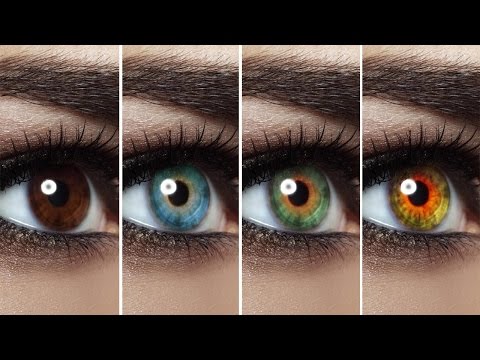
How to change eye color in Photoshop, realistically — not just a flat color overlay. The key is restricting every adjustment to a mask on a group, so you can stack curves and hue/saturation layers freely without ever touching anything outside the iris.
We start with a dark brown eye and turn it blue, green, and a couple of fully custom colors, using the same repeatable technique each time: select, mask, adjust.
CHAPTERS
00:00 The eye color technique explained
01:19 Making a precise selection around the iris
04:08 Masking a group so color stays contained
06:39 Changing color with Hue/Saturation
08:46 Building more realistic color variations
13:04 Adding texture and blending for realism
THE STEPS
1. Create a new layer, then a Curves adjustment layer above it, and brighten the image to make selecting easier.
2. Select just inside the edge of the eye with the Elliptical Marquee Tool, invert the mask, delete the underlying layer, then invert again.
3. Apply a Gaussian Blur to the mask edge so the selection doesn't look hard-edged.
4. Group the layers (Cmd/Ctrl+G) and Alt/Option-drag the mask onto the group so every adjustment inside stays contained to the eye.
5. Add a Hue/Saturation adjustment layer inside the group and shift the hue to any color — desaturate slightly for blues and greens.
6. Add texture with a second Curves layer, painting color variation into the iris by hand for a realistic (not flat) result.
Read the full step-by-step tutorial:
phlearn.com/tutorial/change-eye-color-photoshop/
―
PHLEARN PRO: every PRO tutorial, one membership
◦ 200+ in-depth courses and masterclasses on Photoshop, Lightroom and photography
◦ 1,000+ downloadable PSDs, RAW images and sample files to follow along
◦ Presets, Photoshop actions and LUTs included
◦ New PRO tutorials every month, streamed in 4K with captions and chapters
◦ Rated 4.93/5 by 3,900+ students
◦ Cancel anytime, 100% money-back guarantee
▶ phlearn.com/pro
―
Follow us on social!
Instagram: instagram.com/phlearn/
Facebook: facebook.com/phlearn
Twitter: twitter.com/phlearn
#Photoshop #PhotoshopTutorial #PhotoEditing
How to change eye color in Photoshop, realistically — not just a flat color overlay. The key is restricting every adjustment to a mask on a group, so you can stack curves and hue/saturation layers freely without ever touching anything outside the iris.
We start with a dark brown eye and turn it blue, green, and a couple of fully custom colors, using the same repeatable technique each time: select, mask, adjust.
CHAPTERS
00:00 The eye color technique explained
01:19 Making a precise selection around the iris
04:08 Masking a group so color stays contained
06:39 Changing color with Hue/Saturation
08:46 Building more realistic color variations
13:04 Adding texture and blending for realism
THE STEPS
1. Create a new layer, then a Curves adjustment layer above it, and brighten the image to make selecting easier.
2. Select just inside the edge of the eye with the Elliptical Marquee Tool, invert the mask, delete the underlying layer, then invert again.
3. Apply a Gaussian Blur to the mask edge so the selection doesn't look hard-edged.
4. Group the layers (Cmd/Ctrl+G) and Alt/Option-drag the mask onto the group so every adjustment inside stays contained to the eye.
5. Add a Hue/Saturation adjustment layer inside the group and shift the hue to any color — desaturate slightly for blues and greens.
6. Add texture with a second Curves layer, painting color variation into the iris by hand for a realistic (not flat) result.
Read the full step-by-step tutorial:
phlearn.com/tutorial/change-eye-color-photoshop/
―
PHLEARN PRO: every PRO tutorial, one membership
◦ 200+ in-depth courses and masterclasses on Photoshop, Lightroom and photography
◦ 1,000+ downloadable PSDs, RAW images and sample files to follow along
◦ Presets, Photoshop actions and LUTs included
◦ New PRO tutorials every month, streamed in 4K with captions and chapters
◦ Rated 4.93/5 by 3,900+ students
◦ Cancel anytime, 100% money-back guarantee
▶ phlearn.com/pro
―
Follow us on social!
Instagram: instagram.com/phlearn/
Facebook: facebook.com/phlearn
Twitter: twitter.com/phlearn
#Photoshop #PhotoshopTutorial #PhotoEditing
About this tutorial
PHLEARN published this 16:39 video tutorial on November 1, 2014. It has been watched 1,034,616 times on YouTube.
Tags
Share
This tutorial in other languages
- FRComment changer la couleur des yeux dans Photoshop
- ESCómo cambio de color de los ojos en Photoshop
- PTComo alterar a cor dos olhos no Photoshop
- ITCome Cambia colore degli occhi in Photoshop
- DEWie zu ändern Augenfarbe in Photoshop
- NLHoe te veranderen Kleur ogen in Photoshop
- RUКак изменить цвет глаз в Photoshop
- PLJak zmienić kolor oczu w Photoshopie
- JAどのようにPhotoshopの変更瞳の色に
- ARكيفية تغيير لون العيون في فوتوشوب
- HIकैसे Photoshop में बदलें आई कलर करने के लिए
- IDCara Mengubah warna mata di Photoshop