Playback starts YouTube’s embedded player (privacy-enhanced mode).
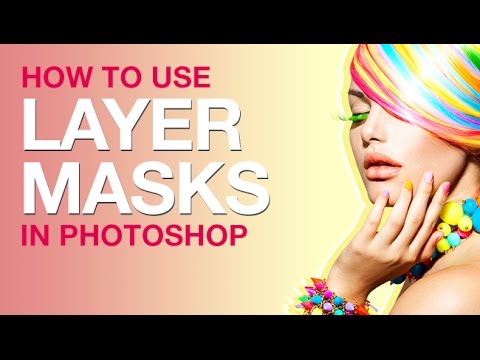
How to Use Layer Masks in Photoshop
ChannelPHLEARNChapters
Description from the creator
▶ Download the PDF guide for this tutorial (free with a PHLEARN account): phlearn.com/tutorial/use-layer-masks-photoshop/
Layer masks in Photoshop let you make part of a layer visible and part invisible — without ever deleting a pixel. They're the single most important non-destructive tool in Photoshop: unlike the Eraser Tool, a layer mask can be repainted, adjusted, or fully undone years later, because nothing is actually destroyed.
This tutorial covers what layer masks do, how they compare to destructive editing, and how to use them on regular layers, adjustment layers, and entire groups — the core skill behind cutting subjects out of backgrounds, blending images, and non-destructive color adjustments.
CHAPTERS
00:00 What layer masks actually do
01:19 Layer masks vs. the Eraser Tool
04:02 Creating your first layer mask
05:48 Advanced masking techniques
12:04 Masking adjustment layers
14:23 Duplicating masks across layers
16:15 Using masks on groups
THE STEPS
1. Click the layer mask icon at the bottom of the Layers panel (or go to Layer, then Layer Mask, then Reveal All) to add a white (fully visible) mask.
2. Paint black on the mask to hide part of the layer, white to reveal it again — nothing is ever deleted.
3. Use the Brush, Gradient, or Clone Stamp Tool directly on a mask for soft transitions and precise cutouts.
4. Add masks to adjustment layers (like Solid Color or Curves) to control exactly where a color or tonal change applies.
5. Alt/Option-drag a mask from one layer to another to reuse it instantly.
6. Group multiple layers together and mask the whole group at once for complex composites.
Read the full step-by-step tutorial:
phlearn.com/layer-masks-yt00-desc
―
PHLEARN PRO: every PRO tutorial, one membership
◦ 200+ in-depth courses and masterclasses on Photoshop, Lightroom and photography
◦ 1,000+ downloadable PSDs, RAW images and sample files to follow along
◦ Presets, Photoshop actions and LUTs included
◦ New PRO tutorials every month, streamed in 4K with captions and chapters
◦ Rated 4.93/5 by 3,900+ students
◦ Cancel anytime, 100% money-back guarantee
▶ phlearn.com/pro
―
Follow us on social!
Instagram: instagram.com/phlearn/
Facebook: facebook.com/phlearn
Twitter: twitter.com/phlearn
#Photoshop #LayerMasks #PhotoshopTutorial
Layer masks in Photoshop let you make part of a layer visible and part invisible — without ever deleting a pixel. They're the single most important non-destructive tool in Photoshop: unlike the Eraser Tool, a layer mask can be repainted, adjusted, or fully undone years later, because nothing is actually destroyed.
This tutorial covers what layer masks do, how they compare to destructive editing, and how to use them on regular layers, adjustment layers, and entire groups — the core skill behind cutting subjects out of backgrounds, blending images, and non-destructive color adjustments.
CHAPTERS
00:00 What layer masks actually do
01:19 Layer masks vs. the Eraser Tool
04:02 Creating your first layer mask
05:48 Advanced masking techniques
12:04 Masking adjustment layers
14:23 Duplicating masks across layers
16:15 Using masks on groups
THE STEPS
1. Click the layer mask icon at the bottom of the Layers panel (or go to Layer, then Layer Mask, then Reveal All) to add a white (fully visible) mask.
2. Paint black on the mask to hide part of the layer, white to reveal it again — nothing is ever deleted.
3. Use the Brush, Gradient, or Clone Stamp Tool directly on a mask for soft transitions and precise cutouts.
4. Add masks to adjustment layers (like Solid Color or Curves) to control exactly where a color or tonal change applies.
5. Alt/Option-drag a mask from one layer to another to reuse it instantly.
6. Group multiple layers together and mask the whole group at once for complex composites.
Read the full step-by-step tutorial:
phlearn.com/layer-masks-yt00-desc
―
PHLEARN PRO: every PRO tutorial, one membership
◦ 200+ in-depth courses and masterclasses on Photoshop, Lightroom and photography
◦ 1,000+ downloadable PSDs, RAW images and sample files to follow along
◦ Presets, Photoshop actions and LUTs included
◦ New PRO tutorials every month, streamed in 4K with captions and chapters
◦ Rated 4.93/5 by 3,900+ students
◦ Cancel anytime, 100% money-back guarantee
▶ phlearn.com/pro
―
Follow us on social!
Instagram: instagram.com/phlearn/
Facebook: facebook.com/phlearn
Twitter: twitter.com/phlearn
#Photoshop #LayerMasks #PhotoshopTutorial
About this tutorial
PHLEARN published this 20:04 video tutorial on October 31, 2016. It has been watched 1,291,071 times on YouTube.
Share
This tutorial in other languages
- FRComment utiliser des masques de calque dans Photoshop
- ESCómo utilizar máscaras de capa en Photoshop
- PTComo usar máscaras de camada em Photoshop
- ITCome usare le maschere di livello in Photoshop
- DEWie Verwenden von Ebenenmasken in Photoshop
- NLHoe te gebruiken Laagmaskers in Photoshop
- RUКак использовать маски слоя в Photoshop
- PLJak stosować maski warstwy w Photoshopie
- JAPhotoshopのレイヤーマスクを使用する方法
- ARكيفية استخدام أقنعة طبقة في برنامج فوتوشوب
- HIकैसे में फ़ोटोशॉप लेयर मास्क का उपयोग करने के
- IDCara Menggunakan Masker Layer dalam Photoshop