Playback starts YouTube’s embedded player (privacy-enhanced mode).
How to install Oblivion mods using Oblivion Mod Manager
ChannelMuruloDescription from the creator
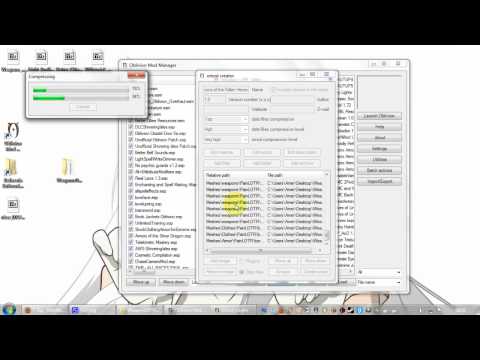
Tutorial on how to install oblivion mods and create omods using oblivion mod manager (also known as OBMM). I highly recommend using this program and turning every mod you download into an 'omod'.
And first off, sorry for any long pauses or stuttering. It was my first time addressing a virtual crowd and blabbering on to myself alone in a room for 10 minutes while remembering to mention everything I wanted to say.
EDIT@10/04/2010: This is not an invitation to ask me all sorts of mod related questions or about PC problems. Sorry but the reason I made this video is precisely due to me getting too many PMs about stuff that already has plenty of tutorials, explanations, etc...
If this video doesn't help you then please post at the tesnexus.com forums for further assistance. The site is FREE to use.
Oblivion Mod Manager: tesnexus.com/downloads/file.php?id=2097
If OBMM says "LIMITED USER MODE" or something similar, you need to right click your obmm shortcut and select properties... then under the 'Compatibility' tab select 'Run as Administrator'.
7zip program: 7-zip.org/
If 7-zip doesn't default to your archive opening program (ie, clicking the .rar or .7z files doesn't launch it) then right click the .rar or .7z. or .zip file and hit 'properties'. At the top of properties it will say 'opens with' and next to it will be a button labelled 'Change'. Hit the button and you should then browse to your installation directory of 7zip (C://program files/7-zip/) and select 7zFM.exe. Select it and hit OK... apply your changes and it should now work. You will have to repeat this step for the other file types. Eg. Once for .rar, again for .7z and again for .zip.
Mods used as examples:
Natural Environments
tesnexus.com/downloads/file.php?id=2536
Weapons Of The Fallen Heroes
tesnexus.com/downloads/file.php?id=7633
Better Cities
tesnexus.com/downloads/file.php?id=16513
Lightspell Recolor OMOD
tesnexus.com/downloads/file.php?id=9744
Black Wisteria
tesnexus.com/downloads/file.php?id=22232
Creating omods:
-Download the mod you want
-Extract the files
-Open OBMM (Oblivion Mod Manager)
-Hit 'Create' at the bottom
-Click 'Add Folder' and browse to the folder you extracted
-Select it and hit OK
-Now enter the mod name at the top
-Check that the .esp and data files show up correctly in the small box. You need to select the folder that contains the .esp and the other misc folders (eg. Textures/Meshes/Sounds/etc...).
-Hit 'Create OMOD' at the bottom
-Click 'Yes' to any following dialogue screens.
If the mod comes as an .omod file already then just double click it!
If you notice the zipped file you downloaded contains a folder called 'omod conversion data', then don't bother unzipping it. Follow the steps described above and simply select 'Add Archive' instead of 'Add Folder'. Browse to the archive and select it. Create the omod and you're done!
Archive Invalidation:
If you experience any problems with the mod (like missing textures, floating heads, exclamation marks), then just look at the right hand side of OBMM and click on 'Utilities':
-Select 'Archive Invalidation'
-Select 'BSA Alteration' in the new window that pops up
-Select all the boxes under 'Files types to include'
-Hit 'Update Now'
This should ensure all mod added contents show up correctly ingame.
About Data Conflicts:
If you have several files with 'red squares' then you just need to decide for yourself if it's anything to worry about.
I have lots of texture replacers and keep installing new ones that may 'overlap' for some items, so naturally I keep getting warnings. But all I'm doing is replacing the old files with newer ones. It's not really 'breaking' anything.
Most popular mods usually list a series of compatibility issues with other popular mods. Be sure to always check the readme and mod page info properly!
If something does mess up though, you can easily uninstall both conflicting mods and reinstall the one you want to keep. All it will take is a few double clicks with Oblivion Mod Manager!
Load Order Questions: cs.elderscrolls.com/constwiki/index.php/Oblivio…
All mods from tesnexus.com/
Small note: That's not my normal desktop resolution. I changed it to 1280x720 for this video to make things large enough to see. I tried testing 1920x1200 in HD quality, but once it was uploaded to youtube the writing just looked terrible.
Image used for wallpaper: danbooru.donmai.us/post/show/627320
She's from the anime Bakemonogatari... click on the link on the page labelled as '4250x3148' on the left hand side to get the full image size.
And first off, sorry for any long pauses or stuttering. It was my first time addressing a virtual crowd and blabbering on to myself alone in a room for 10 minutes while remembering to mention everything I wanted to say.
EDIT@10/04/2010: This is not an invitation to ask me all sorts of mod related questions or about PC problems. Sorry but the reason I made this video is precisely due to me getting too many PMs about stuff that already has plenty of tutorials, explanations, etc...
If this video doesn't help you then please post at the tesnexus.com forums for further assistance. The site is FREE to use.
Oblivion Mod Manager: tesnexus.com/downloads/file.php?id=2097
If OBMM says "LIMITED USER MODE" or something similar, you need to right click your obmm shortcut and select properties... then under the 'Compatibility' tab select 'Run as Administrator'.
7zip program: 7-zip.org/
If 7-zip doesn't default to your archive opening program (ie, clicking the .rar or .7z files doesn't launch it) then right click the .rar or .7z. or .zip file and hit 'properties'. At the top of properties it will say 'opens with' and next to it will be a button labelled 'Change'. Hit the button and you should then browse to your installation directory of 7zip (C://program files/7-zip/) and select 7zFM.exe. Select it and hit OK... apply your changes and it should now work. You will have to repeat this step for the other file types. Eg. Once for .rar, again for .7z and again for .zip.
Mods used as examples:
Natural Environments
tesnexus.com/downloads/file.php?id=2536
Weapons Of The Fallen Heroes
tesnexus.com/downloads/file.php?id=7633
Better Cities
tesnexus.com/downloads/file.php?id=16513
Lightspell Recolor OMOD
tesnexus.com/downloads/file.php?id=9744
Black Wisteria
tesnexus.com/downloads/file.php?id=22232
Creating omods:
-Download the mod you want
-Extract the files
-Open OBMM (Oblivion Mod Manager)
-Hit 'Create' at the bottom
-Click 'Add Folder' and browse to the folder you extracted
-Select it and hit OK
-Now enter the mod name at the top
-Check that the .esp and data files show up correctly in the small box. You need to select the folder that contains the .esp and the other misc folders (eg. Textures/Meshes/Sounds/etc...).
-Hit 'Create OMOD' at the bottom
-Click 'Yes' to any following dialogue screens.
If the mod comes as an .omod file already then just double click it!
If you notice the zipped file you downloaded contains a folder called 'omod conversion data', then don't bother unzipping it. Follow the steps described above and simply select 'Add Archive' instead of 'Add Folder'. Browse to the archive and select it. Create the omod and you're done!
Archive Invalidation:
If you experience any problems with the mod (like missing textures, floating heads, exclamation marks), then just look at the right hand side of OBMM and click on 'Utilities':
-Select 'Archive Invalidation'
-Select 'BSA Alteration' in the new window that pops up
-Select all the boxes under 'Files types to include'
-Hit 'Update Now'
This should ensure all mod added contents show up correctly ingame.
About Data Conflicts:
If you have several files with 'red squares' then you just need to decide for yourself if it's anything to worry about.
I have lots of texture replacers and keep installing new ones that may 'overlap' for some items, so naturally I keep getting warnings. But all I'm doing is replacing the old files with newer ones. It's not really 'breaking' anything.
Most popular mods usually list a series of compatibility issues with other popular mods. Be sure to always check the readme and mod page info properly!
If something does mess up though, you can easily uninstall both conflicting mods and reinstall the one you want to keep. All it will take is a few double clicks with Oblivion Mod Manager!
Load Order Questions: cs.elderscrolls.com/constwiki/index.php/Oblivio…
All mods from tesnexus.com/
Small note: That's not my normal desktop resolution. I changed it to 1280x720 for this video to make things large enough to see. I tried testing 1920x1200 in HD quality, but once it was uploaded to youtube the writing just looked terrible.
Image used for wallpaper: danbooru.donmai.us/post/show/627320
She's from the anime Bakemonogatari... click on the link on the page labelled as '4250x3148' on the left hand side to get the full image size.
About this tutorial
Murulo published this 9:32 video tutorial on October 30, 2010. It has been watched 349,931 times on YouTube.
Tags
Share
This tutorial in other languages
- FRComment installer Oblivion mods utilisant Oblivion Mod Responsable
- ESCómo instalar mods de Oblivion Mod Manager utilizando el olvido
- PTComo instalar mods Oblivion usando Oblivion Mod Gestor
- ITCome installare mods Oblivion con Oblivion Mod Responsabile
- DEWie man Oblivion Mods Oblivion Mod Manager installieren
- NLHoe te Oblivion mods installeren met behulp van Oblivion Mod Manager
- RUКак установить Oblivion модов с помощью Oblivion Mod-менеджер
- PLJak zainstalować modów Oblivion Oblivion Mod Manager, używając
- JAOblivionのModのマネージャーを使用して忘却の改造をインストールする方法
- ARكيفية تثبيت تعديل النسيان باستخدام النسيان وزارة الدفاع مدير
- HIगुमनामी मॉड प्रबंधक का उपयोग कर गुमनामी mods स्थापित करने के लिए
- IDBagaimana menginstal Oblivion mods menggunakan Oblivion Mod Manajer