Playback starts YouTube’s embedded player (privacy-enhanced mode).
How to Calibrate Your Kinect | Kinect for Xbox
ChannelHowcastTechGadgetsDescription from the creator
Watch more How to Set up and Play Kinect for Xbox videos: howcast.com/videos/496789-How-to-Calibrate-Your…
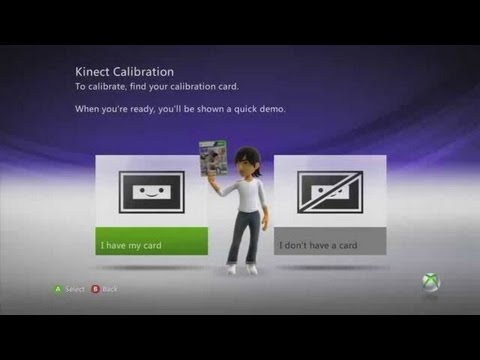
So right now I'm going to show you how to calibrate your Kinect for Xbox 360. So, here we are on our Kinect Hub and we want to get over to our Kinect Tuner. Xbox: Kinect Tuner. Now, we're actually going to need our controller for this. The first thing we have to do is hit the A button. Here we are, this is where we do our tracking, our audio and for our purposes calibration. So we're going to select calibration, and here we go. With your copy of a Kinect, you're going to receive a calibration card. So, we have our card, which is great. So we're going to select that because if we don't have our card we cannot continue. So what we're going to do is we have to take this card and line it up. Here I am, see, and this is what's going to happen. The Kinect is going to make us move forward or back depending on where it is and what image is showing. So, I'm probably going to have to move forward for this guy. Here we go, back it up, here we go. And there you go, you're going to go through a series of these so don't calibrate unless you absolutely have to. But you know, it's recommended from time to time if you feel that your Kinect is acting a little wonky. So, that's how you calibrate for the Xbox 360 Kinect.
So right now I'm going to show you how to calibrate your Kinect for Xbox 360. So, here we are on our Kinect Hub and we want to get over to our Kinect Tuner. Xbox: Kinect Tuner. Now, we're actually going to need our controller for this. The first thing we have to do is hit the A button. Here we are, this is where we do our tracking, our audio and for our purposes calibration. So we're going to select calibration, and here we go. With your copy of a Kinect, you're going to receive a calibration card. So, we have our card, which is great. So we're going to select that because if we don't have our card we cannot continue. So what we're going to do is we have to take this card and line it up. Here I am, see, and this is what's going to happen. The Kinect is going to make us move forward or back depending on where it is and what image is showing. So, I'm probably going to have to move forward for this guy. Here we go, back it up, here we go. And there you go, you're going to go through a series of these so don't calibrate unless you absolutely have to. But you know, it's recommended from time to time if you feel that your Kinect is acting a little wonky. So, that's how you calibrate for the Xbox 360 Kinect.
About this tutorial
HowcastTechGadgets published this 1:45 video tutorial on November 9, 2011. It has been watched 64,351 times on YouTube.
- Channel
- HowcastTechGadgets
- Category
- Howto & Style
- Duration
- 1:45
- Published
- November 9, 2011
- Views
- 64,351
- Likes
- 234
Tags
Share
This tutorial in other languages
- FRComment calibrer votre Kinect | Kinect pour Xbox
- ESCómo calibrar el Kinect | Kinect para Xbox
- PTComo calibrar o Kinect | Kinect para Xbox
- ITCome calibrare la propria Kinect | Kinect per Xbox
- DEWie kalibrieren Ihre Kinect | Kinect für Xbox
- NLProcedure voor het kalibreren Uw Kinect | Kinect voor Xbox
- RUКак откалибровать Kinect | Kinect для Xbox
- PLJak skalibrować Kinect | Kinect dla Xbox
- JAあなたのKinectを校正する方法| Xbox用のKinect
- ARكيفية معايرة كينيكت الخاصة بك | إكس بوكس
- HIआपका Kinect कैलिब्रेट कैसे | एक्सबॉक्स के लिए Kinect
- IDCara Kalibrasi Kinect Anda | Kinect untuk Xbox