Playback starts YouTube’s embedded player (privacy-enhanced mode).
How to change Shortcuts in Chrome
ChannelHOWTECHDescription from the creator
Don't forget to check out our site howtech.tv/ for more free how-to videos!
youtube.com/ithowtovids - our feed
facebook.com/howtechtv - join us on facebook
plus.google.com/103440382717658277879 - our group in Google+
In this tutorial, we will show you how to change shortcuts in Google chrome. In Chrome, changing keyboard shortcuts allows you to customize Chrome as per your likes and dislikes. You can reconfigure the shortcut keys as per your requirements.
Step 1 -- Get extensions in Chrome
We will start off by downloading an extension for Google chrome. With the browser window opened up, move to the address bar on top and type
"chrome://chrome/extensions"
Once the new page opens up, click on the "get more extensions" option at the bottom of the page.
Step 2 -- Google Chrome Webstore
This will redirect you to the Google chrome web store. In the pane towards the left side of the window, you will find a menu of all the categories. Above the options there is a search bar. Type in "Shortcut manager" over there and hit the enter key.
Step 3 -- Add to Chrome
From the results, towards the right side of the screen, click on the "ADD TO CHROME" button add the selected extension to the browser.
Step 4 -- Confirm new extension
With that done, a notification window will pop up. Over there, you will be given the details regarding the extension. Over there, click on the "Add" button and the extension will be installed on the browser.
Step 5 -- View All shortcuts
With that done, a new tab will open up. Click on the "all shortcuts list" option available towards the left side of the screen, click. With that done, a new notification window will open up. Over there, simply click on "Ok" and a list of shortcuts will appear on your screen.
Step 6 -- Edit shortcuts
Once there, you can view and change shortcuts in Chrome. For example in this tutorial, we will edit the shortcut for refreshing the page. In order to do that, we will click on the edit icon next to the Reload option.
Step 7 -- Notification Prompts
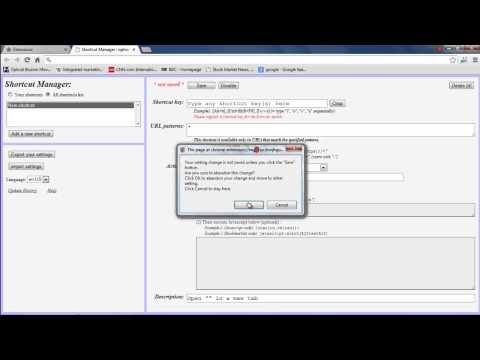
With that done, two notification windows will be displayed to you, one after the other. Simply press the ok button to proceed further.
Step 8 -- Save the changes
Once you've gone through them, move to the shortcut key section on top and hit the clear button. Now click on the field and input the new shortcut key. For example, we have used the "F12" key. With that done, move to the actions section below and select the Reload option from the drop down menu.
Step 9 -- New shortcut implemented
Once done, click on the save button on the top.
And that's it. Now whenever we would want to refresh the page, we will use F12 instead of F5, which was the shortcut key by default. In this manner, you can change shortcuts in Chrome.
About this tutorial
HOWTECH published this 2:04 video tutorial on October 26, 2013. It has been watched 74,225 times on YouTube.
- Channel
- HOWTECH
- Category
- Howto & Style
- Duration
- 2:04
- Published
- October 26, 2013
- Views
- 74,225
- Likes
- 105
Share
Further reading
-
How to Create Custom Keyboard Shortcuts For Extensions in ...
howtogeek.com
It looks like Google removed this feature in Chrome 53. RELATED: 47 Keyboard Shortcuts That Work in All Web Browsers. Google Chrome does, however, allow you to assign custom keyboard shortcuts to the extensions you have…
-
How to Make Chrome Shortcuts on Your Windows Desktop
lifewire.com
When you create a shortcut to a web page, the shortcut opens the web page in a standalone window without any menus, tabs, or other browser components. A Chrome shortcut can also be configured to open as a standard web p…
-
How to Customize Google Chrome Hotkeys
techjunkie.com
Google Chrome has a variety of hotkeys, otherwise keyboard shortcuts, you can press to quickly select options. Although the browser doesn’t have any hotkey customization options, there are a few extensions you can add t…
This tutorial in other languages
- FRComment changer de raccourci dans Chrome
- ESCómo cambiar atajos en Chrome
- PTComo mudar Atalhos no Chrome
- ITCome modificare le scorciatoie in Chrome
- DEWie Shortcuts in Chrome ändern
- NLHoe kan ik snelkoppelingen veranderen in Chrome
- RUКак изменить ярлыки в Chrome
- PLJak zmienić skróty w przeglądarce Chrome
- JAChromeでのショートカットを変更する方法
- ARكيفية تغيير الاختصارات في كروم
- HIक्रोम में शॉर्टकट बदलने के लिए
- IDBagaimana mengubah Shortcuts di Chrome